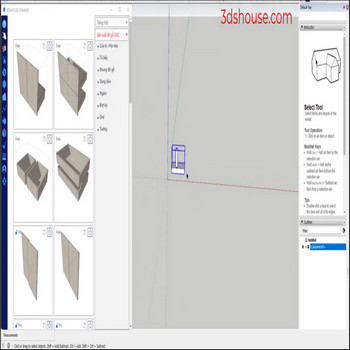
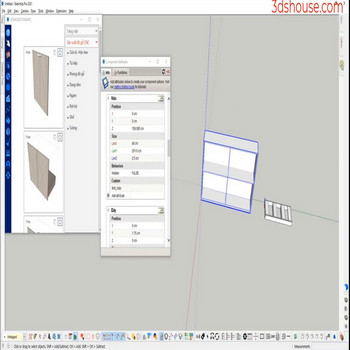
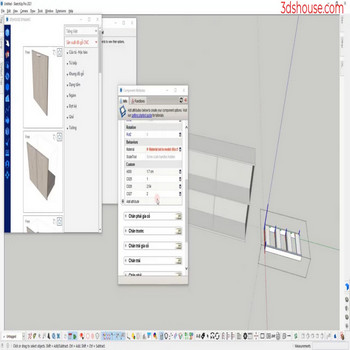
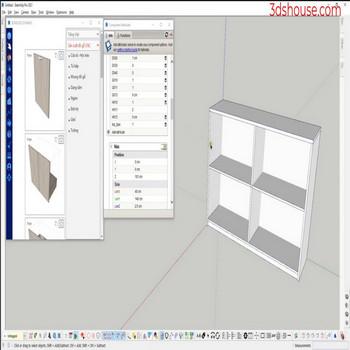
When you need to clean the property of a main dynamic (dynamic parent), doing it manually will take a long time use the Delete Dynamic Selection tool in SketchUp to automate things faster and avoid mistakes. Under the hood, every dynamic component stores its formulas, options and behavior in a single hidden attribute dictionary named […]
Author Archives: Nguyen Huu Khanh
When you create a new dynamic component (dy_com) or this dy_com is similar to the old dy_com ,normally we will create a new dy_com, re-enter all the parameters, use the Copy Attribute tool in SketchUp to save more time. Authoring dynamic components requires SketchUp Pro (a named-user subscription since the perpetual licence was retired in […]
When programming Dynamic Components (dy_com) we often name properties and objects , normally we will create a new dy_com, re-enter all the parameters , use the Replace Attribute Selection tool to copy and replace dynamic component attributes automatically and avoid errors. Note that authoring and editing Dynamic Component attributes through the Component Attributes panel requires […]
When the models have a lot of textures and you want to export to an image file, use the export texture to image tool to batch-extract all texture bitmaps from your SketchUp model. This is a batch extractor: instead of exporting one rendered view, it pulls every texture bitmap off the selected models and writes […]
When an object already has a material applied and you then scale it, the textures get stretched or squashed along with the geometry, and resetting each one back to its original scale by hand is slow and tedious. The auto-rescale texture tool restores original texture scale in SketchUp in a single click. This happens for […]
When the models have multiple textures and you want to rotate the material accordingly, use the rotate material texture tool — the fastest way to fix texture direction in SketchUp Rotate Material Texture in SketchUp — Video Tutorial Steps by steps: Click tool rotate material texture – click on the material surface you want to […]
When models have multiple scales, to fix and restore the original texture scale in SketchUp, use the auto restore texture scale tool The reason this matters: in SketchUp (through the current 2026 release) the Scale tool does not just resize geometry — it bakes the scale factor into the group/component transform, so any texture inside […]
The materials applied to your SketchUp objects all live in the Materials panel under the In Model tab. Instead of removing them one by one, you can delete all materials in SketchUp in a single action with the delete all materials tool — the selected geometry falls back to SketchUp’s default front/back material. How to […]
When you want to copy multiple material layers of multiple models, use the auto material duplicate tool to copy materials between SketchUp files. This matters more than it sounds: on Windows the Materials browser is bound to the active SKP file, so a material you sample with the eyedropper in one open model cannot be […]
A SketchUp file keeps every component, material, tag, and style you have ever added — even after you erase or replace them — so models quietly bloat with unreferenced definitions. The Auto purge tool strips these unused entities in one click to reduce SketchUp file size and reduce lag. How to Optimize Heavy SketchUp Files […]

Tiếng Việt