

 Tiếng Việt
SketchUp
Replace Attribute in SketchUp Dynamic Components — Auto Tool
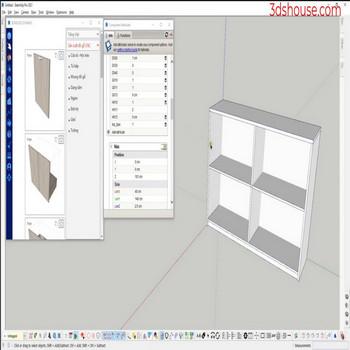
When programming Dynamic Components (dy_com) we often name properties and objects , normally we will create a new dy_com, re-enter all the parameters , use the Replace Attribute Selection tool to copy and replace dynamic component attributes automatically and avoid errors.
Note that authoring and editing Dynamic Component attributes through the Component Attributes panel requires SketchUp Pro (a named-user subscription since the perpetual license was retired in 2020); the free web/Make tiers can use existing dynamic components but cannot edit their attribute logic. The Dynamic Components extension itself is still maintained by the SketchUp Team and remains free for SketchUp 2026, though on a clean install you may need to install it from the Extension Warehouse rather than assuming it is already present.
The reason a tool like this matters: SketchUp gives you no built-in way to copy or replace attribute/value pairs from one dynamic component definition to another, and the moment you copy a dynamic component each copy becomes a unique, disconnected definition — editing the “master” does not propagate to the copies. That is exactly why re-typing formulas by hand is so error-prone, and why transferring dynamic component attributes by selection saves both time and silent typos in formula references.
How to Replace Attribute in Dynamic Component SketchUp – Video Tutorial
Steps by steps:
- Select dynamic component – click Replace Attribute Selection tool – select attribute to replace
- Enter the new attribute of dy_com
- The old attribute is replaced, the whole dy_com still works

Replace Attribute Selection
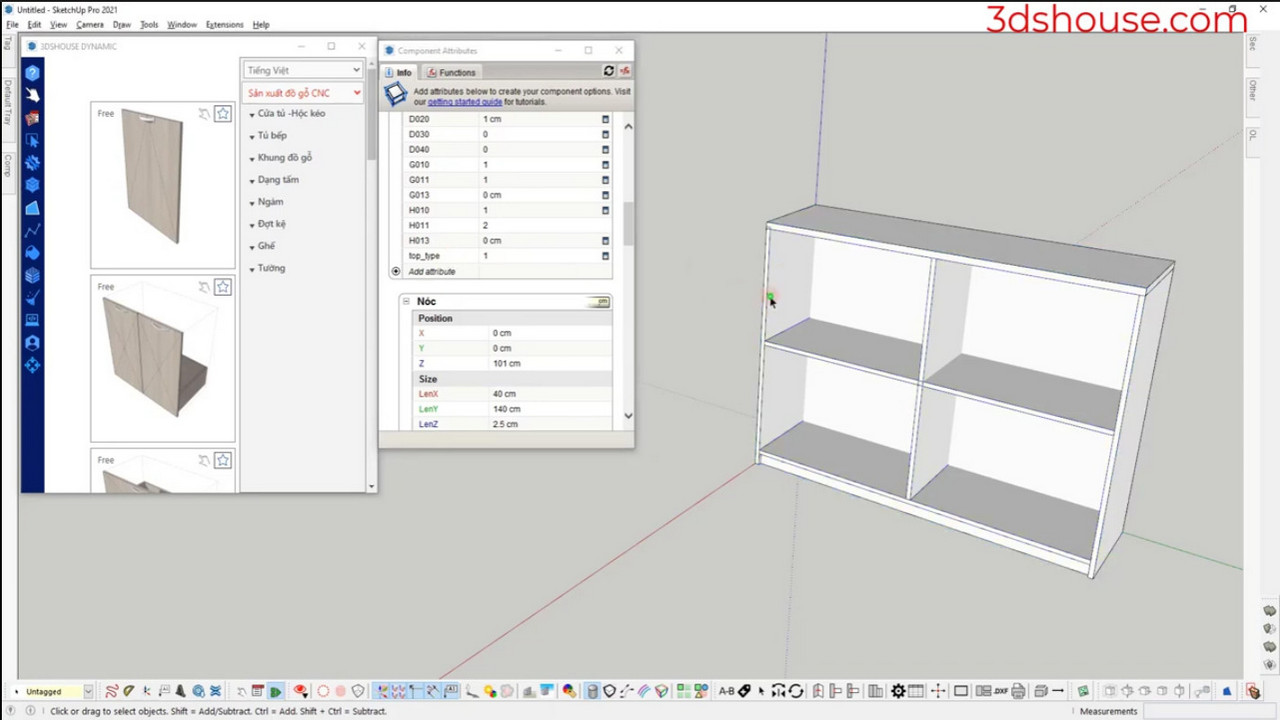
One subtle gotcha when replacing attributes: dynamic attribute names are case-sensitive (SketchUp treats LenX and lenx as different attributes) and cannot contain spaces at all — use an underscore in the name from the start (for example =Parent!LenX or a custom my_width), so a formula referencing the old name keeps working only if every formula that points at the renamed attribute is updated in the same pass. A missed reference does not throw a visible error — the formula just silently evaluates to 0 or the last cached value, which is the most common reason a dynamic component appears to “break” after editing. After any replace, re-run Redraw (right-click > Dynamic Components > Redraw) and confirm the geometry rebuilds before saving the definition back to your library.
