

 Tiếng Việt
SketchUp
Export Texture to Image File in SketchUp — Batch Extractor
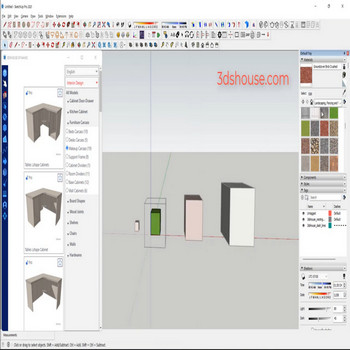
When you need to export texture to image in SketchUp, you face a gap that no built-in command fills: SketchUp can render a camera view to a flat picture, but it has no native “Save all textures as files” option. This tool closes that gap. It batch-extracts every texture bitmap from your selected geometry — pulling the actual source image files that SketchUp stores internally — and writes each one out as a separate PNG or JPG at its original resolution. The result is a folder of clean, un-distorted tile images ready for re-editing in Photoshop, GIMP, or Substance Painter, or for reuse in another modeling tool without any quality loss from re-export or screen-capture.
The distinction matters more than it sounds. When SketchUp applies a texture to a face it stores a UV mapping on top of the source bitmap: position, rotation, scale, and sometimes a color tint. What you see on the face in the viewport is the bitmap after those transforms are applied. Exporting via File > Export > 2D Graphic bakes those transforms plus lighting, shadows, and the camera perspective into a single flat image — useful for presentation, useless for texture editing. The texture extractor skips all of that. It reaches past the UV data and writes the raw source tile, which is exactly the file the material was created from. You get a 1:1 copy of the original bitmap, not a re-render of it.
This is especially valuable when the original source files have been lost. SketchUp embeds the full bitmap inside the .skp file at save time, so even if the original PSD or PNG on your hard drive is gone, the model still carries a lossless copy. The extractor recovers those embedded files in one click rather than requiring you to rename the .skp to .zip and dig through the archive manually — a technique that works but is slow and error-prone across a model with dozens of materials.
Key Features
- Batch extraction across the entire selection. Select any number of objects — components, groups, loose geometry — and the tool iterates every face in that selection, collects all unique materials, and writes each one to disk once. You are not limited to one face or one material at a time. A typical furniture model with 30 textures is done in one pass in under a second.
- Native resolution output. Each bitmap is written at the pixel dimensions it was imported at, with no resampling. A 4096×4096 wood grain comes out as a 4096×4096 file. There is no quality penalty for going through SketchUp — the embedded copy is lossless (PNG or the original JPEG depending on how the material was imported).
- Preserves the source tile, not the UV-mapped appearance. SketchUp decouples the bitmap from its placement on the face. The extractor retrieves the tile itself, which is what you need for external editing. If the material has been scaled down to 25% on a wall, the exported file is still the full-size tile — not a 25%-sized crop of the render.
- Works regardless of original file availability. The source bitmap is embedded in the .skp at save time. Even if the file that was originally imported no longer exists on disk, the extractor can recover it from the model. This makes the tool a practical backup-recovery step for older project files.
- Handles all standard texture formats. Materials imported as JPEG, PNG, BMP, or TGA are stored internally and recovered in their native format. The tool writes what is in the model without re-encoding, so a JPEG stays JPEG (no extra compression round-trip) and a PNG stays PNG (no alpha loss).
- One folder, clean filenames. All extracted bitmaps land in the folder you choose, named after the material name in the model. If two materials share the same source bitmap, they are still written as separate files to avoid confusion.
How to Install and Use
- Download and install the tool from 3dshouse.com. The tool is available on the 3dshouse.com download page. Install it through the SketchUp Extension Manager (Window > Extension Manager > Install Extension) by selecting the downloaded .rbz file. Restart SketchUp after installation.
- Open the model that contains the textures you want to recover. The model does not need to be a freshly saved file — even an older .skp where the original texture files on disk have been deleted or moved will work, because SketchUp embeds the bitmaps at save time.
- Select the geometry containing the textures. Use the Select tool (spacebar) to highlight the objects whose materials you want to export. You can select a single component, a group, multiple components at once, or press Ctrl+A to select everything in the model. The extractor processes every unique material found on any face in your selection — sub-components and nested groups are traversed automatically.
- Click the Export Texture to Image tool button in the toolbar, or find it in the Extensions menu. The tool will immediately prompt you to choose a destination folder on your computer.
- Choose a destination folder. Browse to or create the folder where you want the image files saved. The tool will write one file per unique material, named after the material as it appears in the SketchUp Materials panel.
- Confirm and wait for extraction to complete. For a typical model with 20–50 textures, extraction finishes in under two seconds. The tool will report how many files were written. Open the destination folder in your file browser to verify the output.
- Edit and reuse the extracted bitmaps as needed. The files are standard image files — open them in any image editor. To update a texture in SketchUp after editing, open the Materials panel, select the material, click the texture thumbnail, and browse to the modified file.
Pro Tips
- Verify material names before extracting, especially in team projects. The output filename comes directly from the material name in the SketchUp Materials panel. Materials named “Material” or “Material1” produce files called Material.jpg and Material1.jpg, which are easy to confuse. Rename materials descriptively in the Materials panel before running the extraction if you plan to hand the files to another person or pipeline.
- Check for materials with no file extension in the name. SketchUp sometimes imports textures and stores them without a format suffix — “brick” instead of “brick.jpg”. The extractor writes the file with the correct extension based on the actual format in the model, but if the export appears to skip a texture, open the Materials panel, click the texture thumbnail of that material, and confirm the image path shows a valid extension. Re-importing the texture with a proper filename before extracting is the safest fix.
- Use the .skp-as-zip trick as a cross-check. A .skp file is a ZIP-compatible container. Rename a copy (not the original) from .skp to .zip, open it, and look inside the Materials subfolder. You will see the raw embedded bitmaps. This confirms exactly what the extractor will produce and lets you verify that a specific texture is present before running the tool.
- Extract before applying color-tint overrides. SketchUp lets you tint a texture by changing the material color in the Materials panel while keeping the same bitmap. That tint is stored separately and does not affect the embedded bitmap. The extractor always exports the un-tinted base image, which is correct for re-editing, but be aware that the exported file will not reflect any color adjustments you made in SketchUp — those need to be re-applied in your image editor if needed.
- Combine extraction with a 2D export for a complete texture reference sheet. After extracting the source bitmaps, you can also do File > Export > 2D Graphic to capture how those materials actually look on the model with UV placement and scale. Keep both: the extracted tiles for editing, and the 2D render for visual reference. This is particularly useful when handing assets off to a client who needs to understand which tile goes where.
System Requirements
- SketchUp version: SketchUp 2022 or later (2022, 2023, 2024, 2025, 2026)
- Operating system: Windows 10/11 (64-bit) or macOS 10.15 Catalina and later
- 3dshouse account: Free account required to download and activate the extension
- No additional dependencies: The tool runs entirely inside SketchUp using the standard Ruby API — no external software required
