

 Tiếng Việt
SketchUp
Rotate Material Texture in SketchUp — One-Click Tool
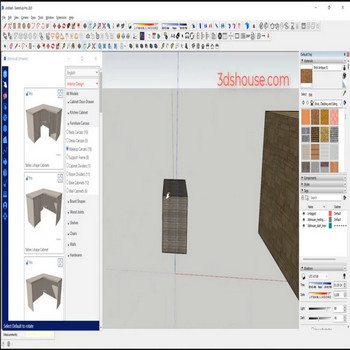
Applying the same texture rotation angle to every face in a SketchUp model is one of the fastest ways to make a scene look artificial. Real wood planks, stone tiles, and fabric panels never align perfectly — each piece has its own grain direction, cut angle, or manufacturing variation. The Auto Rotate Material plugin for SketchUp solves this with a single click: select a group of faces, fire the tool, and each face instantly receives a randomized texture rotation that breaks the repetitive, wallpaper-like pattern. The result is natural-looking variation without manually repositioning each pin in SketchUp’s notoriously fiddly Texture Position gizmo.
The plugin targets a common frustration in architectural visualization and product rendering workflows. When you lay out dozens of wood-plank faces, a tiled floor, a brick wall, or a corrugated metal panel, the default behavior is for every face to inherit exactly the same UV origin and rotation. That uniformity reads immediately as fake to a trained eye. Professional texture artists address this in dedicated UV editors — but SketchUp’s built-in tools offer no batch randomization at all. You either use the slow right-click → Texture → Position workflow one face at a time, or you live with the repeating pattern.
Auto Rotate Material fills that gap directly inside SketchUp. It reads the currently selected faces, generates a random rotation angle for each one, and applies it without touching the texture scale or UV origin more than necessary. Because the randomization is applied per-face, curved softened surfaces — tubes, arches, vaults — can also be handled: each triangle that makes up the curved mesh gets its own angle, eliminating the characteristic stripe pattern that appears when all triangles share one rotation. The tool is designed to be non-destructive: running it again regenerates new random angles, so you can keep clicking until the distribution looks right.
The video tutorial below shows the full workflow from download to a finished randomized wall in under three minutes.
Key Features
- Per-face random rotation in one click. Select any number of faces — on flat surfaces, curved meshes, or mixed geometry — activate the tool, and each face receives an independently randomized rotation angle. There is no dialog to fill out and no angle range to configure; the plugin applies variation immediately. This makes it practical to use mid-workflow without breaking your creative momentum.
- Works on curved and softened geometry. SketchUp’s native Texture Position grip cannot operate on an entire softened surface as a unit — you would have to show hidden geometry and drag pins on every individual triangle. Auto Rotate Material applies per-triangle rotation across the whole softened mesh in the same single operation, which is the only realistic way to break repetition on curved surfaces like pipes, vaults, or organic forms.
- Non-destructive and repeatable. The plugin modifies face-level UV data, which is separate from the material definition in the Materials panel. Running the tool a second time regenerates fresh random angles without resetting your material colors, texture scale, or any other material property. If you dislike the distribution, simply click again until the variation looks natural.
- Bypasses the Texture Position pin trap entirely. SketchUp’s built-in rotation requires right-click → Texture → Position, then dragging the green pin around the red one. The workflow silently breaks when pins switch to Stretch mode (all four pins turn yellow) — at that point the green-pin rotation gesture does nothing until you right-click and re-enable Fixed Pins. The plugin skips this gizmo completely, so there is no mode confusion and no accidental distortion.
- Preserves texture scale and origin anchoring. A common side-effect of the native Texture Position workflow is that rotating the texture also shifts where the pattern starts tiling, because the red pin (origin) and green pin (rotation handle) are not independent. Auto Rotate Material keeps the tiling origin stable and only changes the rotation angle, so the texture scale you set in the Materials panel is respected.
- Fast enough for production scenes. Applying random rotation to a hundred-face floor or a multi-panel wall takes a fraction of a second. The plugin is written to operate directly on face entities without rebuilding the model tree, so performance stays constant even on geometry-heavy scenes.
How to Install and Use
- Download the plugin file. The plugin is distributed as an
.rbzfile (SketchUp Extension Archive). Download it from the link on this page and save it somewhere you can find it — your Desktop or Downloads folder works fine. - Open the Extension Manager. In SketchUp, go to Window → Extension Manager. If you are on SketchUp 2017 or earlier the menu path is Window → Preferences → Extensions, but for any version supported by this plugin the Extension Manager is the correct route.
- Install the .rbz file. Click the Install Extension button (bottom-left of the Extension Manager), navigate to the
.rbzfile you downloaded, and click Open. SketchUp will verify the archive and install it. You do not need to restart SketchUp — the extension loads immediately. - Confirm the extension is enabled. In the Extension Manager list, find “Auto Rotate Material” (or the plugin’s display name) and make sure the toggle is set to Enabled. If you ever see the toolbar missing after a restart, check here first.
- Find the toolbar or menu item. The plugin adds a toolbar button and/or a menu item under Extensions. If the toolbar is not visible, right-click any existing toolbar and tick the plugin’s toolbar name to show it.
- Select the faces you want to randomize. Use a left-to-right selection box (window selection) to select faces on a flat surface, or triple-click a group/component to select all its geometry. You can also hold Shift and click individual faces to build a custom selection. The plugin operates on every selected face, so broader selections give more variation at once.
- Activate the tool and click. Click the toolbar button or trigger the menu item. The plugin immediately processes all selected faces, applying a unique random rotation to each one. The result is visible instantly in the viewport — you do not need to re-render or refresh anything.
- Inspect and repeat if needed. Orbit around the surface and check whether the variation looks natural. If the distribution feels too uniform or you got an unlucky batch where several adjacent faces landed on similar angles, simply click the tool again with the same selection active. Each run generates a completely new set of random angles.
- Work inside groups and components. To randomize faces inside a group or component, double-click to enter the editing context, then select faces and run the tool. Changes made inside a component instance affect only that instance’s override UV data — other instances of the same component are not affected unless you repeat the operation inside each one.
Pro Tips
- Combine with texture scale variation for maximum realism. Random rotation alone breaks the obvious tiling pattern, but if every face is still the exact same scale, a trained eye can still spot the repetition. After running Auto Rotate Material, select subgroups of faces and manually tweak the texture scale in the Materials panel (paint with a slightly different scale). Even a 5–10% scale shift between sections of a wall or floor reads as natural manufacturing variation.
- Use selection filters to target one material at a time. If your surface has multiple materials — for example, a floor with alternating wood and stone tiles — select only the faces carrying the material you want to randomize before running the tool. The quickest way is to right-click a face → Select → All with Same Material. This prevents the tool from accidentally randomizing a material you already positioned precisely.
- Run the tool before you apply detailed materials, not after. If you are building a scene from scratch, apply a placeholder material first, run the rotation randomizer to lock in the UV variation, and then swap to the final high-resolution texture. The rotation data is stored on the face, not tied to the material, so swapping materials preserves the random orientations you generated.
- On curved surfaces, show hidden geometry first to verify coverage. After running the tool on a softened mesh, toggle View → Hidden Geometry to confirm that every sub-triangle received a rotation. Occasionally, faces that are part of a locked group or inside a nested component are skipped silently — seeing the mesh highlighted lets you catch gaps before you render.
- Pair with SketchUp’s “Make Unique Texture” for export workflows. If you are exporting to a renderer (V-Ray, Enscape, Twinmotion) that reads per-face UV data from the .skp file, the randomized UVs export correctly. However, if you are baking to a UV atlas, right-click each face → Texture → Make Unique Texture after randomizing — this flattens the rotated UV into an actual bitmap crop, which baking pipelines can read without needing the plugin’s UV override at render time.
- Save a “pre-randomize” scene tab as a fallback. Before running the tool on a finalized surface, add a Scene tab (the + button in the Scenes panel). SketchUp scenes save camera position, layer visibility, and style settings — but they do not save face UV data. The real fallback value is that the scene timestamp shows you when you last modified the geometry, making it easier to identify the correct version in File → Revert if the randomization does not work out.
System Requirements
- SketchUp version: SketchUp 2022 or newer (2022, 2023, 2024, 2025, 2026)
- Operating system: Windows 10/11 or macOS 11 Big Sur and later
- SketchUp edition: SketchUp Pro or SketchUp Studio (the Extension Manager is not available in the free web version)
- No additional dependencies: the plugin is a self-contained
.rbzwith no external libraries or internet connection required after installation
