

 Tiếng Việt
SketchUp
Fix & Restore Texture Scale in SketchUp After Scaling
When models have multiple scales, to fix and restore the original texture scale in SketchUp, use the auto restore texture scale tool
The reason this matters: in SketchUp (through the current 2026 release) the Scale tool does not just resize geometry — it bakes the scale factor into the group/component transform, so any texture inside is stretched and the texture scale in SketchUp is distorted by the same factor and no longer matches its real-world tile size. A material that read 600 mm in the Materials panel can end up displaying as 1500 mm without that number ever changing, which is why it looks wrong but you can’t find where to fix it.
The native workarounds are all manual and per-object: for a component you can right-click and pick Fix Non-uniform Scale / Scale Definition to “bake in” the current size, but groups have no such option — you have to explode and re-group, or re-apply the material face by face. The “Reset” inside right-click → Texture → Position only undoes positioning on a single face; it does nothing about scale that lives in a parent transform. On a model with dozens of scaled groups that becomes hours of clicking, and this tool collapses it into one.
How to Fix and Restore Texture Scale in SketchUp After Scaling — Video Tutorial
Steps by steps:
- Click to select the models you want to restore to the original texture scale – click tool auto restore texture scale
- All textures have been restored to their original settings

Restore texture scale
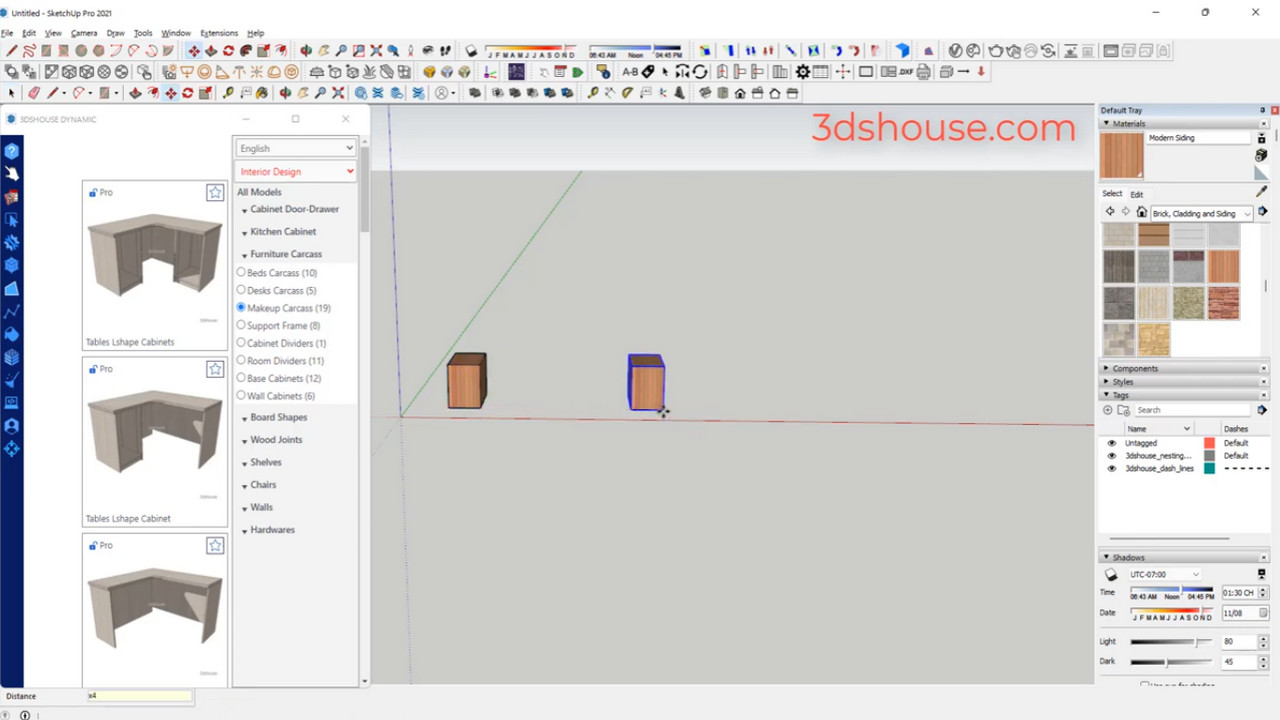
Tip: to fix stretched textures in bulk, select multiple groups/components at once before running the tool — it walks each selected object and resets every face inside, so mixed-scale models are normalized in a single pass instead of one object at a time.
