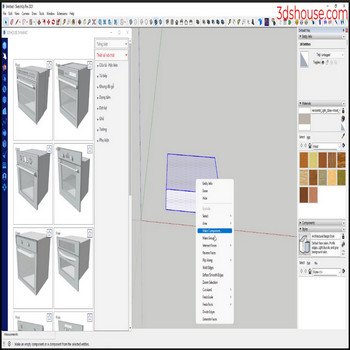
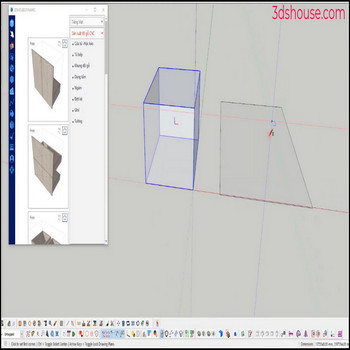
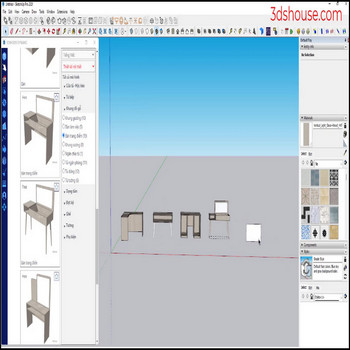
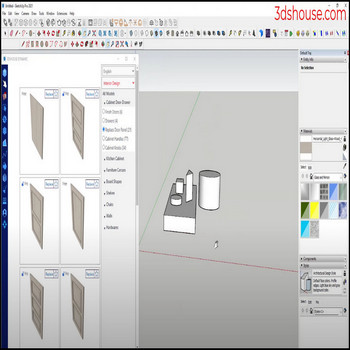
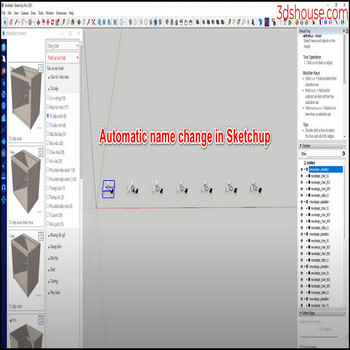
When you want to batch rename many objects with the same name inside a SketchUp group or component all at once, use a “rename selection” command to do it automatically instead of editing each name by hand in the Outliner. How to Batch Rename Objects in SketchUp Automatically — Tutorial Video Steps by steps : […]
Author Archives: Nguyen Huu Khanh
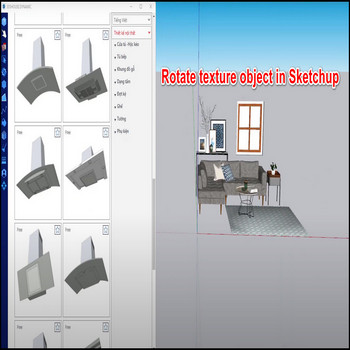
Rotating a texture on a single face in SketchUp without disturbing neighboring surfaces is one of those tasks that looks simple but catches many users off guard. The built-in Position Texture tool — accessed by right-clicking any textured face and choosing Texture → Position — gives you complete control over rotation, scale, and position on […]
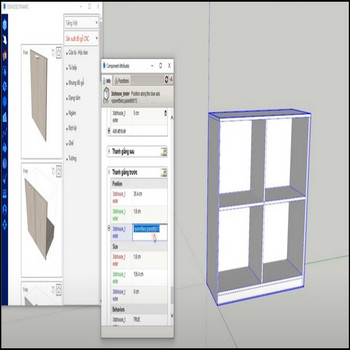
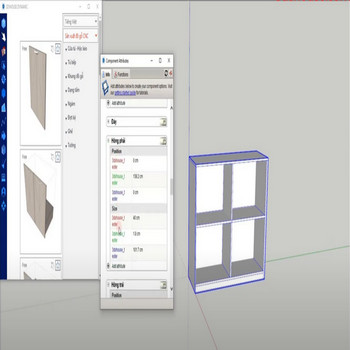
These dynamic component libraries ship with their authoring attributes personalized (renamed/obfuscated) for security, so the parametric behavior keeps working but the original editable labels no longer appear in the Component Attributes dialog. When you need to edit, study, or repurpose those parametric formulas, use the restore dynamic attributes tool to put the original attribute names […]
Attributes of dynamic component show their raw variable name by default in the Component Options window. For security, cleaner branding, or just a more user-friendly menu, use the override attribute labels tool to hide or rename what your end users see in Component Options. A useful detail most people miss: the override only changes the […]
Selecting edge loops of nested geometry inside groups or components in SketchUp is slow and fiddly, because the native Select tool has no command to grab edges by their state. This Select Edges (in Objects) tool speeds that up by letting you target edges by what they already are — hidden, softened, or smoothed — […]
If you’ve ever needed to replace a group or component in SketchUp — swapping one component definition for another while keeping every instance exactly where it was — you already know how tedious doing it by hand is. You select each copy, delete it, place the replacement, match the position, rotation and scale, and repeat […]
There are 3 ways to manage objects in SketchUp: by Tags (layers), by name, and by material — each solves a different selection and visibility problem. Note: since SketchUp 2020 “Layers” were renamed to “Tags” — same panel, same job, just a clearer name. If you are on a current release (SketchUp 2026), look for […]
Selecting multiple objects in SketchUp across nested groups is tedious — the native tools only get you part of the way, and a name-based selection tool fills the gaps. How to Select Multiple Objects in SketchUp — Tutorial Videos What SketchUp can already do (and where it stops): Right-click a component and choose Select > […]
When you trace the outline of a building wall in SketchUp, every closed edge loop that lies on a single plane instantly fills with a face — no extra click required. That behavior is SketchUp’s built-in auto-create-face engine, and it is the fastest path from raw edge work to a solid model. But there is […]
3dshouse’s SketchUp door system is divided into finish doors and replace panel — to swap any cabinet door panel, select doors, open the replace panel table, and click the panel style you like SketchUp Door System & Replace Panel – Tutorial Video Steps by steps: The fastest way to change to your favorite panel type […]

Tiếng Việt