

 Tiếng Việt
Revit
How to Build a Revit Add-in with AI: ChatGPT or Claude
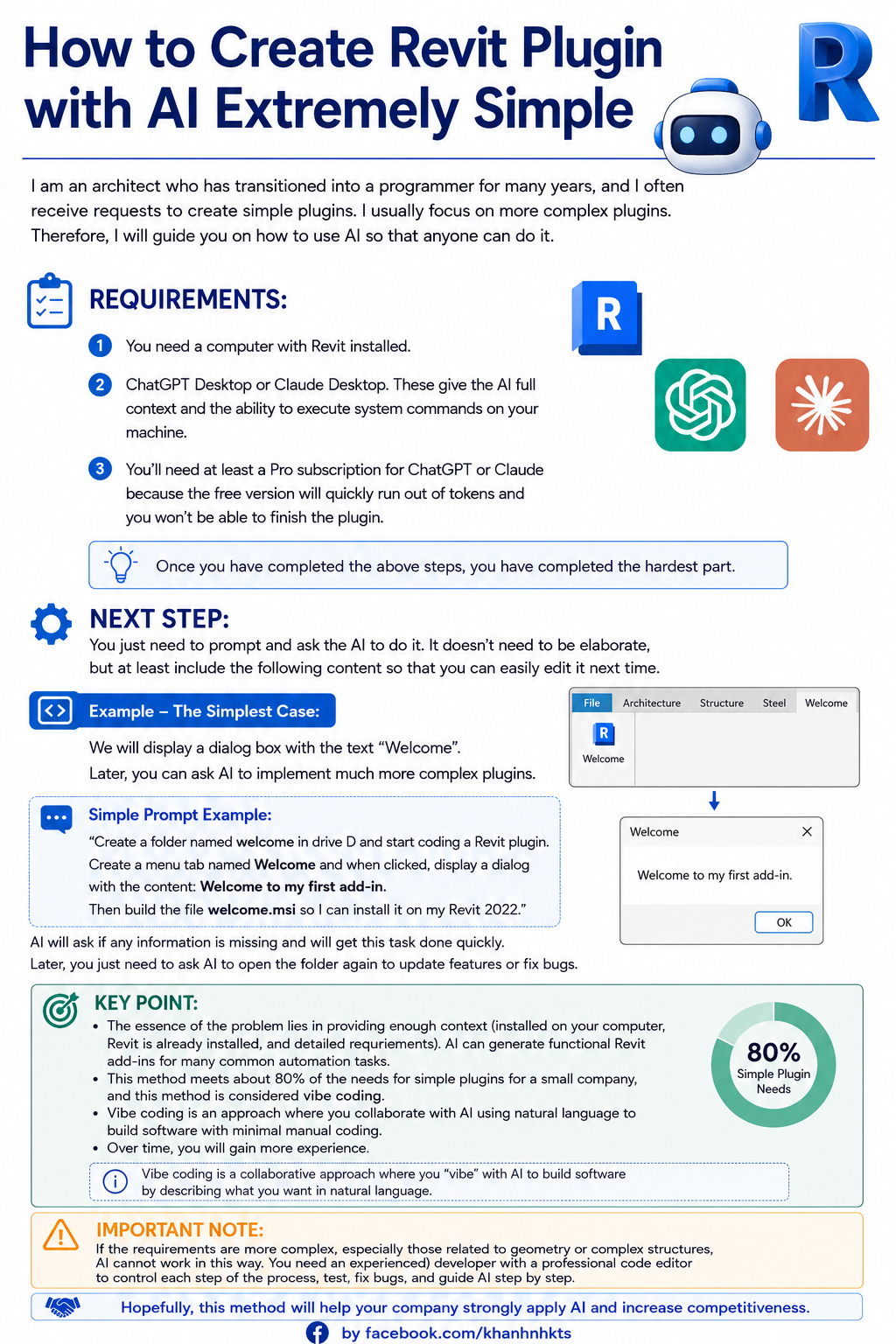
I’m an architect who moved into software development, and most weeks someone asks me for a small Revit add-in. Since 2024 the hard part of that request has changed. An AI assistant will happily write the C# for a Revit plugin; it will just as happily write C# that Revit silently refuses to load. This guide is the short list of Revit-specific facts you have to hand the AI up front, plus a minimal add-in you can copy today.
What an AI coding tool can actually do on your machine
A browser chat window is the wrong shape for Revit plugin development, because you end up copying files by hand. The tools that work are the agentic ones that run where your code is. Anthropic describes Claude Code as a tool that “reads your codebase, edits files, runs commands, and integrates with your development tools”, available in the terminal, IDE, desktop app and browser. OpenAI’s Codex CLI runs “against your local repository” and lets you “make edits, and run the tools already installed on your machine”, with a /permissions command to set “when Codex can edit files or run commands without asking”.
That is the entire setup: one of those, a folder, and a Revit install. The bottleneck is never code generation — it is that the Revit API is pinned to the Revit version, while the model’s training data blends six years of mutually incompatible samples. Everything below is the context that closes that gap.
One check before you start, because it saves most people the project entirely: if what you want is a bulk parameter editor, a sheet renamer or a room-data cleanup, that add-in already exists. Try Metasheet free first — it puts Revit parameters and schedules in an editable spreadsheet grid, covers Revit 2022–2027, and costs nothing. Build your own only for the part no tool covers.
Four facts to give the AI before it writes a line
1. Your Revit version decides the .NET runtime
This is the biggest single cause of “it compiled fine and nothing showed up”. Autodesk’s Development Requirements page for Revit 2024 says “The Autodesk Revit API requires the Microsoft .NET Framework 4.8.” The same page for Revit 2026 says “The Autodesk Revit API requires Microsoft .NET 8.0.” And Revit 2027 “has been updated to use the final .NET 10 runtime for running Revit and building add-ins”, with SDK 10.0.100 to install.
- Revit 2022–2024 →
net48(.NET Framework 4.8) - Revit 2025–2026 →
net8.0-windows - Revit 2027 →
net10.0-windows
A DLL built for the wrong runtime line throws no error message anywhere: Revit skips it, the ribbon button never appears, and there is nothing to attach a debugger to. Autodesk’s own .NET 8 migration note is essentially one project property — set <TargetFramework>net8.0-windows</TargetFramework>, and add <UseWPF>true</UseWPF> if your add-in shows a WPF window. Say your Revit year in the first sentence of your prompt and the AI has no reason to guess.
2. Reference the two Revit assemblies — and do not copy them
Autodesk’s Hello World walkthrough tells you to reference RevitAPI.dll and RevitAPIUI.dll from the Revit installation folder, then to set the “Copy Local property of RevitAPI.dll and RevitAPIUI.dll to No”. Spell that out to the AI. If Copy Local stays on, your output folder ships its own copy of the Revit API, which then loads alongside the one Revit already has — the source of cast errors that read like nonsense (“cannot convert type X to type X”).
There is a lazier route the AI will not propose on its own: reference-assembly NuGet packages that mirror the Revit API. Our own Metasheet add-in builds that way, with a package version pinned per target framework, so a build machine needs no Revit installed at all. The same trick works in CI.
3. A transaction attribute is mandatory and has no default
Autodesk is blunt about it: the attribute Autodesk.Revit.Attributes.TransactionMode “must be applied to your implementation class of the IExternalCommand interface”, and “There is no default for this option.” Two values matter in practice: Manual for anything that changes the model, ReadOnly for anything that only reads it.
That is separate from the transaction itself. The Developer Guide states that “Any change to a document can only be made while there is an active transaction open for that document” and “Attempting to change the document outside of a transaction will throw an exception”. Changes “do not become a part of the model until the active transaction is committed”, and “Only one transaction per document can be open at any given time”. The transaction’s name is what the user later sees on Revit’s Undo menu.
4. Where the .addin manifest goes
An add-in is a compiled DLL plus a small XML manifest with the .addin extension. Revit reads manifests from two folders: the all-users one under C:\ProgramData\Autodesk\Revit\Addins\<year>\, and the per-user one under %AppData%\Autodesk\Revit\Addins\<year>\. Files in both locations are considered together and loaded in alphabetical order. You do not need an MSI to test anything — dropping one XML file in the per-user folder is the whole install, and it needs no admin rights.
A minimal Revit add-in, end to end
Three files. Give the AI this shape and it will fill in your actual logic instead of inventing a project layout.
The project file (Welcome.csproj), targeting Revit 2026:
<Project Sdk="Microsoft.NET.Sdk">
  <PropertyGroup>
    <TargetFramework>net8.0-windows</TargetFramework>
    <PlatformTarget>x64</PlatformTarget>
    <UseWPF>true</UseWPF>
  </PropertyGroup>
  <ItemGroup>
    <Reference Include="RevitAPI">
      <HintPath>C:\Program Files\Autodesk\Revit 2026\RevitAPI.dll</HintPath>
      <Private>false</Private>
    </Reference>
    <Reference Include="RevitAPIUI">
      <HintPath>C:\Program Files\Autodesk\Revit 2026\RevitAPIUI.dll</HintPath>
      <Private>false</Private>
    </Reference>
  </ItemGroup>
</Project>
<Private>false</Private> is MSBuild’s name for Copy Local = No.
The command (TagSelectionCommand.cs). It writes into the Comments parameter of whatever is selected, which is enough to exercise a real transaction:
using Autodesk.Revit.Attributes;
using Autodesk.Revit.DB;
using Autodesk.Revit.UI;
namespace Welcome
{
    [Transaction(TransactionMode.Manual)]
    public class TagSelectionCommand : IExternalCommand
    {
        public Result Execute(ExternalCommandData commandData,
                              ref string message,
                              ElementSet elements)
        {
            var uiDocument = commandData.Application.ActiveUIDocument;
            var document = uiDocument.Document;
            var selected = uiDocument.Selection.GetElementIds();
            if (selected.Count == 0)
            {
                message = "Select at least one element first.";
                return Result.Cancelled;
            }
            // The transaction name is what appears on Revit's Undo menu.
            using (var transaction = new Transaction(document, "Tag selection"))
            {
                transaction.Start();
                foreach (var id in selected)
                {
                    var parameter = document.GetElement(id).LookupParameter("Comments");
                    // Revit 2024+: ElementId.Value is a 64-bit long.
                    // On Revit 2022-2023 this line is id.IntegerValue instead.
                    parameter?.Set("Tagged " + id.Value);
                }
                transaction.Commit();
            }
            TaskDialog.Show("Welcome", selected.Count + " element(s) updated.");
            return Result.Succeeded;
        }
    }
}
The manifest (Welcome.addin). Generate a fresh GUID for AddInId — two add-ins sharing one id is a real conflict, not a formality:
<?xml version="1.0" encoding="utf-8"?>
<RevitAddIns>
  <AddIn Type="Command">
    <Text>Tag Selection</Text>
    <Assembly>D:\welcome\bin\Debug\net8.0-windows\Welcome.dll</Assembly>
    <AddInId>f1a2b3c4-1111-4222-8333-abcdef123456</AddInId>
    <FullClassName>Welcome.TagSelectionCommand</FullClassName>
    <VendorId>YOURCO</VendorId>
    <VendorDescription>Your Company, yourcompany.com</VendorDescription>
  </AddIn>
</RevitAddIns>
For an IExternalCommand the required elements are Assembly, AddInId, FullClassName, Text and VendorId. Use Type="Application" with a Name element instead of Text when you implement IExternalApplication, which is what you need to add your own ribbon tab and buttons.
Install in ten seconds, debug in twenty
Copy Welcome.addin to %AppData%\Autodesk\Revit\Addins\2026\ and start Revit. The command appears under Add-Ins > External Tools. Because the manifest points at your build output by absolute path, every rebuild is live on the next Revit launch — no installer, no copy step, which is the difference between a two-minute iteration and a twenty-second one.
For debugging, Autodesk’s instruction is the simple one: launch Revit first, then in Visual Studio choose Debug > Attach To Process and pick Revit.exe. Breakpoints in your command then hit normally. Autodesk lists Visual Studio 2022 Professional or Community as the requirement for C# and VB.NET, and notes that Express editions do not support DLL debugging. There is no separate purchase: the Revit API ships with Revit.
Five mistakes AI assistants make in Revit add-in code
These are the ones worth pasting into your prompt as constraints, because every one of them produces a plugin that looks finished and is not.
ElementId.IntegerValueinstead ofElementId.Value. Revit 2024 widened ElementId’s internal storage from 32-bit to 64-bit.IntegerValueis deprecated and “will throw an exception if called on an ElementId whose value is high enough to need more than 32 bits to describe it”, and the constructor now takesSystem.Int64. Most public Revit sample code predates that change, so this is the most likely stale API call in AI-generated code — and it fails at runtime on large models, not at compile time.- Model edits outside a transaction. The AI writes the loop, forgets the
using (var transaction = new Transaction(document, "..."))wrapper, and you get an exception on the firstSet. Ask for the transaction explicitly. - A missing or wrong
[Transaction(...)]attribute. There is no default, so omitting it is not “the safe option”. And a command declaredReadOnlycannot open a transaction later. - The wrong target framework. Ask for Revit 2024 and get
net8.0-windows, and the add-in never loads. This is the failure with no error message, so it is the one that wastes an afternoon. - Copy Local left on for the Revit assemblies. Free of symptoms until the day a cast fails for no visible reason.
One more habit, borrowed from shipping a commercial add-in: compile against the lowest Revit API version in each runtime line, not the newest. A binary built against the Revit 2022 API loads across 2022–2024; one built against 2025 covers 2025–2026. Build against 2024 and you have quietly dropped 2022 and 2023 users. Our Metasheet plugin does exactly this, with one build per runtime line (net48, net8.0-windows, net10.0-windows) covering Revit 2022 through 2027 from a single source tree.
When the answer is not an add-in at all
AI-assisted Revit plugin development covers a lot of the small internal-tool requests a design office has. It covers less than people expect for geometry, family creation, and anything with a large data structure behind it; there you want a developer driving the AI, with RevitLookup open to inspect elements, rather than the other way round.
And a large share of these requests are not plugin requests. Bulk parameter edits, sheet renaming, room data cleanup — that is spreadsheet work someone has described as a plugin. Our free Revit parameter editor, Metasheet, already does it: every feature including bulk find and replace, Revit 2022–2027, with a free 3dshouse account for sign-in. It is also the add-in the multi-version examples above are drawn from, so you can see the shape of a shipped one. Other tools are lined up in our comparison of Revit Excel import and export plugins. If what you need genuinely does not exist yet, we build them to order too — see our custom Revit add-in development service.
FAQ
Can a ChatGPT or Claude Revit plugin really work?
Yes, for a self-contained command. Both vendors ship agentic tools that edit files and run build commands locally, so the model can create the project, compile it, and place the .addin manifest itself. What it cannot do is guess your Revit version, and that one fact decides the target framework, the API surface and whether the plugin loads at all.
What .NET Framework does a Revit 2024 add-in need?
.NET Framework 4.8, per Autodesk’s Development Requirements page for that release — target moniker net48. Revit 2025 and 2026 need .NET 8 (net8.0-windows), Revit 2027 needs .NET 10 (net10.0-windows). The 4.8 line ends at Revit 2024.
What do I need to start Revit plugin development?
Revit itself, Visual Studio 2022 Professional or Community, and references to RevitAPI.dll and RevitAPIUI.dll from the Revit program folder. Autodesk supports C# and VB.NET. The API costs nothing extra, and you can skip the installer entirely while developing by putting the .addin file in your user Addins folder.
