

 Tiếng Việt
SketchUp
How to Reduce Polygons in SketchUp: 3 Plugins Compared
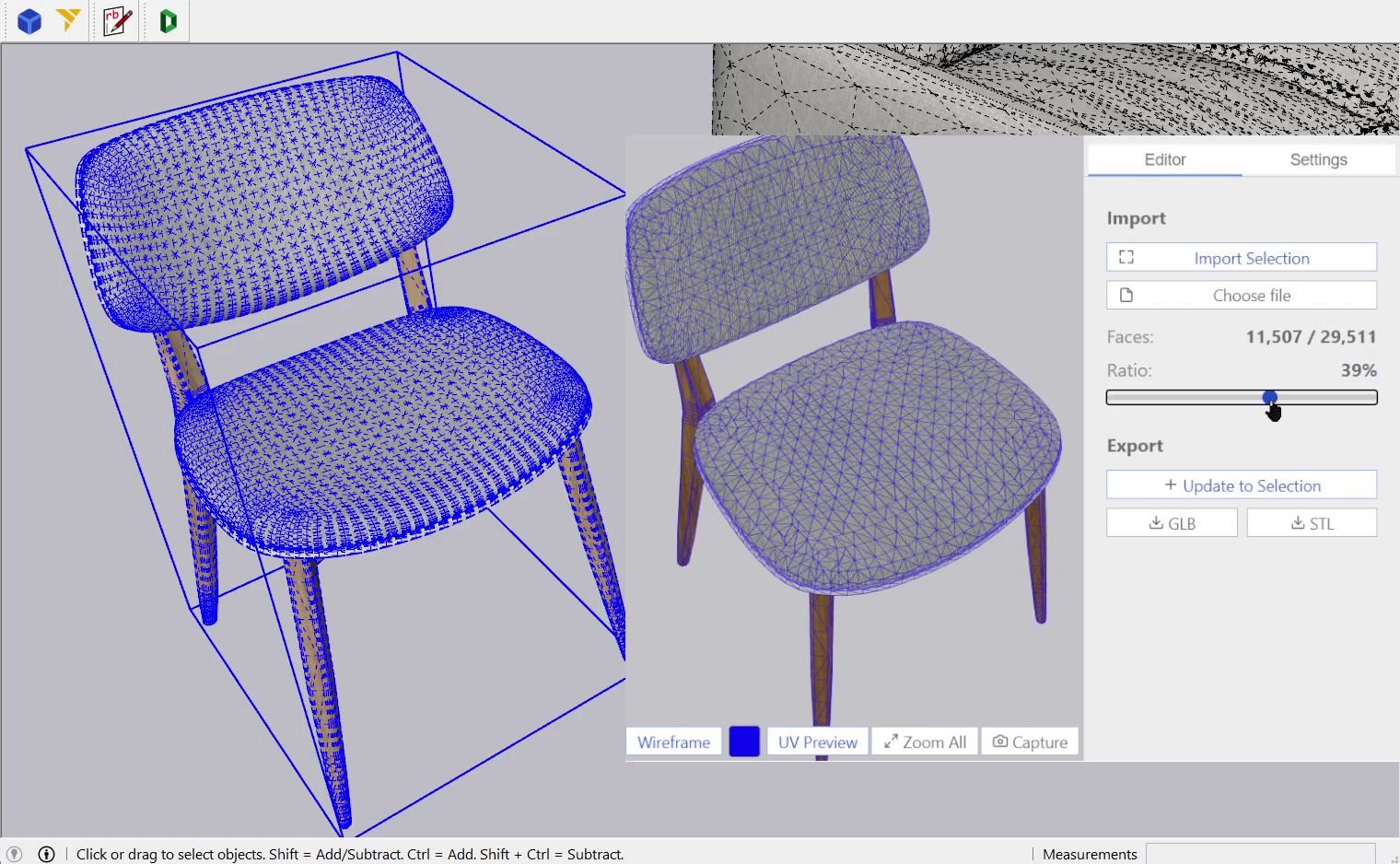
Three things decide which SketchUp polygon reducer you need: where the geometry sits right now, whether triangle count is really what makes the file heavy, and how often you do this. The middle question is the one people skip — and skipping it means running a decimation algorithm on a model that was never heavy because of its mesh.
SketchUp has no Simplify Geometry command
No SketchUp version ships an automated reducer for geometry you already have. Its own performance guide answers the problem with modelling advice — “The more edges, faces, and materials you have in a model, the more resources SketchUp needs to use” — and its bloated-model guide names the one manual lever: “Reducing segments on arcs and circles is the easiest way to reduce your polygon count.” That works while you are still drawing. It does nothing for a chair downloaded from 3D Warehouse or an FBX a client sent you.
The misconception worth clearing first, because it decides whether you need a plugin at all: softening, smoothing and hiding edges do not delete a single face. SketchUp’s help is explicit — “When you soften an edge, the edge is hidden, and the faces that the edge bounds become a surface entity”, and “In SketchUp, any geometry that’s hidden is still there. You just can’t see or select it.”
But the popular version of that warning (“hiding changes nothing”) is also wrong, and the same documentation says so: “The more visible geometry the slower SketchUp will run. Hiding geometry you don’t need improves performance.” So hiding buys you viewport frame rate. It buys you nothing on file size, nothing on export time, and nothing on what a render engine has to chew through — those follow the real face count. Know which of the two you are short on before you pick a tool.
Which cause is making your model heavy?
Three different defects all present as “my SketchUp file is slow and huge”, and each has its own fix. Reducers only address the third one.
- Definitions nobody uses any more. SketchUp keeps the definition of every component, material, tag and style you ever imported, even after you delete the last instance. Fix: Window > Model Info > Statistics > Purge Unused, which “will purge any unreferenced components, tags, styles, and materials from the model”. Details and a one-click routine: Purge Unused in SketchUp. This can cut megabytes without touching a single triangle.
- Junk geometry. Stray edges attached to no face, faces stacked in the same space, edges split by an old intersect, coplanar triangles that should be one face. Fix: CleanUp³ (free, MIT-licensed), whose options are exactly that list — Erase Stray Edges (“Removes all edges not connected to any face”), Erase Duplicate Faces, Repair Split Edges, Merge Coplanar Faces (“Removes edges separating coplanar faces”), plus Purge Unused and Merge Identical Materials. Guide: CleanUp³ install and settings.
- A genuinely dense mesh. A scanned tree, a sofa modelled in 3ds Max, Revit geometry, a Megascans asset: half a million honest triangles describing a shape you will see from four metres away. Nothing above helps — Purge finds nothing unreferenced and CleanUp finds nothing coplanar on a curved surface. This is the only case that needs a decimation algorithm, and it is what the three plugins below do.
A quick test: select the object, open Entity Info and read its face count, then run Purge and CleanUp³ first. If the count barely moves and the file is still heavy, the mesh itself is the problem.
Skimp — the import-and-simplify workhorse
Skimp from mind.sight.studios is the veteran of this category, and it is the only one of the three that both imports foreign formats and reduces objects that are already in your model. The vendor describes it as “a professional import extension designed to make it fast and easy to import high-fidelity models into SketchUp”, with “Accurate metric-based simplification to preserve details” and the ability to “Simplify Groups and Components in your SketchUp model”.
What the official page commits to on the parts that usually break: it will “Maintain model hierarchy” and “Maintain Materials, UVs, and Normals when importing and simplifying”. Import list: GLB, USD, SKP, FBX, OBJ, STL, DAE, 3DS, PLY, VRML — by far the widest here, and the reason Skimp survives a workflow where clients send whatever their software exports. It also previews scale and orientation before the import commits, and ships a Replace Textures tool.
Price (as of September 2026): $79 USD single seat, 1-year subscription, or $229 USD single seat permanent licence (“License does not expire”, “Includes all 2.X Updates”). There is a fully functional 5-day trial. Requirement: SketchUp Pro Desktop 2020 or newer, PC and Mac.
Choose Skimp if FBX and OBJ arrive on your desk regularly, if you are on SketchUp Pro 2020 or 2021 (the others need newer), or if you want one extension covering import, scale, textures and reduction. The permanent licence is the only perpetual option in this comparison besides Decimify Pro.
Transmutr — reduce it before SketchUp ever sees it
Transmutr by Lindalë is not really a reducer bolted onto SketchUp; it is a converter that sits in front of SketchUp. That distinction is the whole point. Skimp and Decimify work on geometry SketchUp has already parsed; Transmutr converts, simplifies and materialises the file first, so a five-million-triangle OBJ never enters the model at full weight.
Its own wording for the reduction step: “Reduce high-poly models to lightweight SketchUp geometry while keeping recognizable shape, with magic and per-object simplification”. Per-object is the part that matters on an imported scene — a lamp with 800 triangles and a sofa with 400,000 should not get the same ratio.
Formats in: FBX, GLTF/GLB, USD/USDZ, OBJ, SKP, 3DS, DAE, STL, plus image formats, ZIP archives and folders.
The feature neither competitor has: proxies. Transmutr can “Generate V-Ray and Enscape proxies, including blob proxies, billboards, and Enscape Asset Library export.” A proxy is the opposite trade to decimation — the .skp stays featherlight because it holds a placeholder, while the render engine loads the full-resolution mesh from a separate file. If your deliverable is a V-Ray or Enscape render rather than a SketchUp model someone else will edit, a proxy beats reducing: you keep every triangle in the render and none of them in the viewport.
Prices (as of September 2026), all annual subscriptions with no perpetual option: Artist 99 EUR/year (fixed-seat, “can be installed on two computers”), Studio 179 EUR/year (floating), Creator 799 EUR/year (floating). Read the licence line before you buy if you sell models: “You need a Transmutr Creator license to sell files you generate with Transmutr on an online store. Artist and Studio licenses do not include that permission, with exceptions for commission work and exclusive sales through the 3D Bazaar Marketplace.”
Decimify — free reduction inside the model, with real edges
Decimify takes the narrowest scope of the three on purpose: it does not convert formats, it reduces a mesh. Its engine is a Rust crate compiled to WebAssembly, running in a pool of Web Workers inside SketchUp’s own dialog browser, so there is no native binary to build or sign per platform — which is why the whole tool is free at 3 take-outs a day and $40 once for unlimited.
The architectural choice that shows up in use is the progressive mesh. Decimify does not re-simplify when you move the slider. At load it runs iterative edge collapse with Quadric Error Metrics all the way down to a handful of faces, recording every collapse as a reversible split record. Dragging the slider then just walks that stream forward or back. Every reduction level is already computed before you touch the slider, so scrubbing is instant in both directions — and unlike Blender’s Decimate modifier, which “does not allow you to visualize your changes in Edit Mode”, you are looking at the real output the whole time.
Two behaviours worth knowing before you compare it to the paid tools:
- Reduction is per sub-mesh, not per scene. Set 50% on a group of ten objects and each object keeps half its triangles — it is a target triangle ratio applied object by object, not a scene-wide budget.
- Committing onto a selected component refills that definition in place, so every instance of it in the model updates at once, and the whole commit — however many thousand faces — is a single Edit > Undo.
The shipped options, with the labels the dialog actually uses:
| Option | Default | What it does |
|---|---|---|
| Lock boundaries | On | Every vertex on an open edge is frozen. Leave on for a shell or an open surface; turn off on a closed solid to reduce deeper. |
| Preserve creases | On | Edges at 90° or sharper get a protective plane, and any collapse that would fold the surface sharper is rejected outright. Turn off only if you want the silhouette smoothed. |
| Maintain UV | On | On, the output is texture-identical to the source. Off, reduction runs freely and the texture is rebuilt per face at render time. The single most consequential toggle — see below. |
| Smooth angle (°) | 90 | SketchUp only. After committing, interior edges whose two faces open at this angle or wider are set soft and smooth. Lower it and more edges soften. |
Its real limits, stated plainly:
- Maintain UV can stall the slider outright. On a mesh with per-face pinned textures — typically upholstery from SketchUp or a 3D Warehouse asset — every triangle carries its own UV slot at a shared vertex, so the simplifier sees a texture discontinuity everywhere and refuses to collapse. The app tells you: when the slider asks for more than 20 points beyond what it achieved, it shows “Maintain UV is limiting reduction — try disabling it in Settings.” Turn it off and the session rebuilds without a re-import.
- The output is one SketchUp face per triangle, and nothing merges them afterwards. It sets edges soft and smooth by angle, but it never hides an edge and it has no coplanar-merge step. If flat regions came out as fans of triangles, run CleanUp³ afterwards with Merge Coplanar Faces — that is the tool that erases the dividing edges. On curved surfaces there is nothing coplanar to merge, and the triangles are the honest result.
- Import is GLB and STL only, export binary GLB or STL. No FBX, OBJ, STEP or USD — that is Skimp’s and Transmutr’s territory.
- Physically small models lose faces to SketchUp, not to the algorithm. SketchUp welds vertices within about 1/1024 inch, so triangles of a 5 cm object can collapse into nothing on the way in. Scale up, commit, scale back.
- It needs SketchUp 2022 or newer, a free 3dshouse account, and an internet connection — the dialog’s interface is served from the web, even though your mesh is never uploaded anywhere. Vertex colours are not carried through.
Free covers every feature and every reduction level with 3 exports or commits per UTC day; Pro removes the daily limit for $40 one-time, one licence covering both the plugin and the browser version, on all your computers. If you do not want to install anything, the same engine and interface run in a browser tab at Decimify Online — useful for reducing a GLB or STL before it reaches SketchUp at all.
Comparison
| Skimp | Transmutr | Decimify | |
|---|---|---|---|
| Price (Sept 2026) | $79/yr or $229 permanent | 99–799 EUR/yr, subscription only | Free (3/day) · Pro $40 one-time |
| Trial | 5 days, fully functional | Not stated on the vendor page | Free tier, no time limit |
| Where it works | Import + inside the model | Before import | Import + inside the model |
| Import formats | GLB, USD, SKP, FBX, OBJ, STL, DAE, 3DS, PLY, VRML | FBX, GLTF/GLB, USD/USDZ, OBJ, SKP, 3DS, DAE, STL | GLB, STL |
| Render proxies | No | V-Ray, Enscape, billboards | No |
| Keeps hierarchy / materials / UV | Yes (vendor-stated) | Per-object simplification | Yes; Maintain UV is a toggle |
| SketchUp version | Pro 2020+ | Converter, outputs .skp | 2022+ |
| Best for | Mixed inbound formats, one tool for everything | V-Ray/Enscape pipelines, Megascans, huge assets | Reducing what is already in the model, zero budget |
How to choose, in four steps
- Run Purge Unused and CleanUp³ first. Five minutes, free, and it settles whether you have a mesh problem at all. If the file drops 40% you are done.
- Ask where the file is. Still on disk as FBX/OBJ/USD, and heading for a V-Ray or Enscape render? Transmutr, and prefer a proxy over reduction. Already inside a .skp? Skimp or Decimify.
- Ask what formats keep arriving. If clients send FBX and OBJ every week, Skimp’s format list is the feature you are actually buying. If everything you touch is 3D Warehouse furniture, GLB and STL, Decimify covers it for nothing.
- Ask how often. Occasional lightening: Decimify’s three a day never runs out. Daily production: compare $40 once against $79 a year or 99 EUR a year, and note that only Skimp’s $229 tier and Decimify Pro survive you stopping payment.
A zero-budget route outside SketchUp also exists: Blender’s Decimate modifier is bundled free, its Collapse mode “Merges vertices together progressively, taking the shape of the mesh into account”, and Ratio is “The ratio of faces to keep after decimation”. Two catches in Blender’s own documentation — it “does not allow you to visualize your changes in Edit Mode”, and the ratio is computed on triangles, so “if your mesh contains quads or other polygons, the number of remaining faces will be larger than expected” unless Triangulate is on. Round-tripping SketchUp → Blender → SketchUp costs you the component hierarchy, which is precisely what the in-SketchUp tools protect.
FAQ
How do you reduce polygons in SketchUp?
There is no built-in command. You install an extension that runs a decimation algorithm — Decimify (free, 3 exports a day), Skimp ($79/yr or $229 permanent) — or you reduce the file before import with Transmutr. First run Purge Unused and CleanUp³: if the weight came from unused definitions or duplicate faces, no reducer is needed.
Is there a free plugin to reduce polygons in SketchUp?
Decimify’s free tier does every reduction level and every option, limited to 3 exports or commits per UTC day with a free 3dshouse account. Outside SketchUp, Blender’s Decimate modifier is free with Blender. Skimp and Transmutr are paid, though Skimp has a fully functional 5-day trial.
Is Skimp free?
No. As of September 2026 it is $79 USD for a one-year single seat or $229 USD for a permanent single seat, after a fully functional 5-day trial, and it requires SketchUp Pro Desktop 2020 or newer.
Does SketchUp have a Simplify Geometry tool?
No SketchUp version ships automated mesh simplification. Its documentation recommends reducing arc and circle segments while modelling and purging unused entities; reducing an existing dense mesh needs an extension.
What is a good Skimp alternative for SketchUp?
For reducing geometry already inside the model, Decimify does the same job free at 3 exports a day and $40 once for unlimited. For a pipeline that imports FBX/OBJ and renders in V-Ray or Enscape, Transmutr’s proxies solve the problem differently. Skimp remains the pick when you need many import formats and one extension for all of it.
