

 Tiếng Việt
SketchUp
Redraw Multiple Dynamic Components in SketchUp
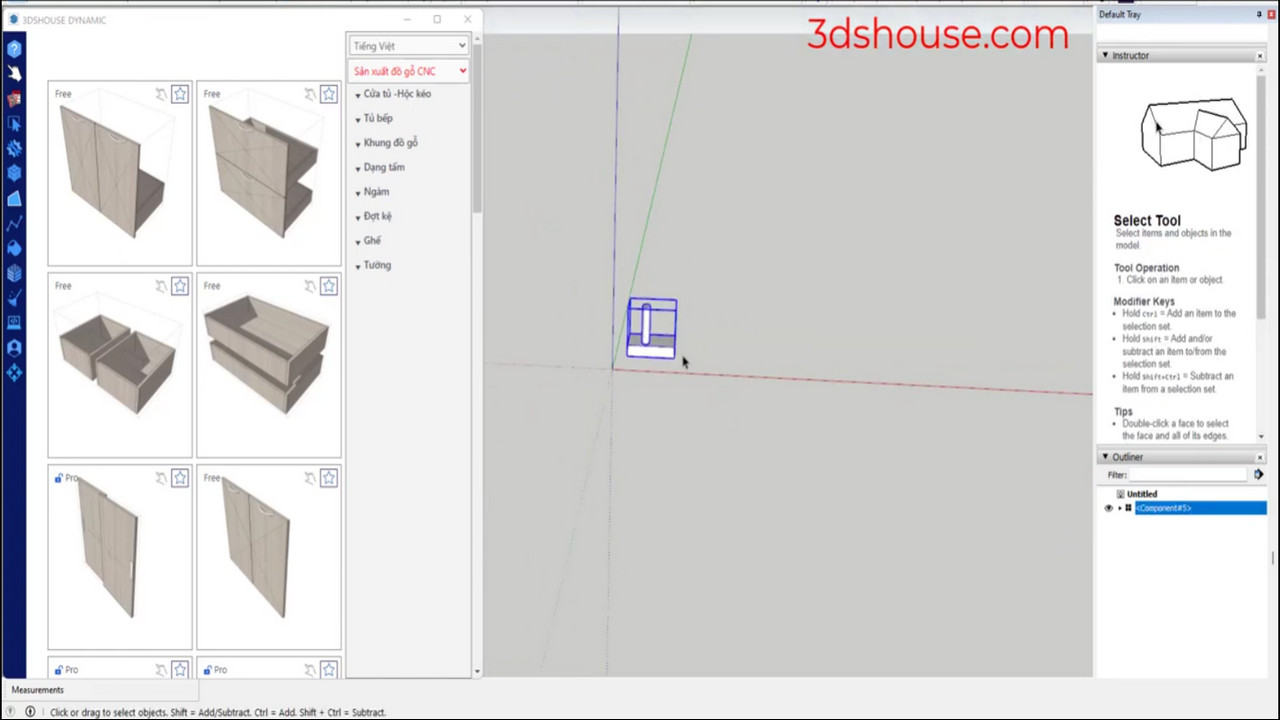
When dynamic components are copied a lot, use the redraw multi component tool in SketchUp for quick automatic batch redraw.
This matters because SketchUp does not push a redraw to every copy on its own: editing the geometry or formulas inside one dynamic component does not re-evaluate the others until each instance is individually redrawn, so a model with dozens of copies can quietly fall out of sync.
Redraw Multiple Dynamic Components in SketchUp — Video Tutorial
Steps by steps:
- Component (com) is edited but to change for all coms – select the dynamic component – click tool redrawn multi component
- All com are redrawn quickly.

Redrawn component
Good to know — Dynamic Component Redraw Tips
- Scaling a dynamic component with the native Scale tool silently makes that instance unique, so it stops sharing a definition with the others — a batch redraw will skip it. Resize through the Component Options dialog (the LenX/LenY/LenZ fields) instead of the Scale tool to keep every copy linked.
- Under the hood this tool calls the same hook SketchUp uses internally,
$dc_observers.get_latest_class.redraw_with_undo(instance)— useful to know if you script your own batch redraw, because a plain geometry edit via the Ruby API never triggers a DC re-evaluation by itself. - A quirk worth remembering: the Component Attributes dialog only shows the master instance, never the copies — copies appear only in the Outliner — so if a single copy looks wrong you cannot inspect its attribute/value pairs directly; redrawing the whole set is the practical fix.
- Dynamic Components are still built into SketchUp Pro 2026 (now a named-user subscription); the redraw behavior above is unchanged in recent 2026 releases.
More SketchUp tools by 3dshouse
