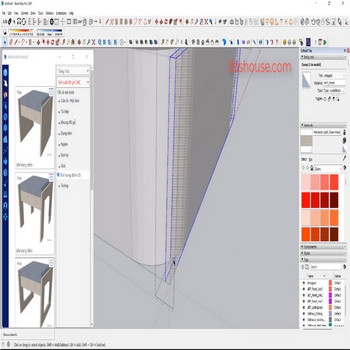
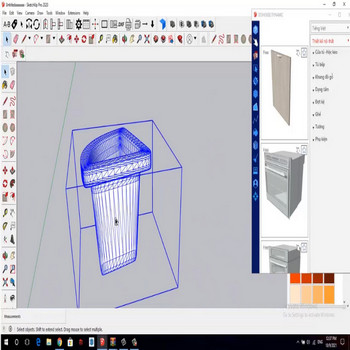
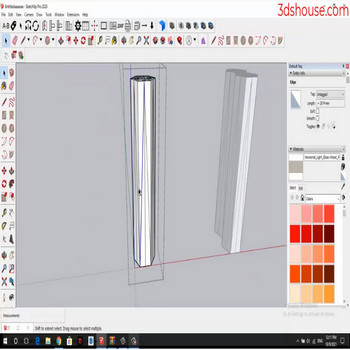
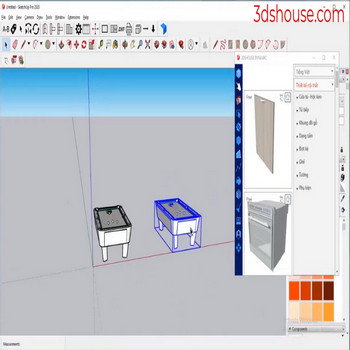
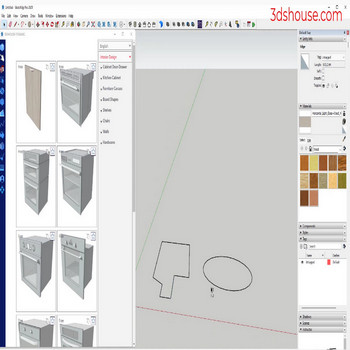
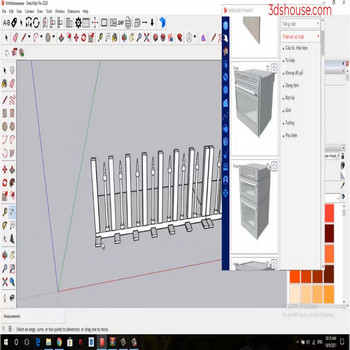
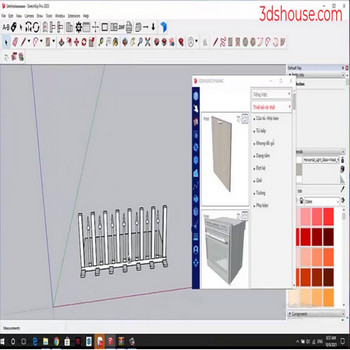
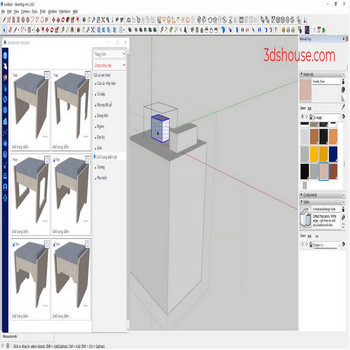
A SketchUp file keeps every component, material, tag, and style you have ever added — even after you erase or replace them — so models quietly bloat with unreferenced definitions. The Auto purge tool strips these unused entities in one click to lighten the file and reduce lag. Video tutorial: Steps by steps: Select the […]
Author Archives: slash.rock4u
When you want to set the same material for multiple objects, you have to select each model to pick the material, use the material tool to make it faster Video tutorial: Steps by steps : Select all objects – Material tool – Paint to Selected Objects Why pre-selecting matters This still works the same way […]
Smoothing edges in Sketchup can only work for 1 object, using the auto smooth tool will automatically make many objects at the same time and faster. Video tutorial: Steps by steps : Select object – choose Edges tools Edges are smoothed, faster than using default Sketchup, and can also do many objects at the same […]
When you only want to hide the edges of an object but don’t want to delete them, use the auto-hide all edges tool. In SketchUp itself, the equivalent native command is right-click > Hide (or the eraser with Shift held). Note the difference most users miss: Hide keeps the two faces on either side of […]
To delete or hide edges, into the object, which is time consuming , Let’s use 3dshouse’s Remove Unuse Edges tool to help us do it faster Manually cleaning a model means deciding, edge by edge, whether to erase, hide, or soften each line — and in SketchUp these are three different operations, not one. The […]
How to join lines into a single solid line (polyline) in SketchUp. Since SketchUp 2021 you no longer need an extension for this: “Weld Edges” is built into SketchUp — select the connected edges, right‑click, and choose Weld Edges to fuse them into one Curve entity (SketchUp’s equivalent of a polyline). The older Weld extension […]
It takes a long time to manually select a series of edges by length in Sketchup,tool to select edges by length will help you work very quickly One thing that trips up most users: SketchUp has no native “select by length” filter — the right-click menu only offers All Connected, Connected Faces, and Bounding Edges, […]
To select each outer edge for an object we use default Sketchup,but choosing more edges or edges on different surfaces is very time consuming Video tutorial: Steps by steps : Click to select one or more objects – Click tool select outer edges to make selecting multiple outer edges faster Why native SketchUp makes this […]
When many faces of the group are reversed face, if you do it manually, you have to reverse each side, so it takes a long time to do this, so use an automatic tool. In SketchUp, every face has two sides: the front (white) and back (blue), and the convention is to keep the white […]
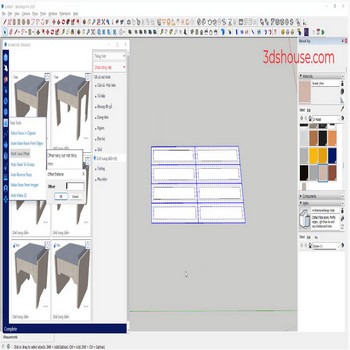
When working with multi face objects that need offset , for example, door systems, to offset each face in default sketchup, take a long time, don’t do it, use auto tool As of SketchUp 2026, the native Offset tool still works on only one face (or a single chain of connected coplanar edges) at a […]

Tiếng Việt