

 Tiếng Việt
SketchUp
Hide and Unhide All Edges in SketchUp — Auto Plugin
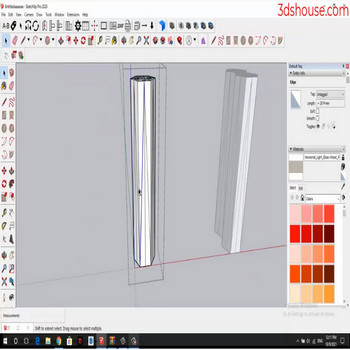
When you only want to hide edges in SketchUp but don’t want to delete them, use the auto-hide all edges plugin. In SketchUp itself, the equivalent native command is right-click > Hide (or the eraser with Shift held). Note the difference most users miss: Hide keeps the two faces on either side of the edge as separate, individually selectable faces — it does NOT merge them into a surface entity, unlike Soften/Smooth, which hides the edge and fuses the faces so clicking one selects both. If you want the line gone but the faces to stay independent, Hide is the correct choice.
How to Hide and Unhide All Edges in SketchUp — Auto Plugin Video Tutorial
Steps by Steps: Hide All Edges in SketchUp with the Plugin
The auto-hide all edges plugin reduces a multi-step manual process to a single click. Here is the full workflow:
- Select the object (group or component) whose edges you want to hide.
- Open the Extensions menu and find the auto-hide plugin, or use the toolbar button if you docked it.
- Click Auto Hide All Edges. Every edge inside the selection disappears instantly — no edge-by-edge clicking required.
- The faces remain intact and separately selectable. The model looks clean without losing any geometry.
To verify the result, turn on View > Hidden Geometry. You will see all the edges reappear as dotted lines, confirming they are hidden, not deleted.

How to Unhide All Edges in SketchUp with the Plugin
Reversing the operation — unhide all edges in SketchUp — is equally direct with the plugin:
- Select the same object whose edges you previously hid.
- Click Auto Show All Edges (the reverse button in the same plugin).
- Every hidden edge inside that selection is restored immediately.
This is useful when you receive a model from a colleague who hid edges for presentation, and you need to edit the geometry. The plugin restores visibility in one step rather than requiring you to hunt for dotted-line edges across a complex mesh.
Native SketchUp: Hide All in SketchUp Without a Plugin
If you do not have the plugin, you can still hide all in SketchUp using native tools — it just takes more steps.
Hiding all edges manually
- Triple-click an object to select all edges and faces inside it.
- Right-click and choose Select > All Connected Edges, or use Edit > Select All if you are already inside the group.
- Right-click the selection and choose Hide.
Using the Eraser tool to hide one edge at a time
Hold Shift and drag the Eraser tool over edges. Each edge you stroke over becomes hidden without being deleted. This is precise but slow for objects with many edges.
Using Soften/Smooth as an alternative
For curved surfaces where faces should look like a continuous surface, use Window > Soften Edges. Drag the angle slider to soften edges below a given dihedral angle. Note: this fuses faces, so it is not the same as Hide when you need faces to stay independent.
Native SketchUp: Unhide All in SketchUp Without a Plugin
To unhide all in SketchUp natively, there are two separate menus depending on what you hid:
Reveal hidden edges and faces (Hidden Geometry)
- Go to View > Hidden Geometry. Hidden edges appear as dotted lines.
- Select the dotted edges you want to restore.
- Right-click and choose Unhide.
To unhide everything at once: Edit > Unhide > All. This restores all hidden edges and faces in the current editing context.
Reveal hidden groups and components (Hidden Objects)
Go to View > Hidden Objects. Groups and components hidden as whole objects appear as a ghosted pattern. Select them, right-click, and choose Unhide.
Important: Hidden Geometry and Hidden Objects are independent toggles — you can expose hidden edges (dotted lines) while keeping whole objects hidden (ghosted), and vice versa.
Hide vs. Soften vs. Erase — Which One to Use
These three operations look similar on screen but behave differently:
- Hide: Edge disappears visually. The two adjacent faces remain separate — clicking one face does not select the other. Reversible via View > Hidden Geometry + Unhide.
- Soften/Smooth: Edge disappears visually. The two adjacent faces are fused into a surface entity — clicking one selects both. Reversible by editing the Soften Edges slider or unchecking smooth in Entity Info.
- Erase: Edge is permanently deleted. If faces depended on that edge, they are also deleted. Not reversible (except Ctrl+Z immediately).
Use Hide when you need a clean presentation render but plan to edit individual faces later. Use Soften/Smooth when you want a curved surface to look shaded. Use Erase only when the edge is genuinely unwanted geometry.
Working Inside Groups and Components
The Hide command only operates within the current editing context. If you try to hide edges while outside a group, SketchUp hides the entire group, not individual edges inside it.
- Double-click to enter the group or component before running Hide.
- The auto-hide plugin respects this: select the object first (without entering it), and the plugin enters the context automatically.
- When using Edit > Unhide > All, only edges hidden within the current editing context are restored. Unhiding inside a nested component only affects that component.
This context rule is the most common reason people report that sketchup unhide all via the menu “did nothing” — they ran the command while in the wrong context.
Common Issues & FAQ
For related SketchUp geometry tools, see Soften and Smooth Edges in SketchUp and more SketchUp tutorials.
