

 Tiếng Việt
SketchUp
SketchUp Paint Bucket: Apply Material to Multiple Objects
When you want to set the same material for multiple objects, you have to select each model to pick the material, use the material tool to apply material to multiple objects faster
Video Tutorial: Paint Selected Objects in SketchUp Automatically
Steps by steps :
- Select all objects – Material tool – Paint to Selected Objects

Paint to Selected Objects automatic in Sketchup
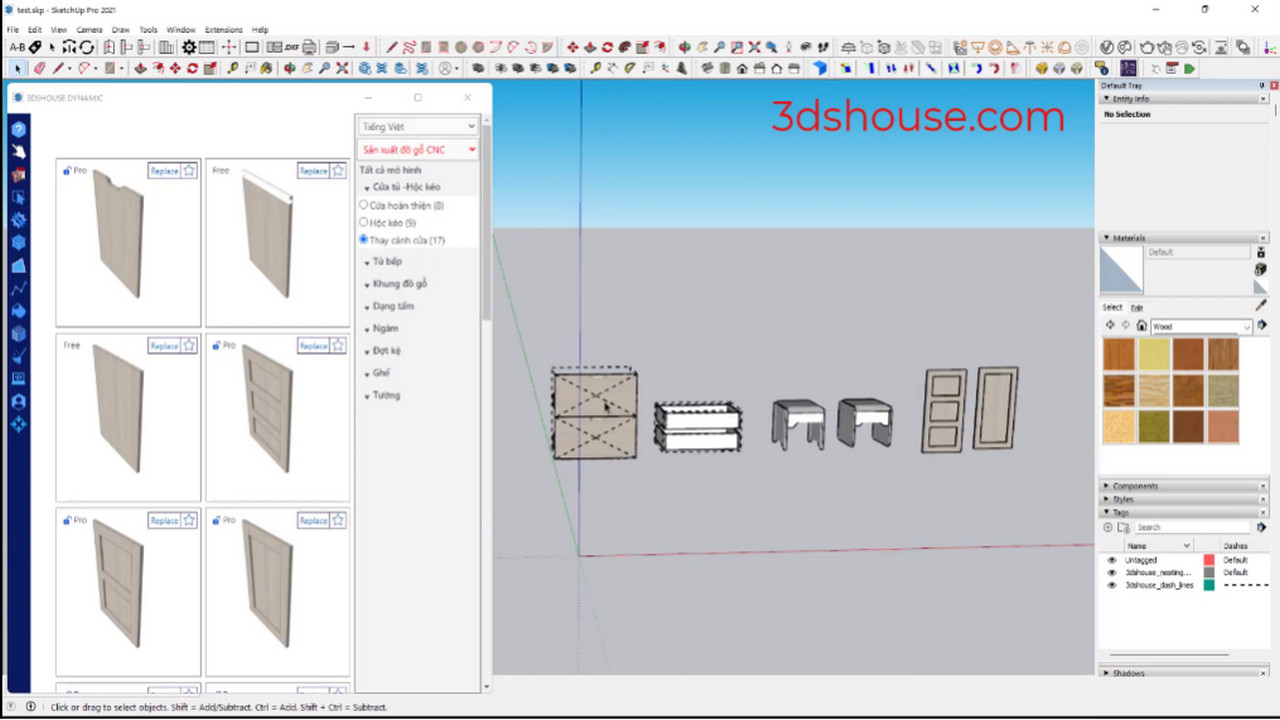
Why pre-selecting matters
This still works the same way in SketchUp 2026: if you pre-select several faces, groups or components and then click any one of them with the Paint Bucket (B), the material is applied to the entire selection in a single click — you do not have to paint each object individually. The trick most users miss is that the very first click goes to the object you click on, but SketchUp then propagates the same material to everything that was highlighted in the selection set, so you only ever need one click no matter how many objects are selected.
The modifier keys that make it faster
The Paint Bucket has four hidden modes you trigger by holding a key while clicking, and they remove almost all manual selecting:
- Hold Ctrl to flood-fill all connected, matching faces — great for re-coloring one continuous surface without selecting it first.
- Hold Shift to replace a material everywhere in the model at once — the fastest bulk apply material sketchup method; click any face that already has the old material and every instance of that material in the whole model is swapped — the fastest way to recolor an entire project.
- Hold Ctrl+Shift to do that same replace, but limited to the single object you click.
- Hold Alt to temporarily turn the Paint Bucket (shortcut: B) into the eyedropper and sample an existing material instead of switching tools.
The gotcha with groups and components
A material painted onto a closed group or component only repaints the geometry inside that is still set to “Default” — any face that was already given its own explicit material keeps it and is left untouched. This is why painting a whole group sometimes looks like it “did nothing” on certain faces. To force every face to follow the group color, open the group, select all, and reset those faces to the Default material first; then the outer group material takes over. Because components share one definition, recoloring one instance this way also changes every copy of that component in the model.
Note that SketchUp has been a named-user subscription since 2020 (there is no perpetual license anymore), and these material behaviors are identical across the SketchUp 2026 desktop, web and iPad versions.
