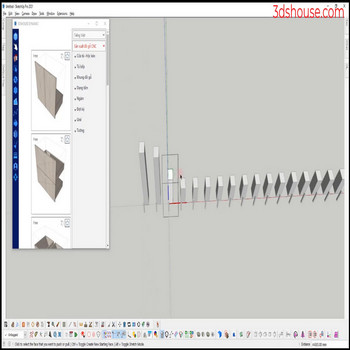
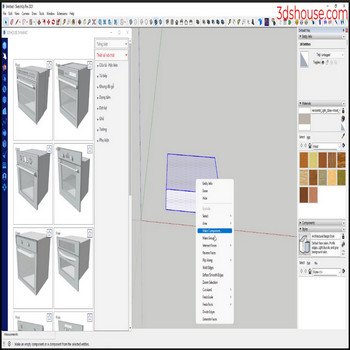
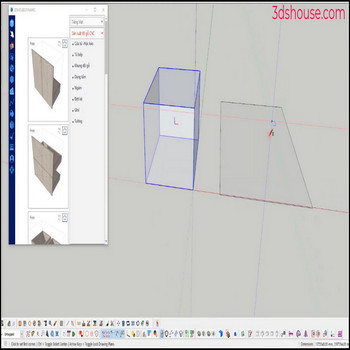
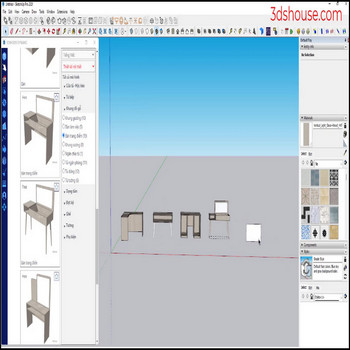
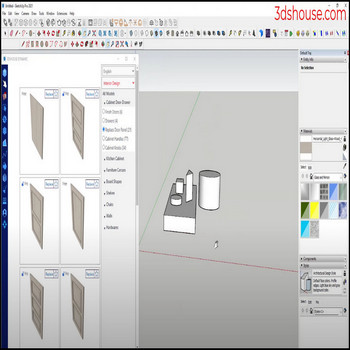
When an object has multiple groups or nests elements in multiple classes ,to explode the layers in the object, manually doing each layer takes a lot of time ,to explode these layers automatically and quickly use the Explode all tool . The reason this matters: SketchUp’s native Explode command (Edit > Group/Component > Explode, or […]
Author Archives: hoangmy.archi
When you want to delete all the attributes of all the dynamic component (dy_com),you have to go in and remove the attributes one by one, it’s wasted time, use the Delete Dynamic Deep Selection (DDDS) tool to do it automatically. Most people assume exploding a dynamic component strips its smarts, but it does not — […]
This tool is only different from the Make Unique Multi Objects tool in selecting objects instead of selecting each component (com) to make unique or select all coms to make unique, you just need to choose 1 com to make unique The point is the selection logic. SketchUp’s native Make Unique acts only on what […]
When you want to select multiple similar objects in a group or component, use SketchUp’s native “select similar” options so you don’t have to shift-click each copy by hand. In SketchUp 2026 these live in the right-click context menu under Select — there is no standalone tool literally named “Select by Similar”; the matching commands […]
When we need to change the original axis of a group or a component (com), we usually do it manually in SketchUp, or use the “object axis move” tool to do it quickly. Every group and component carries its own axis origin, separate from the model axes — and that origin is the component’s insertion […]
After you create dynamic component models, to CNC cut and build products you have to convert from components to groups Tutorial video: Steps by steps: To convert from component to group you have to explode, then create the group again which is very time consuming Use tool component to group to make automation faster Select […]
When the model has many groups or elements are nested in many layers, you want to edit, you have to explode each layer, please use the tool Explode Deep Selected to automatically work faster. SketchUp’s built-in Explode command only breaks open one level of nesting per click — if a group holds groups that hold […]
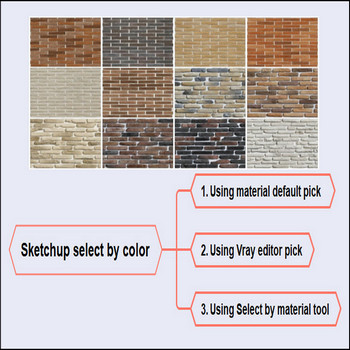
To change the material on many objects at once in SketchUp, use the Select by Material workflow instead of repainting each face one by one. Tutorial video: Steps by steps: The slow way is to pick the material on each object individually; another option is to use a render engine like V-Ray to gather similar […]
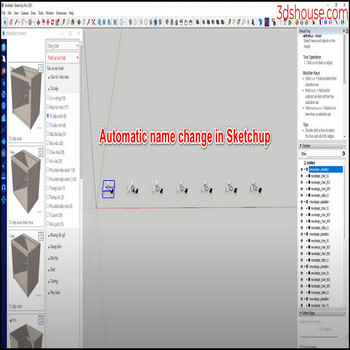
When you want to rename many objects with the same name inside a group or component all at once, use a “rename selection” command to do it automatically instead of editing each name by hand in the Outliner. Tutorial video: Steps by steps : Click select all objects with the same name – click on […]
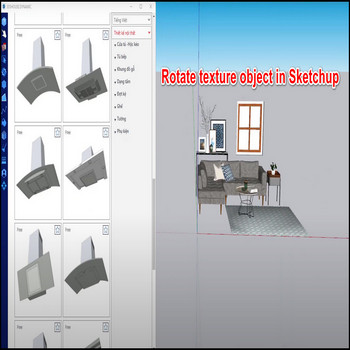
When you want to rotate the texture of an object whose material is painted directly on the surface, select the textured face, open the Position Texture tool, and rotate it. This is the built-in Position Texture tool in SketchUp (right-click the face → Texture → Position), unchanged through the current SketchUp 2026 release. Tutorial video: […]

Tiếng Việt