

 Tiếng Việt
SketchUp
Convert Component to Group in SketchUp for CNC
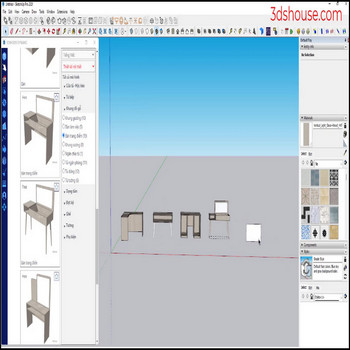
After you create dynamic component models, to CNC cut and build products you have to convert from components to groups — this component to group SketchUp conversion is a required step before exporting cut lists
Convert Component to Group in SketchUp — Tutorial Video
Steps by steps:
- To convert from component to group you have to explode, then create the group again which is very time consuming
- Use the component to group SketchUp plugin to automate the conversion faster
- Select the component you want to convert
- All models are transferred to the group ready for CNC cutting drawings
Why convert at all?
A group and a component look identical in the viewport, so beginners often ask why the swap matters for cut lists. Internally a group is just a special component whose definition is meant to be used once — so every group copy carries its own independent definition, while every component instance shares one definition. For CNC and shop-drawing plugins like ABF, that independence is the whole point: you usually want to flatten and nest each physical part on its own, not have one edit ripple across every “identical” piece in the model.
There is a hidden trap in the difference, though. SketchUp silently makes a group unique the instant you open it for editing, but it does NOT make it unique when you only copy it — so two group copies you never edited can still share one definition and report the same component name in Outliner. If your CNC plugin counts parts by definition, near-duplicate panels may be miscounted until you explicitly Make Unique.
Gotchas when converting
The manual route is “explode, reselect, Make Group,” and it works, but watch for these:
- Exploding a dynamic component permanently destroys its DC attributes and formulas — the geometry survives, but the parametric brain does not, so always finish all sizing logic before you convert to groups for cutting.
- If you instead trim, intersect, or subtract a component with the Solid Tools, SketchUp auto-converts the result into a group named “difference” — losing your component name and folding everything into a single solid, which is easy to miss in a complex assembly.
- A cleaner manual trick than copying geometry: double-click into the component, select all, Make Group inside it, then explode the outer component — you are left with the group already in place, with no duplicated edges to clean up.
The component-to-group SketchUp plugin automates exactly this for a whole selection at once, which is the time-saver when a furniture model has dozens of parts to send to CNC cutting. It runs the same in current SketchUp 2026 (named-user subscription; the perpetual classic license was retired back in 2020) since the underlying group/component model has not changed.

