Tiếng Việt
SketchUp
Make Unique All Similar Components in SketchUp — 1 Click
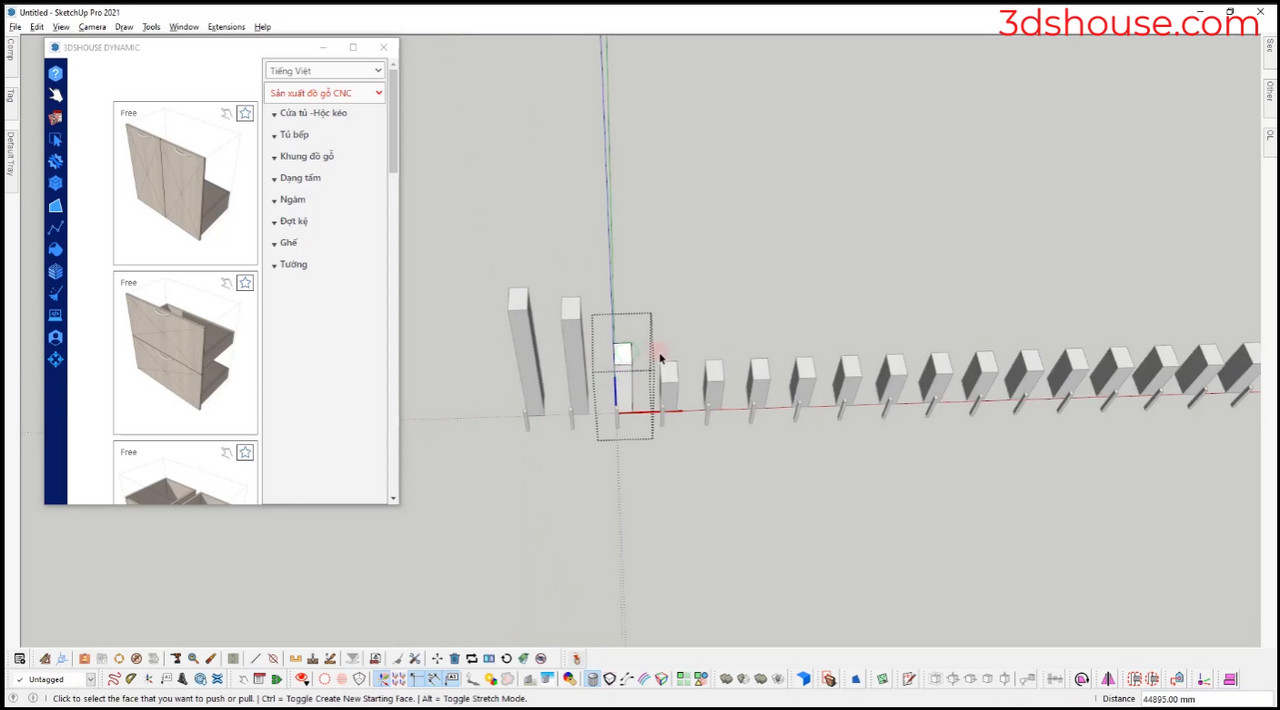
This tool is only different from the Make Unique Multi Objects tool in selecting objects instead of selecting each component (com) to make unique or select all coms to make unique, you just need to choose 1 com to make unique
The point is the selection logic. SketchUp’s native Make Unique acts only on what is currently selected — pick one instance and you split just that one; to detach a whole family you must hand-select every copy first. This tool flips that: choose a single instance and it finds every other instance sharing the same component definition and makes the whole set unique in one click, so you never have to hunt down scattered copies across the model.
What “make unique” really does under the hood is create a brand-new component definition. The newly-uniqued copies stay linked to each other but break from the original — edit one of the new set and the rest follow, while the source family is left untouched. That is the behavior you want when a repeated element needs to diverge as a group, not one-off.
One real gotcha worth knowing in current versions: in SketchUp 2026 scaling an array of identical components can silently make them unique on its own, which quietly bloats your component list with extra definitions. If you notice instances that should be identical no longer updating together, check whether a stray scale operation already uniqued them before reaching for this tool.
Make Unique Similar Components SketchUp — One Click Tutorial Video
Steps by steps:
- You just need to choose 1 com
- Click make unique similar to detach all matching SketchUp component instances at once
- All similar coms are created make unique

Make unique similar in Sketchup by 1 click