
Download Decimify for SketchUp (free .rbz) →
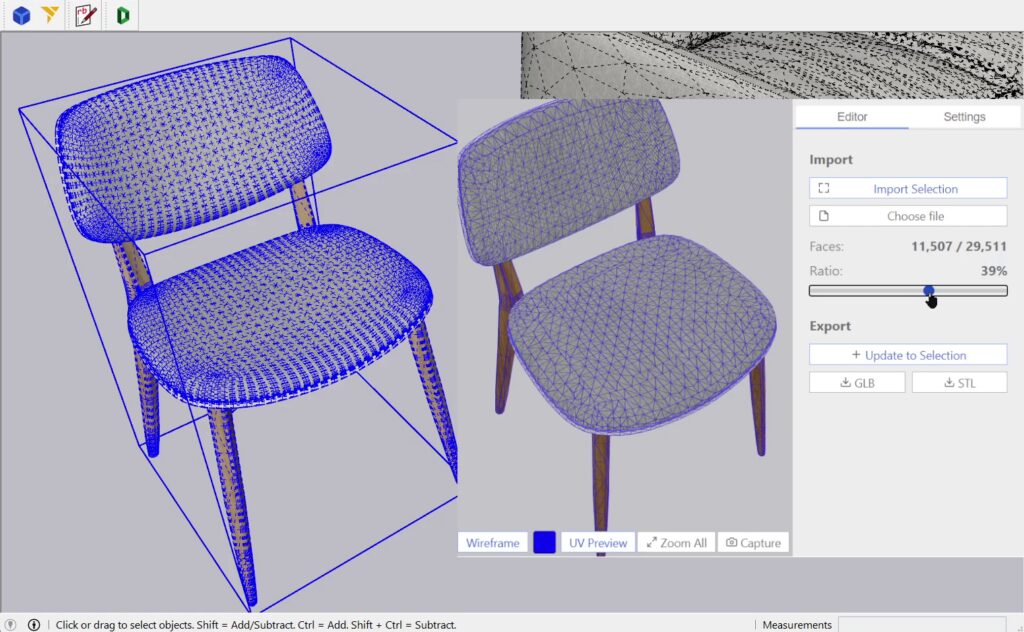
Decimify is a free SketchUp polygon reducer: select one Group or Component, click Import Selection, drag a live slider and write the lighter mesh back into the same definition. Every instance of that component updates at once, and the whole commit is a single Edit > Undo. It is meant for heavy imports where the weight is triangles you can see: 3D Warehouse furniture, scans, a supplier’s GLB.
What you get back: one SketchUp face per triangle, interior edges softened by an angle you set, front and back materials carried across, nested groups and components intact, and, with Maintain UV on (the default), textures identical to the source. Flat areas are not merged into larger faces; see Real limits.
Free means every feature at every reduction level, with 3 commits or exports per UTC day on a free 3dshouse account. Opening the dialog, importing a selection and moving the slider are not counted; the first commit asks you to sign in.
Soften/Smooth and Hide do not do this job. SketchUp’s help says softening turns the faces an edge bounds into “a surface entity”, and that hidden geometry “remains in your model but disappears from view”. Both change how the model is drawn, not which faces it contains. SketchUp also imports and exports .glb natively (File > Import; File > Export > 3D Model, GLTF Binary File), but the import option its help documents is Preserve Drawing Origin, with nothing to reduce the mesh.
Video
What happens to faces, edges, UVs and instances
| In your model | After the commit |
|---|---|
| Faces | One Face per triangle. Faces are read with their holes; the result is triangles, with no coplanar merge. |
| Edges | Interior edges are set soft and smooth when their two faces open at the Smooth angle (default 90°) or wider; sharper folds stay hard. Boundary edges stay visible as silhouettes. Nothing is hidden. The soft/smooth state of the original is not read; it is rebuilt from the Smooth angle. |
| Textures and UVs | Maintain UV on (default): texture-identical to the source. Off: reduces further, the texture is re-mapped onto the surviving faces and thin seams can appear. |
| Materials | Front and back materials are carried separately, face by face. |
| Groups and components | Nested groups and components are read recursively. The definition you imported is cleared and refilled in place, so every instance stays linked. |
| Undo | One step, however many batches the commit took. |
A heavy model has four different causes, and only one is polygon count
Reaching for the wrong cleaner is why “optimising” a SketchUp file so often changes nothing. Name the cause first:
- Too many triangles in geometry you can see: 3D Warehouse furniture, a photogrammetry scan, a supplier’s GLB, a detailed plant. This is polygon count, and the only one of the four Decimify fixes.
- Unused definitions dragged in by imports: components, materials and styles nobody placed. The screen looks the same, the file is enormous. Purge Unused strips the definitions nothing references.
- Stray edges, duplicate faces, coplanar splinters: a cleanup problem, not a reduction problem. CleanUp³ erases and merges that debris.
- Oversized textures: resize the images. No geometry tool touches this.
Reducing triangles will not recover a file whose weight is 900 unplaced component definitions. Saying so is what makes the rest of this page worth trusting.
How to reduce polygons in SketchUp, step by step
- Select exactly one Group or ComponentInstance. Loose edges and faces must be grouped first. Decimify refuses anything else in plain words: “Select one group or component to simplify”, “Select exactly one group or component”, “Selection must be a group or component”, “Selection has no faces”. Groups and components nested inside the selection are read recursively, so a whole assembly counts.
- Open Extensions > Decimify (or the Decimify toolbar) and click Import Selection.
- Drag the slider and judge the result in the dialog. Nothing in your model has changed yet.
- Click the button that writes the result back; its label says what it will do. Update to Selection refills the definition you imported, in place. Load to Origin creates a fresh definition at the origin for a model you loaded from a file. Update in Model refills that new definition on every later click.
The write-back has details worth knowing:
- Refilling in place is why instances stay linked. Decimify clears and refills the ComponentDefinition itself, so reducing one chair lightens all forty.
- The geometry arrives in batches so you watch it appear instead of staring at a frozen window; the whole commit is still one Undo.
- A model loaded from a file lands under one synthetic root definition named
GLTF_Root(SketchUp appends #1, #2…), with one ComponentDefinition per node of the source hierarchy.
What the percentage means
The slider is a target triangle ratio applied per sub-mesh: 60% asks each sub-mesh to keep 40% of its own triangles. It is not a vertex count and not a scene-wide budget; ten objects at 50% get 50% each. The panel reports the achieved result separately (“Faces: current / original” and “Ratio”), and the two can differ: sub-meshes with fewer than four faces are left alone, and a UV-pinned mesh can refuse to reduce at all. Read the achieved ratio, not the thumb position. The slider moves smoothly in both directions, and level 0 restores the original exactly.
Every setting, and when to touch it
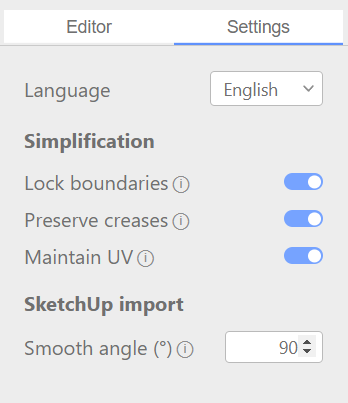
The panel is headed Simplification; the labels below are the ones in the shipped UI.
| Option | Default | What it does, and when to change it |
|---|---|---|
| Lock boundaries | On | Keeps open edges in place. Turn it off for deeper reduction on a closed, watertight mesh; leave it on whenever the object’s outline has to stay exact. |
| Preserve creases | On | Keeps sharp folds sharp instead of rounding them off. Turn it off only when you want a smooth blob; box corners will round off. |
| Maintain UV | On | Decides whether a textured model reduces at all. See below. |
| Smooth angle (°) | 90 | SketchUp only, applied on the way back in. Interior edges whose two faces open at this angle or wider are set soft and smooth; sharper folds stay hard. Lower the number and more edges soften. |
All four persist between sessions. The Smooth angle is what your reduced curved surface will shade like, because the edge state of the original model is not read.
Maintain UV: the switch behind a slider that “does nothing”
This is the most consequential option, and the failure it causes looks like a broken tool. When a face has its UV pinned per corner (most often heavy upholstery modelled in SketchUp, or a textured 3D Warehouse asset), every triangle carries its own UV at every shared vertex. With Maintain UV on, Decimify will not reduce across those vertices: the slider moves, the face count barely does.
When the achieved reduction falls more than 20 points behind the slider, the panel prints “Maintain UV is limiting reduction—try disabling it in Settings.” The trade-off:
- On: the output is texture-identical to the source, and the slider may lock.
- Off: it reduces freely, and the texture is re-mapped onto the surviving faces, face by face, as SketchUp itself projects textures. Thin seams can appear where neighbouring faces’ corners drift apart.
Toggling it in the dialog rebuilds the session; there is no re-import. If a model needs both deep reduction and clean textures, the real fix is upstream: re-UV it in Blender, Maya or RizomUV so adjacent faces share UV slots, then bring it back.
Heavy GLB or STL files: load them straight into the dialog
A model that is not in SketchUp yet can be opened in the same dialog with Choose file (GLB or STL), reduced, and committed with Load to Origin. GLB files compressed with Draco, meshopt or KTX2 textures open too. Two things to set before you commit, because a GLB or STL carries no length unit and no reliable up axis: the unit select (m, cm, mm, in, ft), which the app marks in red because a wrong unit lands the model 10 to 1000 times too big or too small, and the Y up / Z up select, which turns a model that opened on its side. For a model that came from an AI generator, see how to reduce polygons on Meshy and Tripo AI models.
Export is always plain, uncompressed GLB (or binary STL, geometry only), so a compressed source can come out larger even with fewer triangles: one 325 KB file with meshopt and KTX2 textures exported at about 2 MB. A .skp file is not read by the browser app; select the model in SketchUp and use Import Selection.
Real limits, stated plainly
- The output is triangles, one SketchUp Face per triangle. There is no coplanar merge and no edge is hidden; a flat area stays split into triangles. Plan for that if you will edit faces afterwards or need quad topology downstream.
- Physically small objects lose faces to SketchUp, not to the reduction. SketchUp welds vertices within about 1/1024 inch (0.001″), so a triangle whose three corners all land inside that tolerance is rejected when the face is created. Screw threads, jewellery, fine lattices: scale the object up, reduce, scale back. Size is the variable here, not reduction level.
- Broken topology is not repaired. A messy mesh reduces less and comes out as messy as it went in.
- Per-face-pinned meshes can stall with room left on the slider (the heavy-upholstery case). No setting forces them through; re-UV the model instead.
- Vertex colours are not carried through.
- If part of a model has vertex positions that are not valid numbers, the app skips that part, reduces the rest and warns “Skipped N submesh(es) with non-finite coordinates”; clean that part in the source model.
- There is no file-size or triangle limit; the practical ceiling is the memory of the embedded browser window. The interface is English only.
Install the Decimify SketchUp plugin
- In SketchUp: Extensions > Extension Manager > Install Extension, pick the
decimify.rbzfile. - Restart SketchUp. You get an Extensions > Decimify menu item and a Decimify toolbar.
- Sign in with your free 3dshouse account when the first commit asks for it. Sign-in opens your normal browser and returns to SketchUp signed in.
Requirements: SketchUp 2022 or newer (older versions get a message pointing at the browser version) and an internet connection, because the dialog page loads from decimify.3dshouse.com. Your model is not uploaded: the reduction runs as WebAssembly inside the dialog, and the only network traffic is sign-in, the daily-count check and the tool’s own files. The .rbz holds Ruby only and the interface loads when the dialog opens, so most improvements arrive without reinstalling. The extension never installs anything by itself; if a newer .rbz exists it shows a notice with a Download button.
Plugin or browser: which one do you need?
Both render the same interface. Use the SketchUp plugin when the heavy geometry is already in your model or the result has to go back into it: Import Selection, commit-back, the model’s own units and the Smooth angle exist only there. Use the browser app when you have a GLB or STL file and no reason to open SketchUp: simplify it in a browser tab with the same slider and download the result. Import is GLB and STL in both; export is binary GLB (materials and textures) or binary STL (geometry only).
FAQ
How do you reduce polygons in SketchUp?
Group the geometry, select exactly one Group or Component, open Extensions > Decimify, click Import Selection, drag the slider while watching the Faces and Ratio readout, then click the button that writes the lighter mesh back into that definition. It is one Edit > Undo, and every instance of the component updates.
How do I simplify geometry in SketchUp?
If the weight is triangles you can see, reduce them with Decimify as above. Soften/Smooth and Hide only change how edges are drawn, so they do not simplify anything. If the file is heavy because of unused components, materials and styles, run Purge Unused first; stray edges and duplicate faces are a cleanup job.
Is there a free SketchUp polygon reducer?
Decimify is free with a 3dshouse account: every feature at every reduction level, with 3 commits or exports per UTC day. Opening the dialog, importing a selection and moving the slider are not counted.
Is Decimify an alternative to Skimp?
They overlap (see the comparison of SketchUp polygon reduction plugins): both reduce Groups and Components inside SketchUp and keep hierarchy, materials and UVs. On Skimp’s own page it is an import extension that lists GLB, USD, SKP, FBX, OBJ, STL, DAE, 3DS, VRML and PLY (page read in November 2026). Decimify reduces the Group or Component you select and opens GLB and STL files, with a live slider and one undo. We have not run both on the same model, so judge the reduction quality on your own file.
Can I reduce the polygons of an AI-generated model for SketchUp?
If you have it as a GLB or STL file, yes: open it in the Decimify dialog or in the browser, reduce it and commit it with Load to Origin. The guide to reducing polygons on Meshy and Tripo AI models covers that workflow.
Does reducing polygons make the SketchUp file smaller?
It shrinks the geometry, because there are fewer faces and edges to store. But many oversized .skp files are heavy for a different reason: component, material and style definitions nobody placed. Run Purge Unused first; if that reclaims most of the size, polygon count was never the problem.
Can I reduce polygons online instead of installing a plugin?
Yes, for a GLB or STL file. The browser version has the same interface, needs no install and no SketchUp, and exports binary GLB or STL. A .skp file has to be reduced inside SketchUp.
Free: limited to 3 exports a day
Pro: unlimited, guaranteed to work, priority support