Download ParaShape for SketchUp (.rbz) →
ParaShape is a parametric SketchUp plugin: you choose a model from a library of more than 990, set its sizes and options in a dialog, and click to place it in your model. The library covers doors, windows, stairs, railings, fences, gates, cabinets and wardrobes, plus ceilings, partitions, roof framing and more. Free use is 10 placements per UTC day with a free 3dshouse account; browsing the library and changing parameters are never counted.
It is written for architects, joiners and kitchen, stair and fence designers who would rather set a stair flight or a base cabinet to the size they need than redraw it each time. Whether you search for a parametric SketchUp extension, parametric SketchUp models or parametric components for SketchUp, this page says what ParaShape does, what it puts in your model and where it stops.
What the parametric SketchUp extension does
The extension opens the library in a dialog inside SketchUp. Each model carries parameters; you adjust them, and the extension places the result in your model as components. Lengths are shown and entered in the unit set in Model Info, whatever unit the model was authored in. The library also runs in a browser at 3dshouse.com/models, where the same models download as GLB, STL or OBJ; the daily allowance is shared between the plugin and the web library.
How to place and size a parametric model in SketchUp, step by step
- Open ParaShape from the Extensions menu or its toolbar button. The Library dialog has a category filter, a search field and a Recent / Popular sort.
- Find a model. Filter by category (Doors, Fences, Framed Base Cabinets…) or search by name. Nothing is counted yet.
- Click its card. If you are signed out, a sign-in card appears first: “Sign in” opens the 3dshouse sign-in in your browser and your click replays once you are signed in, so you press the card a single time; “Not now” cancels it.
- Drop it. SketchUp’s own place-component tool starts; click in the model to put the model down. Esc cancels, and a cancelled placement spends nothing. The use is counted when you drop the model, not when you click the card.
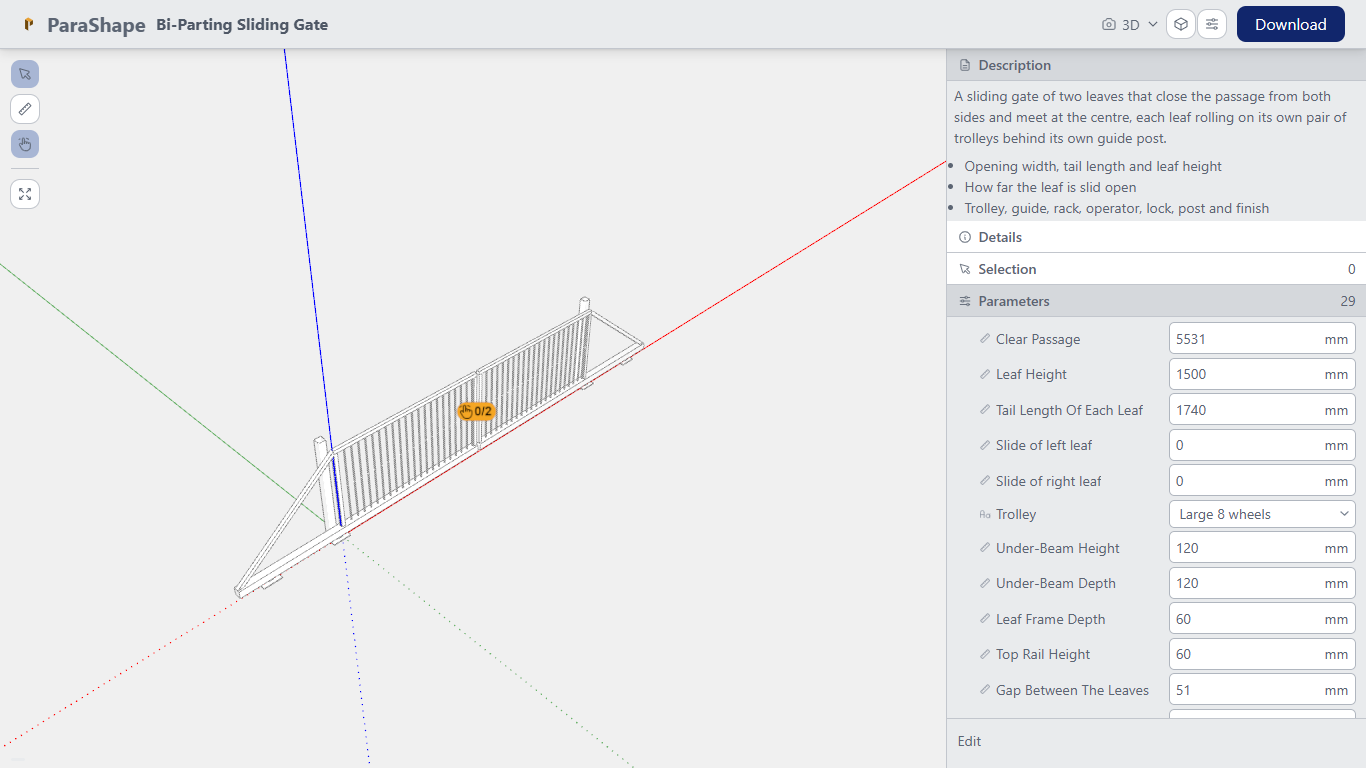
- Size it. The Edit panel opens on the new model with its parameters. Change them and the geometry in SketchUp follows; each edit is one undo step.
Some models take a face or an edge path from your selection. Select the face (or a connected chain of edges) in SketchUp before you place the model, or select the model and press “Use selected face” or “Use selected edges” in the Edit panel.
What lands in your model
- Components. The model arrives as nested SketchUp components, with a SketchUp material for each material the model uses. Parts that the model groups into layers arrive on Tags, so you can hide a group of parts from the Tags panel.
- Clean faces. Flat surfaces are built as single faces rather than as triangle fans, and edges between nearly flat faces are softened.
- The parameters are stored in the file. They are saved inside the .skp together with the geometry, so the file opens without the extension. To change a parameter later you need the extension installed: select the placed model and the Edit panel opens on it.
Resize and edit a placed model
Selecting a placed model opens the Edit panel on it, and the panel follows your selection from one model to the next. Double-click into a model and select one of its parts to see that part’s own parameters. A change can add parts that were not in the model when you placed it, such as a further drawer in a cabinet. Which parameters exist depends on the model; the panel lists what that model offers.
Scaling a placed model with SketchUp’s Scale tool is read as a size change for the axes where the model has an adjustable size, within the limits the model sets, so the parameters stay the record of the size. The ParaShape Interact tool shows a small hand on models that define clickable parts; clicking one steps that part to its next state. That is a display state, not an edit of the model.
ParaShape and SketchUp Dynamic Components
Dynamic Components are SketchUp’s own feature. ParaShape models are not built as Dynamic Components: the extension keeps each model’s parameters in its own attribute record on the placed components and writes no Dynamic Components attributes (checked in the shipped extension). You change them in the ParaShape Edit panel, which needs the extension installed; the placed geometry stays in the file as ordinary components either way.
Doors and windows: a SketchUp door and window plugin
Door categories in the library include Single Doors, Pair Doors, Sliding Doors, Folding Doors, Arched Doors, Pivot Doors and Revolving Doors, plus garage doors (Sectional, Roller, Up-and-Over, Hinged and Side Sliding). Window categories include Casement Windows, Sash Windows, Sliding Windows, Fixed Windows, Bay Windows, Bow Windows and Shaped Windows. Door hardware such as Door Operators and Door Stop Profiles is in the library too.
Stairs and railings: a SketchUp stair and railing plugin
Stair categories include Stair Flights, Curved Stair Flights, Spiral Stairs, Helical Stairs, Winder Stairs, Double Return Stairs, Mixed Turn Stairs, Ship Stairs, Compact Column Stairs, Radius Block Stairs and Supported Tread Stairs, with Stair Treads and Stair Starting Steps as parts. Railing categories include Glass Balustrades, Cable Railings, Post and Rail Railings, Tube and Fitting Railings, Point-Fixed Glass Railings, Industrial Guardrails, Ornamental Railings, Masonry Balustrades, Juliet Balconies, Stair Railings and Wall Handrails.
Fences and gates: a SketchUp fence and gate plugin
Fence categories include Timber Fence Panels, Timber Post and Rail Fences, Vinyl Privacy Fences, Vinyl Picket Fences, Palisade Fences, Ornamental Metal Fences, Metal Mesh Fences, Metal Slat Fences, Pool Fences, Gabion Column Fences, Concrete Post Fences and Temporary Fences. Gate categories include Swing Gates, Pedestrian Gates, Kissing Gates, Bi-Fold Gates, Cantilever Sliding Gates, Track Sliding Gates, Overhead Sliding Gates, Barrier Gates, Pallet Gates and Railing Gates, with Gate Hinges, Gate Latches, Gate Locks and Gate Operators as separate parts.
Cabinets and wardrobes: a SketchUp cabinet and wardrobe plugin
Cabinet categories include Framed and Frameless Base Cabinets, Wall Cabinets, Tall Cabinets and Vanity Cabinets, Bedside Cabinets and Carcasses, with Cabinet Doors, Cabinet Handles, Cabinet Hinges, Drawer Boxes and Worktops as parts. Wardrobe categories are Hinged Door Wardrobes, Sliding Door Wardrobes, Folding Door Wardrobes and Open Wardrobes, with Wardrobe Accessories.
More groups in the library
Besides the four sets above, the library has top-level groups for Ceilings, Partitions, Facades, Retaining Walls, Roof Framing, Roof Glazing, Outdoor Covers (pergolas, carports, gazebos, awnings, canopies) and Window Coverings, and categories such as Beds and Walk-In Showers. The category list is as read on 2026-11-05; the library grows, so check the Library dialog for what is there now.
Requirements
- SketchUp 2022 or newer, on Windows or macOS. The extension works in any SketchUp edition that can install extensions.
- An internet connection: the library and the model data load from our servers. The extension does not run in SketchUp for Web.
- A free 3dshouse account, asked for when you place your first model.
Install
- Download the .rbz from the ParaShape for SketchUp page. Do not unzip it.
- In SketchUp: Extensions → Extension Manager → Install Extension, then select the .rbz file.
- Open ParaShape from the Extensions menu.
FAQ
Is there a parametric plugin for SketchUp that places doors, windows and stairs?
ParaShape is a SketchUp extension with a library of more than 990 parametric models, including doors, windows, stairs, railings, fences, gates, cabinets and wardrobes. You set a model’s parameters in a dialog and place it in your model. Free use is 10 placements per UTC day with a free 3dshouse account. Install steps are on the ParaShape for SketchUp page.
Are ParaShape models SketchUp Dynamic Components?
No. The extension stores each model’s parameters in its own attribute record on the placed components and writes no Dynamic Components attributes. You change them in the ParaShape Edit panel, which needs the extension installed; the geometry stays in the .skp as ordinary components.
Can I change a parametric model after I place it?
Yes. Select the placed model and the Edit panel opens on it; change a parameter and the geometry updates, as one undo step. Browsing the library and changing parameters are never counted against the daily allowance, only placing a model is. The parameters are saved in the .skp, but editing them again needs the extension.
Is there a SketchUp plugin for cabinets, wardrobes, fences or gates that I can size?
The library has cabinet categories (Framed and Frameless Base, Wall, Tall and Vanity Cabinets), wardrobe categories (Hinged Door, Sliding Door, Folding Door and Open Wardrobes), many fence categories (timber, vinyl, palisade, ornamental metal, mesh, pool) and gate categories (swing, pedestrian, sliding, bi-fold, barrier). Each model lists its own parameters in the Edit panel.
Free: limited to 10 uses a day
Pro: unlimited, guaranteed to work, priority support
- BevelUp — round or chamfer edges into real geometry, in one click
- Decimify — reduce the polygon count of a heavy model
- Tracepen — trace an image into SketchUp faces
- TileUp — turn a face into real 3D tiles, with a take-off
- Texturic — make seamless tile textures with PBR maps
- SheetUp — turn a SketchUp model into a bill of quantities and cost estimate