

 Tiếng Việt
SketchUp
SketchUp Wardrobe Plugin — Full-Option Closet in 10 Minutes

How to Draw Wardrobe in SketchUp: Full-Option Closet in 10 Minutes
Drawing a full-option wardrobe in SketchUp is difficult and time consuming, but with the Parashape (3dshouse) plugin you only need 10 minutes to model and export CNC drawings.
This guide is current for SketchUp 2026, which is now a Trimble product sold only as a named-user subscription (perpetual licenses ended in 2020). Steps 1–2 below still work the same way they did in 2022–2025, because the wardrobe parts are built from standard Dynamic Components, which Trimble continues to support in 2026. The CNC nesting in Step 3 needs the ABF plugin, which does not yet support SketchUp 2026 — see the note there.
User manual
-
- You need to install the free plugin: 3dshouse dynamic sketchup
- Load models directly from the plugin. The plugin has Vietnamese language. You go to Settings to set the language
Video tutorials
https://www.youtube.com/watch?v=D_XbN8c12nc&t=27s
Step 1: Set model parameters
Use 3dhuose plugin to load components, edit parameters accordingly
- Choose a wardrobe – then choose a vertical cabinet Adjust cabinet size to suit actual needs
- Select the yin and yang mount bracket for the cabinet Select drawer for cabinet
- Select the drawer frame for the cabinet
- Select top door for cabinet
- Select drawers for drawer frames in cabinets with continuous handles
- Choose plate
- Choose a clothes rack
- Select mount accessories
- Select the door for the main cabinet
- Select interact dynamic component to open and close motion components
- Select all models press the clean dynamic button
Always resize the cabinet by typing values into the plugin’s option panel, not by dragging it with the Scale tool. A dynamic wardrobe re-builds its internal parts (shelves, drawer counts, panel thickness) from the typed dimensions; the Scale tool instead stretches the whole assembly as one block, so panels end up the wrong thickness and drawers distort — a distortion ABF will later cut exactly as drawn. A second gotcha to know before you start: copy-pasting a dynamic cabinet and then changing its size makes SketchUp split it into a new unique definition each time, which quietly inflates file size and Outliner clutter on a big wardrobe job. Set each cabinet’s options first, then copy, to keep the model light.

Step 2: Clean Dynamic — Prepare Wardrobe Parts for CNC Nesting
Chọn mô hình click công cụ Clean Dynamic của plugin 3dshouse để xóa tính năng dynamic, hàn các tấm lại với nhau. Clean Dynamic là bắt buộc trước khi sửa thủ công.
Clean Dynamic is not optional before nesting — it is what makes the panels machine-ready. A live dynamic component stores its parts as scaled instances of a base definition, so the geometry ABF reads can be the wrong real-world size even when the cabinet looks correct on screen. Clean Dynamic strips the dynamic attributes, bakes every panel to its true dimensions and welds the boards, leaving plain groups that nest and export reliably. If you ever need to hand-edit a board after this step, do it now: once cleaned, the parts no longer rebuild from parameters, so re-sizing means editing geometry directly.
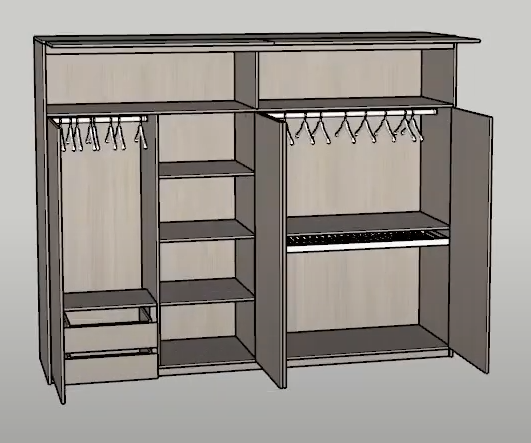
Step 3: Nesting SketchUp Wardrobe Panels with ABF Plugin
Select all wardrobe models using the ABF plugin to export SketchUp CNC drawings
Note before you nest: ABF runs only on Windows SketchUp, and is supported up to SketchUp 2025 — it does not install on SketchUp 2026 or on Mac. If your shop is on the 2026 line, keep a 2025 install for the ABF/CNC export step, or do the modeling in 2026 and export the cleaned wardrobe to 2025 for nesting. ABF lays out the welded panels onto stock sheets and exports a layered DXF (cut, drill, label layers) that you load into CAM software such as Aspire or Mastercam to assign tool paths.

