I work mostly with SketchUp files for interior and architectural visualization, so model weight is not a theory problem for me. It shows up at the worst time: a sofa from an FBX library, a plant with too many leaves, an STL detail from a supplier, or one over-detailed 3D Warehouse component that makes the whole scene feel slow. The funny part is that the file can look simple on screen while still carrying a ridiculous number of hidden faces.
My first fail was assuming SketchUp had a built-in polygon reducer. It does not. My second fail was assuming every plugin that says “optimize” or “make the file lighter” actually reduces faces. Some only help with visibility, unused data, or import flow. Useful, yes, but not the same problem. After testing and re-checking the claims, I narrowed the list down to tools that genuinely reduce polygon or face count in a SketchUp workflow.
This is the short version: three tools I would actually consider, depending on whether the object is already inside SketchUp, still outside as an asset file, or just needs a fast free pass before spending money.
Prices checked: May 6, 2026.
What I Found
- Decimify: the no-drama free route. $0, with a 50% face-reduction cap on both web app and SketchUp plugin.
- Skimp: the paid daily-work route. It reduces existing objects and simplifies assets before import.
- Transmutr: the pre-SketchUp route. It converts external files with simplification, materials, and proxies.
- Excluded on purpose: visibility tricks, file-housekeeping tools, and generic importers that do not reduce faces.
Price Snapshot
| Tool | Current Price | Important Detail |
|---|---|---|
| Decimify | Free, $0 | Web app and SketchUp plugin share the same 50% free reduction limit |
| Skimp | Free 5-day trial; $79 USD/year; $229 USD permanent | Paid commercial SketchUp reducer/importer |
| Transmutr | EUR 79 regular; EUR 5/year student | Standalone converter with mesh simplification |
Decision Map
| Situation | Use | Why |
|---|---|---|
| You need a free reducer | Decimify | No cost, direct slider workflow |
| One SketchUp component is too dense | Decimify first, Skimp if you need more control | Both work on SketchUp geometry |
| You import OBJ/FBX/GLB assets often | Skimp | It reduces and imports in one SketchUp-focused workflow |
| Your assets start outside SketchUp | Transmutr | It prepares the model before SketchUp has to carry it |
| Render assets need proxies | Transmutr | Official help lists V-Ray, Thea, and Enscape proxy export |
| You need more than Decimify’s free 50% cap | Skimp or Transmutr | Decimify free stops at 50% reduction |
Decimify
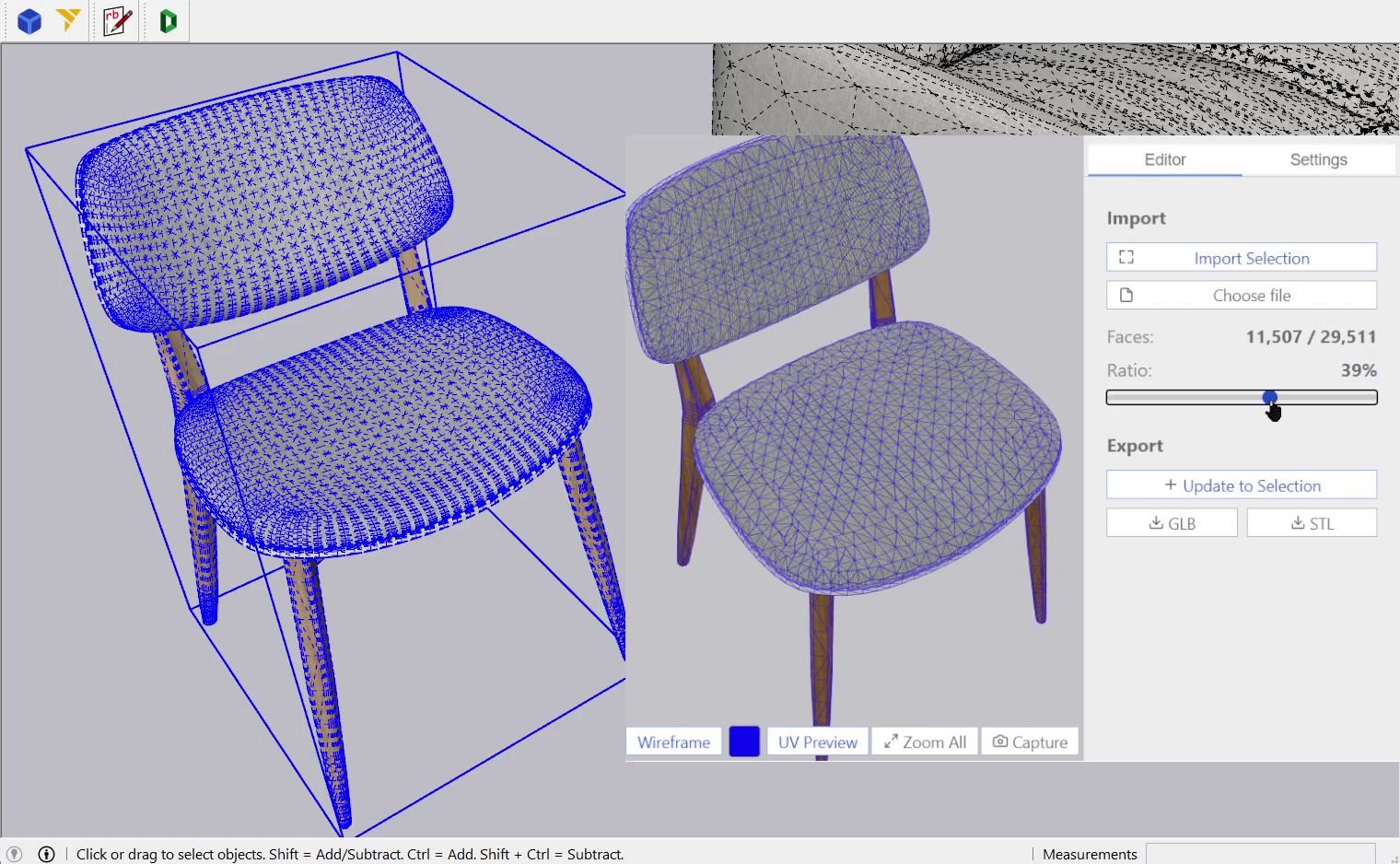
Decimify is the tool I would try first when I just want an honest answer: can this heavy mesh become usable without paying for anything? That is its personality. It does not try to be a full asset pipeline. The web app handles GLB/STL files in the browser, and the SketchUp plugin works on selected groups or components. The important detail is simple: both are free, and both stop at the same 50% face-reduction limit. I like it for quick experiments, especially plants, decor, and supplier meshes. The fail case is also clear: if the model still feels heavy after that 50% pass, Decimify has already done its free job.
- Price: Free, $0.
- Free limit: 50% face reduction.
- Web app: GLB/STL simplification in the browser.
- SketchUp plugin: Selected group/component simplification.
- Best use: Quick object-level reduction.
- Watch out: UV-heavy meshes may resist simplification.
- Main weakness: The 50% cap is real.
- Checked from: online tool docs, SketchUp plugin docs, and local Decimify source where the free slider is capped at 50%.
Skimp
Skimp is the tool I would consider when the problem stops being occasional. If you only reduce one chair this month, paid software may feel unnecessary. But if you import furniture, lights, plants, OBJ/FBX files, or 3D Warehouse models every week, waiting becomes a real cost. Skimp makes sense because it works in two places: on objects already inside SketchUp, and before external assets enter the model. I have learned to respect that second part. Once a bad mesh is already inside a live project, every save and orbit reminds you of the mistake. Skimp is not the cheapest answer; it is the workflow answer for people who keep meeting the same problem.
- Trial: Free for 5 days.
- Subscription: $79 USD, single-seat 1-year license.
- Permanent license: $229 USD, single-seat license.
- Main role: SketchUp polygon reducer and importer.
- Inside SketchUp: Reduces heavy existing objects.
- Before import: Previews and simplifies external assets.
- Requirement: SketchUp Pro Desktop 2020 or newer.
- Checked from: Skimp official pricing and feature page.
Transmutr
Transmutr is where I change my thinking from “fix this SketchUp object” to “prepare this asset properly before SketchUp touches it.” That matters with render libraries, scanned assets, Megascans-style files, or models that arrive with strange scale, wrong axes, messy materials, and too many faces at the same time. Its Mesh Simplification feature is the reducer part, but the real value is the whole preparation layer: materials, units, origin, smoothing, proxy export, and SketchUp-ready output. I would not open Transmutr for one small chair already sitting in a scene. I would use it when the source file itself is the problem, because bringing a bad asset into SketchUp first usually just moves the pain forward.
- Regular price: EUR 79.
- Student price: EUR 5 for one year.
- Main role: External asset conversion.
- Reduction: Mesh Simplification lowers face count.
- Proxy output: V-Ray, Thea, and Enscape.
- Extra value: Materials, scale, units, axes, origin.
- Best timing: Before the model enters SketchUp.
- Checked from: Transmutr overview, Mesh Simplification docs, proxy docs, and Lindale student pricing.
Practical Workflow
- Keep the original: Polygon reduction is destructive once committed.
- Work object by object: Reduce one component, inspect it, then continue.
- Start mild: 30-50% is often enough for furniture and plants.
- Watch the silhouette: If the outline breaks, the model has been pushed too far.
- Inspect close textures: UV problems often appear only after zooming in.
- Use proxies for render-only assets: Do not force SketchUp to carry every render triangle.
- Separate housekeeping from mesh reduction: One removes mess; the other removes faces.
Conclusion
My takeaway after digging through this is pretty practical: do not buy a plugin before you know where the weight is coming from. If one mesh is suspicious, I would start with Decimify and see whether a free 50% reduction is enough. If heavy assets keep showing up in normal SketchUp work, Skimp is the more serious daily tool. If the file is still outside SketchUp and already looks risky, Transmutr is the better place to solve it. The real lesson is not “one plugin wins”; it is knowing whether you need a quick reducer, a SketchUp workflow tool, or an asset-prep step before the damage enters the model.