

 Tiếng Việt
Download Tracepen for SketchUp (free .rbz) →
Tracepen turns a PNG or JPG into native SketchUp faces – each colour becomes its own group with its own material, ready to push-pull, paint, or run Solid Tools on. A deterministic tracer (no AI): same image in, same faces out. Free with every feature and full colour, 5 loads into your model a day with a free 3dshouse account. Tracepen Pro removes the daily limit: $60 one-time, and the same purchase covers the web app and the Blender add-on.
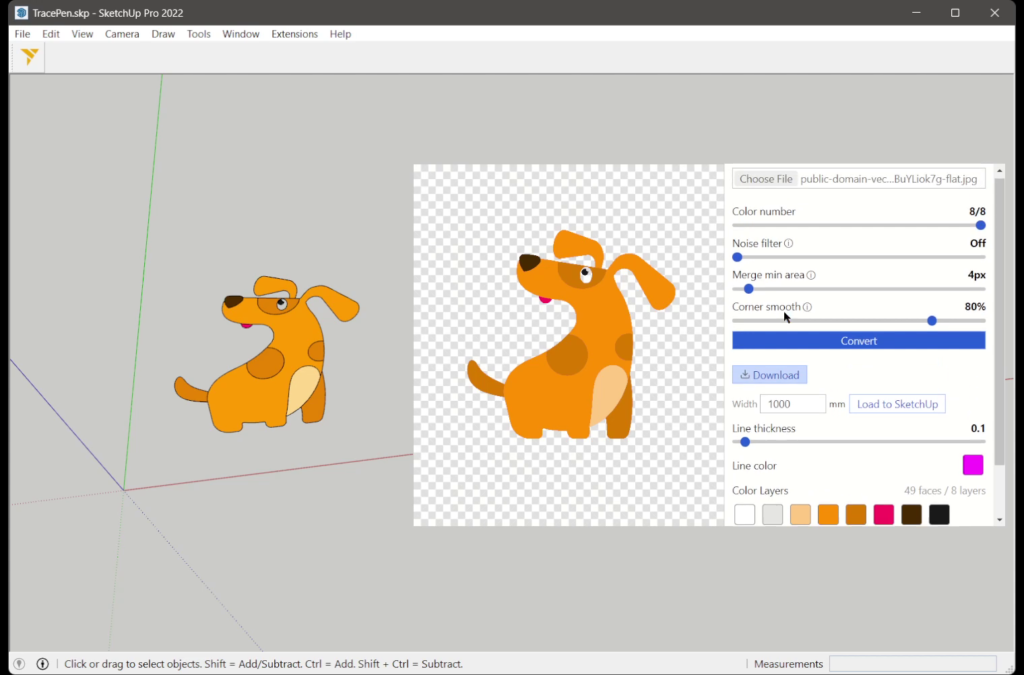
Video
Features
- Native SketchUp faces – real geometry, not an imported image. Every SketchUp tool works on them.
- Colour-per-group – each colour lands as a group with its own material.
- One-undo insert – a single Ctrl+Z rolls the whole insert back.
- Re-trace refills – tracing the same image again refills the existing geometry instead of duplicating it.
- Per-layer control – colour count, noise filter, minimum region size, stroke.
- Client-side processing — tracing runs via WebAssembly in your browser; your image never leaves your machine.
Tracepen vs. other ways to get an image into SketchUp
| Tracepen | Scan2CAD | Manual tracing | Import image | |
|---|---|---|---|---|
| Price | Free + Pro | Paid | Free | Free |
| Output | Native SketchUp faces | DXF (import after) | Faces (slow) | Flat image, not geometry |
| Colour per group | Yes | No | Manual | No |
| Deterministic (repeatable) | Yes | — | — | — |
| No image upload | Yes | Yes | Yes | Yes |
Comparison reflects publicly available information in 2026; check each vendor for current pricing.
Install
- In SketchUp: Window → Extension Manager → Install Extension and pick the
tracepen.rbz(a signed Trimble extension). - Restart SketchUp. Open it from Extensions → TracePen.
- Sign in with a free 3dshouse account when the tool opens, then trace and load the result into your model. The free plan loads 5 results a day; Tracepen Pro ($60 one-time) removes the limit. One purchase covers every surface — web app, SketchUp plugin and Blender add-on.
If TracePen never appears in the Extensions menu, check Extension Manager → Settings: the default Identified Extensions Only loading policy silently skips any extension whose signature SketchUp can’t verify, so a half-downloaded or re-zipped .rbz just won’t load with no error dialog. Re-download from the button above (signing covers the whole package) rather than switching the policy to Unrestricted.
Requirements
- SketchUp 2022 or newer (Pro or Studio – note that SketchUp is a named-user subscription now, and there is no free desktop “Make” edition).
- Windows or macOS. SketchUp 2026 itself dropped Windows 10 and macOS 12, so on the very latest release you need Windows 11 or macOS 13+; TracePen runs on any 2022-2026 install regardless.
FAQ
Does it use AI?
No – a deterministic tracer. The same image always produces the same faces, which matters for production work.
Does it send my image anywhere?
No — tracing runs via WebAssembly in your browser; your image never leaves your machine.
Is there an online version?
Yes – the Tracepen web app exports SVG, PNG, PDF, and DXF for other tools.
Is it signed?
Yes — distributed as a signed Trimble Extension, so Extension Manager loads it without an “untrusted code” warning, and it keeps working even when your loading policy is set to the strict Identified Extensions Only mode.
Can I edit the shapes afterwards?
Yes — they’re real SketchUp faces. Push-pull, Solid Tools and every SketchUp tool work on them. One thing to watch: traced faces land coplanar, so adjacent same-colour regions can share edges; if a push-pull drags a neighbour you didn’t expect, the two regions are touching – move one group off the plane first, or trace them as separate colours.
Does it work on SketchUp Free (web)?
No — SketchUp for Web can’t load .rbz extensions. Use the online tool with DXF Faces export instead.
