SketchUp
Why Imported DWG Lines Won’t Make Faces in SketchUp
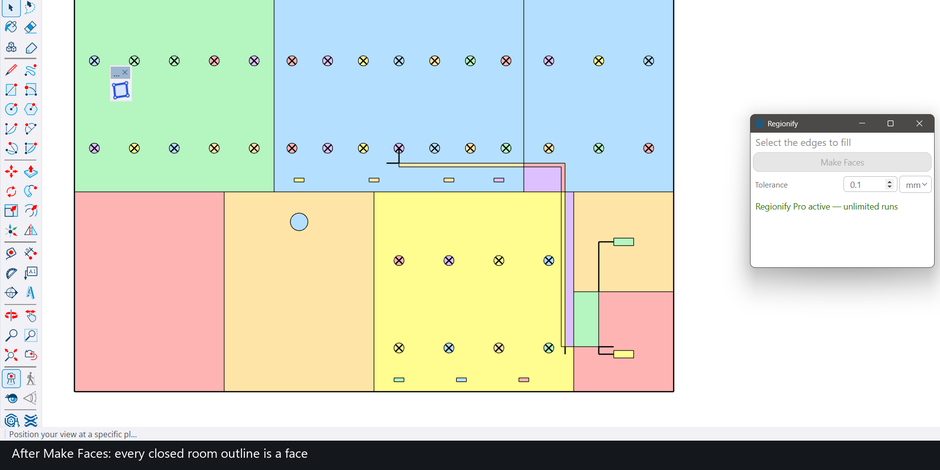
A DWG or DXF drawing holds lines, not surfaces. SketchUp turns those lines into faces only where they close a loop on one plane and meet exactly, so a plan that looks finished on screen can arrive as nothing but edges. The cause is almost always one of four defects: a break at a corner, a line that overshoots, lines that cross or overlap without a shared point, or lines at different heights. Below is how to tell which one you have, how to repair it by hand, and where an extension saves the work.
What the import really gives you
A forum answer puts it plainly: “The .dwg file is only made up of edges. No faces.” SketchUp’s own help page says the same thing in different words: “Lines may not connect to form faces,” and “Hunting down all the little gaps can be difficult” (CAD import, help.sketchup.com). A forum regular also noted in a thread about faces not generated from CAD files that SketchUp has been less tolerant of small errors since the 2021 file format, so a drawing that closed in an older version can fail now.
Four causes, and how to tell them apart
| What you see | Likely cause | Manual repair |
|---|---|---|
| A loop looks closed, yet clicking inside selects nothing | A tiny break between two endpoints | Draw an edge across the break |
| A corner has a short tail sticking out | An overrun: the line runs past the corner | Trim or erase the overshoot |
| Lines visibly cross, or sit on top of each other, but the loop stays open | No shared point where they meet | Intersect, then clean up |
| Some rooms fill, others never do | Part of the linework is at another height | Flatten it to one plane |
1. Breaks at endpoints. A long-standing diagnosis from the SketchUcation forum: “A common reason for missing faces with imported DWG files is gaps at endpoints.” Another regular there adds that many CAD drawings are sloppily made, with small gaps in a loop of edges (thread). On a closed loop that stays unfilled, drawing an edge between two of its endpoints may create the face and leave redundant edges to clean up afterwards (forum thread). A full comparison of tools that hunt for gaps is in our guide to closing gaps in SketchUp lines.
2. Overruns. A line that shoots past its corner leaves a loose end, and the loop is no longer a clean loop. In a 2026 thread on a face-creation extension a regular explained that overruns “will cause problems with faces filling” until they are fixed (thread).
3. Crossings and overlaps with no shared point. A poster draping CAD site-plan lines onto a surface described intersecting lines that would not close into shapes, with the lines ending up “without being redrawn at multiple intersections” (thread); an older SketchUcation post says lines that overlapped did not intersect (thread). The manual route is Intersect Faces on the selection, then erasing what is left. In our own measurement on two public plans (422 and 349 faces expected), running Intersect Faces and then SketchUp’s find-faces call produced 252 and 222 faces in SketchUp 2025; we did not investigate why. The article on overlapping lines goes deeper into this case.
4. Linework at different heights. A face needs coplanar edges. As one SketchUcation regular puts it, CAD lines that are not coplanar “can therefore never form a single face” (thread). Flatten the drawing to one plane first, then look for the other three defects.
When a tool is the faster route
Hand repair works for a handful of loops. A site plan with thousands of edges turns it into an afternoon. Regionify is a SketchUp extension built for this case: you select the edges and press Make Faces, and every closed loop that lies on one plane becomes a flat face, holes and nested loops included. It does not rely on SketchUp’s default face finder. It works out the loops from the raw edges, so lines that cross, meet in a T or lie over one another do not need to be intersected first, and your original edges are not erased.
- Crossings without a shared vertex. In an engine test, four vertical and five horizontal full-length lines gave exactly the 12 grid cells; SketchUp’s find-faces call run once per selected edge returned one face, the outer loop, on the same input.
- Overlapping edges. A long edge lying over two shorter ones gives two faces, and the shared vertex is kept. Importer block definitions can contain edges stacked like this; a second press skips faces that already exist.
- Real drawings. In SketchUp 2025, on four public DXF plans imported with SketchUp’s own importer, one press made 62, 422, 349 and 373 faces. An independent count from the same edges gives 62, 422, 349 and 374; the single missing face is an importer face that covers two cells, and the total area differs by 0.0%. A press took 1.9 to 2.6 seconds on 4,000 to 8,900 edges.
- Containers and layers. Select a group or component, nested to any depth, and Regionify fills its contents in place, without exploding it. New faces take the tag that most of their boundary edges are on. One undo removes everything.
How it sits next to the other make-face tools is in the roundup of SketchUp make-face plugins. We build Regionify to hold up on the drawings real offices send, and we stand behind it.
Limits to know before you rely on it
- Breaks close only below the Tolerance. There is one setting, Tolerance: default 0.1 mm, up to 25.4 mm. Points and line ends closer than that count as one point. A 0.5 mm break stayed open at 0.1 mm and closed after typing 1 mm. Regionify does not find, mark or report gaps, and a drawing with no closing chain gets no face.
- The Tolerance is an absolute distance, so what it means depends on the drawing’s units, and large values hurt: in our offline tests on nine DXF drawings the default lost nothing, while values from 0.02 in upward lost faces on several.
- Flat faces only. A loop whose edges are not on one plane is reported (“No face made … Regionify makes flat faces only”) and left alone.
- Measured on DXF, imported with SketchUp’s importer, on Windows with SketchUp 2025. Needs SketchUp 2022 or newer and an internet connection. It is not yet on the Extension Warehouse; the landing page has the details.
FAQ
Does SketchUp read DWG files?
Yes. Choose File > Import, set the file type to AutoCAD Files and press Options before Import (SketchUp help, CAD import). The import translates the entities of the file into SketchUp entities, but the same page warns that lines may not connect to form faces.
How do I generate faces in SketchUp?
SketchUp makes a face when edges close a loop on one plane. Draw an edge across the loop, or repair the break that stops the loop, and the face appears; on imported linework with many breaks, crossings and overlaps an extension that builds the faces from the raw edges saves the repair work.
How do I import a DWG file into SketchUp?
File > Import, file type AutoCAD Files, then Options to check units and what is imported, then Import (SketchUp help). Expect edges: the faces are a separate step.
Free: limited to 3 runs a day
Pro: unlimited, guaranteed to work, priority support
- BevelUp — round or chamfer edges into real geometry, in one click
- Decimify — reduce the polygon count of a heavy model
- Tracepen — trace an image into SketchUp faces
- TileUp — turn a face into real 3D tiles, with a take-off
- Texturic — make seamless tile textures with PBR maps
- SheetUp — turn a SketchUp model into a bill of quantities and cost estimate
- PatchUp — turn selected edges into faces, flat or curved
- Regionify — turn selected edges into flat faces, holes included