Tiếng Việt
SketchUp
Face Tool SketchUp — Select Faces Inside Nested Groups Fast
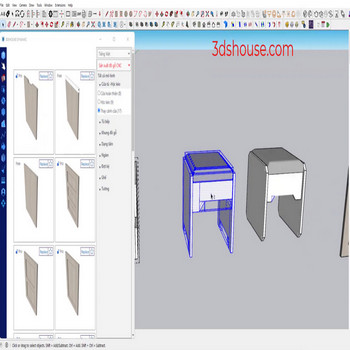
For models composed of many nested groups or components, selecting faces of an object is very difficult. Use the Face tool in SketchUp – Select Faces in Objects to do it faster.
This command is part of the TP Face Tools SketchUp extension (by tak2hata, free on Extension Warehouse) — still installs and runs fine on SketchUp 2026.
Face Tool in SketchUp – Video Tutorial
Steps by steps:
- Select object – Face tool – Select Faces in Objects
- All faces of the object are now selected

Face tool in Sketchup 2021

Tips & notes:
- The command recursively scans through all levels of nested groups/components — it selects every face without needing to double-click into each group, saving the deep-dive on complex models.
- This is how to apply materials to faces inside a nested group without opening it: once faces are selected, the Paint Bucket paints directly onto each face (material assigned per face, overriding the group default material) — very convenient for batch texture replacement.
- Note: the command selects faces only, not the solid; so it suits material assignment or area measurement, not Move/Scale like when selecting an entire group (which would distort the internal geometry).
- Combine with the right-click Area menu to quickly sum up the total face area the total area of selected faces — useful for material takeoffs (tiling, paint) on multi-block models.
More SketchUp tools by 3dshouse