

 Tiếng Việt
SketchUp
Align & Distribute Multiple Objects in SketchUp
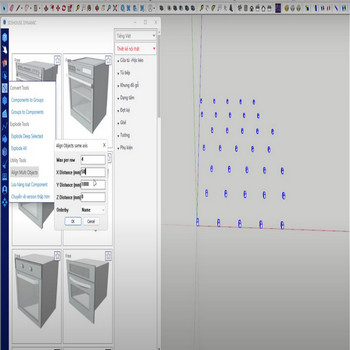
When you have to work with many objects, for tidy display, use the Align Multi Object tool to align and distribute multiple objects in SketchUp. This fills a genuine gap: even in SketchUp 2026 there is still no native align-and-distribute command — it has been one of the longest-running feature requests on the SketchUp forums, so spacing objects evenly by hand (or with a helper tool like this) is still the norm.
How to Align and Distribute Multiple Objects in SketchUp – Tutorial Video
Steps by steps:
- Select all objects, click the Align multi object tool
- Choose the spacing distance, X/Y/Z axis distribution, sorted by filter
- Objects are aligned and distributed evenly in rows and columns
If you only need to drop a fixed number of evenly spaced copies along a single line, you don’t even need an extension — SketchUp has a hidden native trick: place the first and last copy with Move + Ctrl, then immediately type /n (for example /5) and press Enter. SketchUp divides the span and inserts that many equally spaced copies between the ends. The Align multi object tool is for the 2D row-and-column grid case that this shortcut can’t handle.

- Align multiple objects automatically
