

 Tiếng Việt
SketchUp
Export Multiple SketchUp Components to Separate Files
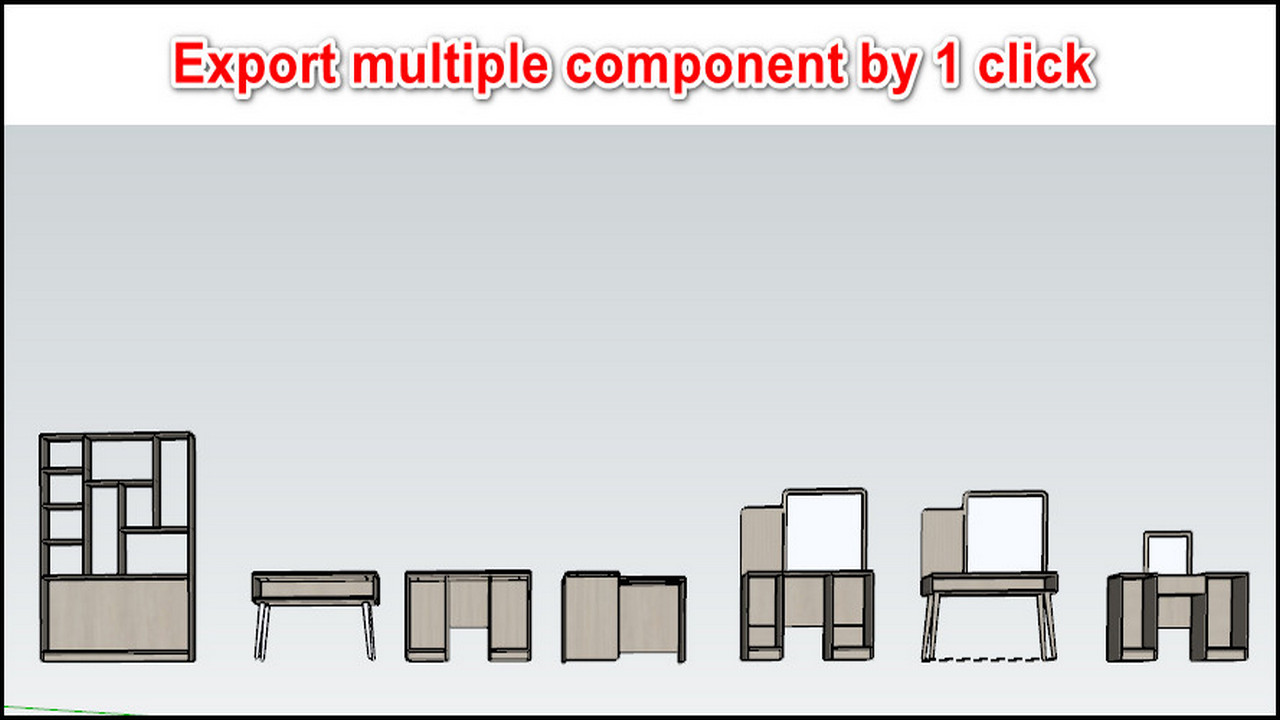
When working with multiple components (com), to reuse the components next time you have to manually save each one as a separate .skp file. In SketchUp 2026 the only native way to do this is to right-click a single component and pick Save As — there is still no built-in command to batch-export many selected components to separate .skp files at once. Instead of repeating that one by one, use the Save As Multiple Component tool to batch export SketchUp components automatically.
How to Export Multiple SketchUp Components to Separate Files — Tutorial Video
Steps by steps:
- Click to select the com you want to export-click tool save as multi component- choose the export folder
- Com you choose has been exported to each file, very convenient for reuse

Export multiple component by 1 click
Good to Know Before You Batch Export SketchUp Components:
- Each saved .skp uses the component’s own axes as its insertion origin, not the model origin — so set every component’s axes deliberately before exporting, or they will all reinsert from the wrong point later.
- The native right-click “Save As” silently strips the component definition down one level when it writes the file, which can flatten how nested sub-components behave on save — exporting straight from definitions (as this tool does) keeps the hierarchy you selected.
- Reused .skp components stay linked by their original definition name, so two saved files sharing a name will collide and overwrite each other in the In Model browser — give each component a unique name before a batch run.
More SketchUp tools by 3dshouse
