SketchUp
Overlapping Lines in SketchUp: Why No Face Forms, and the Quick Fix
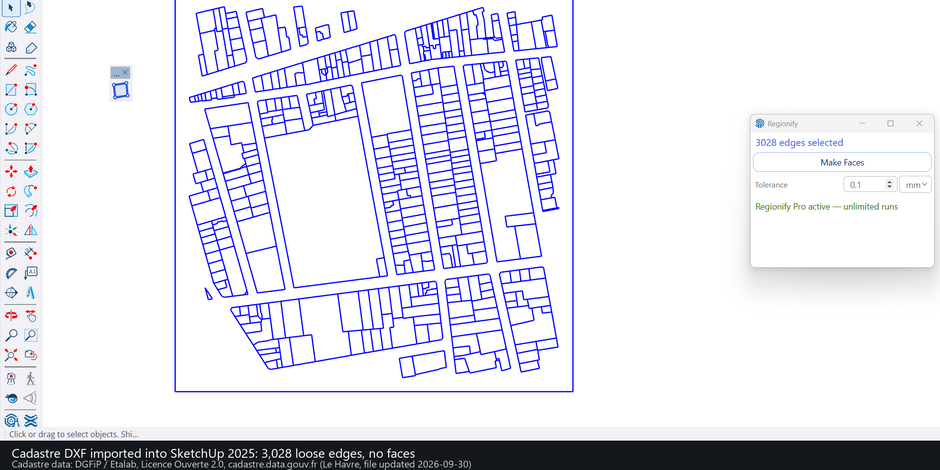
Lines that lie on top of each other, or cross without a shared point, are a quiet reason SketchUp builds no face, or the wrong one, from imported CAD. By hand the cure is to intersect every edge and then fill the loops. Regionify, a SketchUp extension built for this import case, skips the clean-up: you select the edges as they came in and it fills every closed flat loop.
What stacked and crossing lines look like in imported CAD
A DWG or DXF import brings in edges only: “The .dwg file is only made up of edges. No faces.” (DaveR, SketchUp forum). CAD does not care whether two lines share a point, SketchUp does, and three situations come up again and again:
- Overruns. A line runs slightly past the spot where it should end. A forum helper working on a drawing that would not fill found “a couple of places where edges over run very slightly” and added that “you have to zoom in tight to see them” (thread).
- Crossings with no shared point. Two lines pass over each other and neither is split there. One user in an older SketchUcation thread wrote that “many of my lines, even thought they overlapped, did not intersect”, and he suspected this was what kept Make Faces from recognising a face (thread).
- One line over others. A long line drawn on top of two shorter ones on the same track. SketchUp’s DXF importer can leave such overlapping collinear edges inside block definitions; we met it on one of our test drawings.
Newer SketchUp is stricter too: one answer on the forum notes that SketchUp has become “less tolerant of small errors” (thread). To locate a bad spot, one helper drew edges between endpoints across the suspect openings to narrow down where the problems were (thread). Gaps at endpoints and loops that are not on one plane are the other usual causes; closing gaps in SketchUp lines and why imported DWG lines make no faces cover those.
The manual fix: intersect, then fill
- Delete or pull back overruns. One user could not erase an overrun without deleting the whole line and pushed the endpoints back with the Move tool instead.
- Select all the edges, right-click one and choose Intersect Faces > With Selection. In the forum’s words: “Even though there are no faces it tends to make intersections of edges.” An older thread solved the same case with Intersect with Model.
- If faces are still missing, run it again; the same helper suggests “running Intersect Faces more than once”.
- Fill the loops with your usual method. Drawing an edge between two endpoints also creates the face, though it “may need you to clean up some redundant new edges”.
It does not always finish the job. In the thread above, intersecting and then running a face tool had this result, in the poster’s words: “While several more faces filled in, it wasn’t a complete success.” A small measurement of ours points the same way: on a grid of 4 vertical and 5 horizontal full-length lines with no shared vertices (12 cells, SketchUp 2025), SketchUp’s own face finding run once per selected edge returned 1 face, the outer outline; Intersect Faces followed by the same step returned 2. One test input, not a survey of drawings.
Where Regionify fits
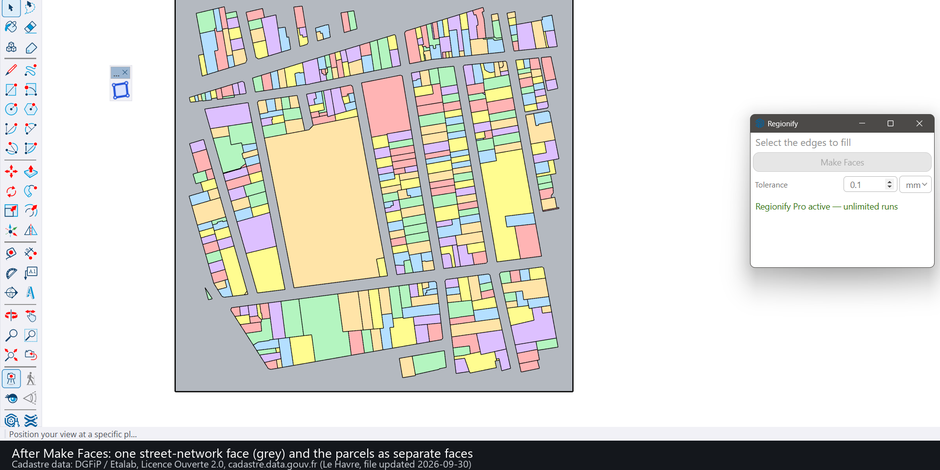
Regionify has its own way of building faces: it works out the closed loops from the raw selected edges and hands SketchUp finished faces, holes included, instead of relying on SketchUp’s default face finding. You do not intersect anything beforehand.
- Lines that cross with no shared point still enclose cells. On the grid above Regionify’s engine test gives all 12.
- A long edge lying over two shorter collinear edges gives the two faces, with the shared point kept in both (engine test with exact areas). Pressing Make Faces a second time does not double the faces on drawings that carry such overlaps.
- Line ends that rest on another line, or lie within the Tolerance of it, join it. The Tolerance is the one setting (default 0.1 mm, up to 25.4 mm, in mm or in).
- Your original edges stay: none were erased in the measured runs. New faces take the tag of the edges they come from, and one undo removes the whole build.
Measured on real drawings. In SketchUp 2025, four public DXF drawings imported with SketchUp’s own importer, all edges selected, one press each: 62, 422, 349 and 373 faces, against an independent reference of 62, 422, 349 and 374 computed from the same edges. Total face area differed by 0.0% on every drawing, and one press took 1.9 to 2.6 seconds on 4,000 to 8,900 edges. The one-face difference is an importer face that covers two cells. The ground-floor plan, imported without exploding its blocks, came out at 62 of 62. Sources and licences of the drawings are on the Regionify page.
Our commitment. We build Regionify to enterprise-grade standards for this exact case, imported CAD whose lines overlap, cross and stop short, and we stand behind it. That is a commitment, not a measurement; the measurements are the ones above. If a drawing of that kind gives you a wrong face count, we want to see it.
Limits to know first
- Regionify does not remove overlapping lines and does not find or report gaps. A break closes only if the Tolerance is raised above it, and an open drawing with no closing chain gets no face.
- The Tolerance is an absolute distance, so it depends on your drawing’s units; large values collapse thin features.
- Flat faces only. A loop whose edges are not on one plane is skipped, and the dialog says so.
- Needs SketchUp 2022 or newer and an internet connection (the dialog loads from 3dshouse.com). Tested on Windows.
Related reading
Other tools for the same job are compared in SketchUp make-face plugins compared; gap finders are in closing gaps in SketchUp lines.
FAQ
Why is my shape not filling in SketchUp?
For imported CAD the causes forum helpers name are overruns, gaps at endpoints, lines that overlap or cross without being split, and edges that are not on one plane (forum). Cross and overlap problems are fixed by intersecting the edges; gaps need the endpoints joined; non-flat loops cannot take a face at all. Why imported DWG lines make no faces covers the full list.
How to make a face from lines in SketchUp?
Draw an edge between two endpoints of a closed loop and SketchUp fills it, though that may leave redundant edges to clean up (forum). For many lines at once, intersect them first (select all, right-click, Intersect Faces > With Selection) or use an extension that makes faces from selected edges, such as Regionify.
How to remove excess lines in SketchUp?
Select the extra edges and press Delete. After an intersect, the leftover pieces of an overrun can be erased the same way. If the only goal is to fill closed outlines, you may not need to remove anything: Regionify fills the closed flat loops and leaves every original edge in place.
Is there a Make faces plugin for SketchUp?
Yes, several. Best SketchUp make-face plugins compared sets them side by side. Regionify is the one aimed at imported CAD linework with lines that cross, overlap or stop short.
Free: limited to 3 runs a day
Pro: unlimited, guaranteed to work, priority support
- BevelUp — round or chamfer edges into real geometry, in one click
- Decimify — reduce the polygon count of a heavy model
- Tracepen — trace an image into SketchUp faces
- TileUp — turn a face into real 3D tiles, with a take-off
- Texturic — make seamless tile textures with PBR maps
- SheetUp — turn a SketchUp model into a bill of quantities and cost estimate
- PatchUp — turn selected edges into faces, flat or curved
- Regionify — turn selected edges into flat faces, holes included