Open Decimify Online (no install) →
Decimify is an online 3D model simplifier for STL and GLB meshes: open a file, drag one slider to cut the triangle count while you watch the model, and export a lighter GLB or STL. The file is read on your machine and the reduction runs locally inside the browser tab, so nothing is uploaded. It opens GLB and STL only — an OBJ, FBX or SKP file has to be converted first (details below). The Free plan covers every feature and unlimited exports, reducing up to 30% of the faces; loading a file and dragging the slider cost nothing.
What Pro adds: The slider goes past the 30% mark, up to its full range, so a heavy model can be reduced as far as the job needs.
Which files this 3D model simplifier opens: GLB and STL
| Format | Materials | UVs | Notes |
|---|---|---|---|
| GLB (binary glTF) | Preserved | Preserved | Recommended: one file with geometry, materials and textures. Opens and exports. Draco, meshopt and KTX2-compressed files open too. |
| STL | — | — | Geometry only: no UVs, no materials. Opens, and exports as binary STL. Best for 3D printing. |
That is the whole list. The file picker accepts only .glb and .stl; any other extension is refused with “Decimify reads .glb and .stl files, not .obj. Export the model as GLB first (in Blender: File > Export > glTF Binary).” A .skp file gets its own message: it opens inside SketchUp, through the Decimify plugin and its Import Selection button. So an OBJ, FBX, 3MF or SKP model needs converting to GLB first, for example in Blender. There is no USDZ export either (it was removed in April 2026), so any page still listing it is out of date.
Compressed GLB files open, but the export is uncompressed. Draco mesh compression, EXT_meshopt_compression and KTX2 textures are decoded in your browser on load. What comes out is a plain GLB: no compression extension, KTX2 textures written back as PNG. So the exported file can be larger on disk than a compressed original even with far fewer triangles — a 325 KB meshopt + KTX2 test file came out at about 2 MB. If download size matters, re-compress the result afterwards (for example with gltf-transform or Blender’s glTF exporter).
How to simplify an STL or GLB mesh online
- Open the app and click Choose file. Pick a
.glbor.stl. - Wait for the progress bar to reach 100%. The slider stays disabled and reads “Preparing simplification…” until the model is ready.
- Check the corner of the viewer before you trust any number. It shows the bounding box as
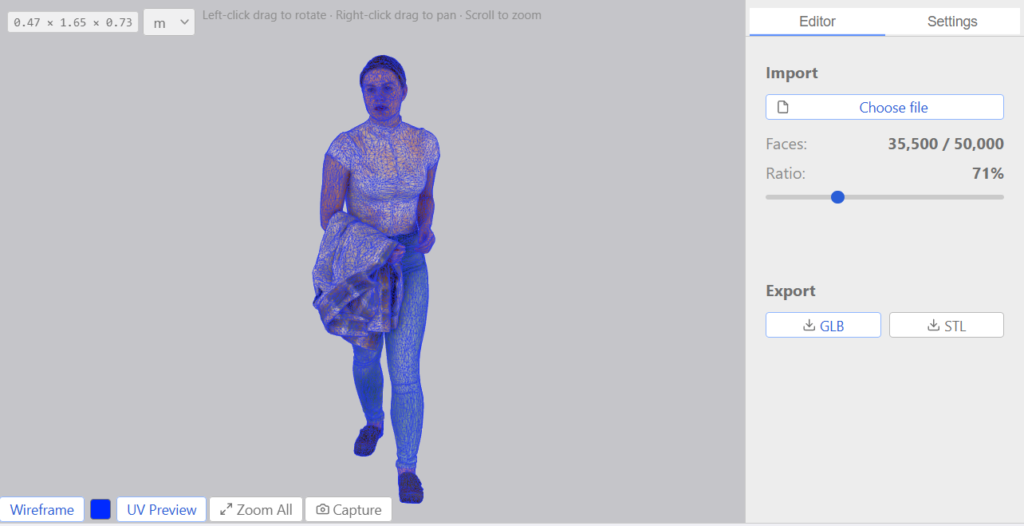
W × D × Hwith a unit dropdown and a Y up / Z up dropdown. GLB and STL carry no length unit, so the unit resets to meters on every load: if sizes look a thousand times off, change the unit, not the file. Every file opens as Z up; a GLB written Y-up (the glTF default) lies on its side until you pick Y up, and the choice is carried into the exported file. - Drag the slider and watch Faces (current / original) and Ratio. Camera: left-click drag rotates, right-click drag pans, scroll zooms.
- Under Export, click GLB or STL. The file written is the current slider state. The first export asks you to sign in with a 3dshouse account and then carries on by itself.
What the reduction percentage means
Call it a mesh simplifier, mesh reducer, polygon reducer, triangle reducer or decimator: the job is the same, fewer triangles with the shape kept. In Decimify the slider runs 0–100, and at 60% each sub-mesh keeps 40% of its own triangles.
- It is a target triangle-count ratio, applied per sub-mesh — not a vertex count and not a whole-scene budget. A scene of ten objects at 50% gives each object 50%, not a shared 50% pot.
- The panel shows the achieved result separately. Read the Ratio, not the slider: the two can diverge, and when they do the Maintain UV section below is almost always the reason.
A live slider that keeps GLB UVs intact
Many mesh simplifiers recompute everything each time you change the target, so comparing 40% with 60% means waiting twice. In Decimify, once the progress bar finishes, every level between the original and the floor is available at once: the slider moves equally smoothly in both directions, as often as you like, with no waiting. Level 0 puts the original geometry back exactly, not an approximation.
With Maintain UV on (the default), texture seams are left intact, so UV islands do not tear. Two more settings, also on by default, add protection: Lock boundaries keeps open edges where they are and Preserve creases keeps sharp edges sharp. When per-face UVs make a deep reduction impossible with Maintain UV on, the app says so (next section).
Maintain UV: the setting that decides whether the slider moves
If you drag to 70% and the Ratio readout barely changes, this is the cause in nearly every case. A textured model whose UVs are pinned per face — heavy upholstery exported from SketchUp, plenty of 3D Warehouse furniture — carries an independent UV slot for every triangle at every shared vertex. With Maintain UV on, Decimify will not reduce across those vertices, so the face count barely moves. When the slider’s reduction exceeds the achieved reduction by more than 20 points, the app shows “Maintain UV is limiting reduction — try disabling it in Settings.”
- Maintain UV on — seamless: the output is texture-identical to the source, and the slider can lock.
- Maintain UV off — best effort: the mesh reduces freely and the texture is re-mapped onto the geometry that survives, so the pattern on each face still looks right. The visible cost is small seams between faces whose corners have drifted apart.
Toggling it rebuilds the session by itself; you do not pick the file again. If a mesh truly needs deep reduction and untouched textures, no decimator can give you both: re-UV the model (Blender, Maya, RizomUV) so adjacent faces share UV slots, then bring it back.
The three settings, and when to touch each
- Lock boundaries (on) — “Keep boundary vertices fixed during simplification”. Open edges stay in place, so the outline does not pull in. Keep it on for scanned surfaces, cut-aways and single-sided panels.
- Preserve creases (on) — “Protect sharp edges (≥ 90° angle) from being smoothed”. A reduction that would round a sharp fold is refused. Keep it on for hard-surface work such as machined parts, furniture and architecture; turn it off for extra reduction on organic scans, which have no real crease to protect.
- Maintain UV (on) — see above. It is the one switch that changes what is possible at all.
All three are remembered in the browser between visits. Smooth angle, which you may read about elsewhere, belongs to the SketchUp plugin only: it controls which edges are softened when the result goes back into a SketchUp model.
Simplifying an STL: why two similar files reduce differently
STL stores each triangle’s three corners on their own, with no shared vertices, so how cleanly the corners line up decides how far a file reduces. When the corner coordinates match exactly, the whole mesh reduces; corners that differ even in the last digit stay separate, and the mesh around them reduces far less. An STL exported cleanly from one program usually reduces fully; an STL that has been through a lossy round trip may not.
The unit dropdown only changes the dimensions readout. An exported STL keeps the file’s own coordinate values (STL has no unit), so choosing mm does not rescale it. For why an STL’s file size follows its triangle count, see how to reduce STL file size.
What survives a reduction: multiple meshes, nodes and hierarchy; materials, including multi-material meshes; UVs, when Maintain UV is on; normals, recomputed as you drag. Vertex colors are not carried. Made the model with an AI generator? Reducing Meshy and Tripo models covers the GLB those tools hand you.
Browser app or SketchUp plugin?
Both render the same interface from the same code, so the question is where your model lives, not which has more features.
- Browser — nothing to install; the model comes off your disk as a GLB or STL. Best when the file is already an exported asset: a scan, a downloaded model, a game asset, something headed for a web viewer or a slicer.
- SketchUp — SketchUp 2022 or newer, installed as an
.rbzthrough Extension Manager. It reduces a group or component already in your model and writes the result back in place, so every instance of that component updates at once and the whole write is oneEdit > Undo. See the Decimify SketchUp polygon reducer.
Which tool fixes which cause of a heavy model
“My model is heavy” has three different causes and needs three different tools.
- Too many triangles — a photogrammetry scan, CAD tessellation, subdivided organics, dense catalog furniture. This is the only cause a decimator fixes, and it is what Decimify does.
- Unused components, materials, styles and layers still stored in the file — file weight, not triangle count. SketchUp’s own purge handles it: how to purge unused SketchUp content.
- Stray edges, coplanar face litter, duplicate or reversed faces — a topology problem. That is a cleaner’s job: CleanUp³ for SketchUp.
What is free, exactly
- Every feature, unlimited exports: no watermark, no locked options, no daily count.
- Reduction up to 30% of the faces. On the Free plan the slider stops at a tick that marks 30%; every level up to it is available as soon as the progress bar finishes.
Limits and messages worth knowing before you start
- No file-size or triangle limit is built in; the ceiling is the memory of the browser tab, so there is no honest number to quote. For scale, the sample models shipped with the app run from 3.3 MB to 16.7 MB.
- It is not offline. The reduction runs locally and your geometry never leaves the machine, but the page and the sign-in check come from the network.
- Broken topology is not repaired. Decimify reduces a mesh; it does not heal one. A non-manifold mesh simply reduces less, so run a repair pass first if the mesh is broken.
- Meshes with very heavy per-face UV pinning can still refuse to reduce with Maintain UV off. Re-UV the model instead.
- “N texture(s) missing”: the GLB points at images that were not found. The model loads, but those materials show without their image. Re-export it as a single GLB with the textures packed in.
- “Skipped N submesh(es) with non-finite coordinates”: part of the model has invalid vertex positions (NaN or infinity). That part is skipped and the rest is reduced; clean it in the source model if it matters.
- An error over the viewer on a .glb that will not open is most often a file cut short, such as an interrupted download or export. Dismiss it, re-export or re-download the file and load it again.
FAQ
Is there a free online STL simplifier?
Decimify Online simplifies STL and GLB meshes in the browser. The Free plan has every feature, reduces up to 30% of the faces and allows unlimited exports; a 3dshouse account is asked for at the first export.
How do I simplify an STL mesh online?
Open the app, click Choose file and pick the STL, drag the slider until the Ratio readout shows the triangle count you want, then export as STL. The reduction runs in your browser and the file is not uploaded.
Is a mesh simplifier the same as a mesh reducer or triangle reducer?
For this tool, yes: simplifier, reducer, polygon reducer and decimator all mean cutting the triangle count while keeping the shape. Decimify does it with a target ratio per sub-mesh that you set with the slider.
Can I simplify an OBJ, FBX or SKP file?
Not directly. The web app opens GLB and STL only. Convert an OBJ or FBX to GLB first (in Blender: File > Export > glTF Binary). A SKP stays inside SketchUp: select the model there, open Extensions > Decimify and click Import Selection.
Free: reduce up to 30% of faces, unlimited exports
Pro: any reduction, guaranteed to work, priority support