
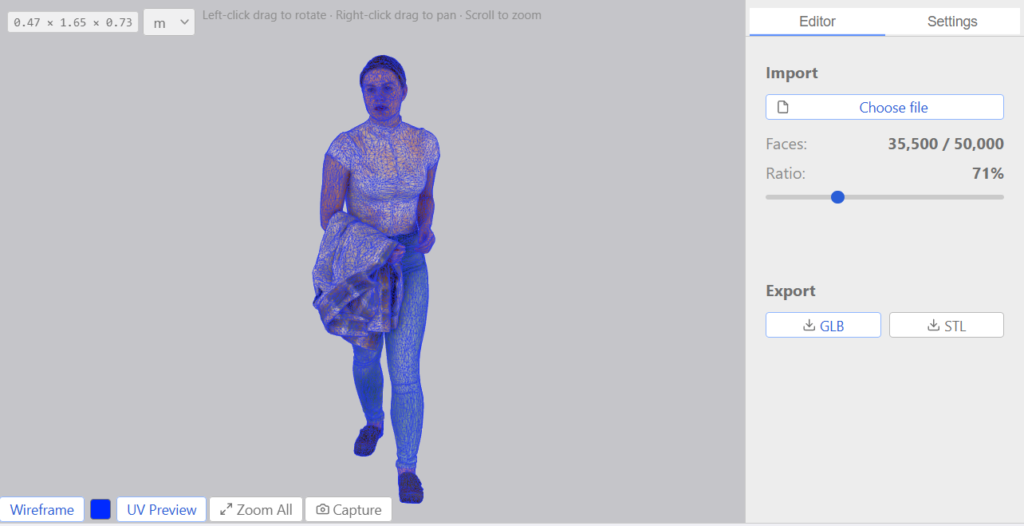
A binary STL is 84 bytes plus 50 bytes per triangle, so its size is the triangle count and nothing else: halve the triangles and you halve the file. To shrink one, open it in Decimify online, drag the slider while you watch the Faces counter, and export a new STL. The reduction runs in your browser tab and the model is not uploaded. It needs a free 3dshouse account and includes 3 free exports a day; previewing and moving the slider are never counted.
What makes an STL big: 50 bytes per triangle
The format stores every triangle on its own: a normal, three corners as 32-bit floats and a 2-byte attribute field make 50 bytes, after an 80-byte header and a 4-byte triangle count (STL file format). A corner on a smooth surface is typically shared by about six triangles and is written once for each, so a smooth surface cannot be stored any cheaper than its triangle count allows.
| Triangles | Binary STL, 84 + 50 × n bytes |
|---|---|
| 100,000 | 5,000,084 bytes (5 MB) |
| 500,000 | 25,000,084 bytes (25 MB) |
| 1,000,000 | 50,000,084 bytes (50 MB) |
| 1,600,000 | 80,000,084 bytes (80 MB) |
The last row is a real limit: JLC3DP’s guide to shrinking STL files says its upload cap is 80 MB (source), about 1.6 million triangles. The formula is exact on real files: one of the sample models built into Decimify has 69,432 triangles and is 3,471,684 bytes, which is 84 + 50 × 69,432.
An ASCII STL is the bigger kind: every number is written out as text, so the same triangles take more space. Decimify opens both kinds and always writes a binary STL, so an ASCII file gets smaller on export even before you reduce anything.
Reduce an STL in four steps
- Open decimify.3dshouse.com, sign in with your free 3dshouse account and click Choose file to pick the
.stl. - Wait for Preparing simplification… to finish. Every level between the original and the lightest version is ready after that, so the slider moves instantly in both directions and level 0 puts the original back exactly.
- Drag the slider and read Faces (current / original). The file size you will get is 84 + 50 × the current Faces number, in bytes.
- Under Export, click STL. Each STL or GLB export counts as one of your 3 free exports for the day.
How far can you go? Let the curve decide, not a percentage
The same percentage means different things on different models, and what a print shows is how far the faceted surface drifts from the true one. A circle of radius R drawn with n straight segments is off by at most R × (1 − cos(180°/n)), at the middle of each segment. For a round part 40 mm across (R = 20 mm):
| Segments around the circle | Largest gap to the true circle |
|---|---|
| 36 | 0.076 mm |
| 72 | 0.019 mm |
| 100 | 0.0099 mm |
| 180 | 0.0030 mm |
Hold that number against your layer height and nozzle width: a gap that is a small fraction of one layer cannot show, one the size of a layer can. Go down in steps, look at the curved parts in the viewer, and export the lightest version whose curves still look round at the size you will print.
Settings that matter for an STL, and one that does not
- Preserve creases (on by default) protects sharp edges from being smoothed, so the edges of a box-like part stay crisp while curves lose triangles.
- Lock boundaries (on by default) keeps the vertices on an open edge fixed. A closed, watertight model has no open edge, so for it this setting has nothing to hold; a scan with holes keeps the outline of each hole.
- Maintain UV does nothing here. An STL has no UV coordinates, so the setting is irrelevant and its “Maintain UV is limiting reduction” message cannot appear on an STL.
What an STL cannot carry, and what to do about it
- No colour, no texture. The exported STL holds geometry only. For a textured model, reduce the GLB instead: reducing polygons while keeping the texture shows how.
- No units. The format stores none (“the units are arbitrary”, per the format description), so open the result in your slicer and compare its dimensions with the original before you print.
- Up axis. The export is written Z-up, the usual STL convention.
Limits worth knowing
- The slider is a target; Faces is the result. Broken or non-manifold areas of a mesh are not repaired and are mostly left as they are, so on a damaged file Faces can stop short of the slider. Repair the file first, then reduce it.
- GLB and STL are the formats it opens. A model in another format has to be exported to one of them first.
- Other routes exist. Meshmixer’s Reduce can target a percentage, a triangle budget or a maximum deviation, and Fusion 360’s Reduce has Tolerance, Proportion and Face Count modes; upload-and-compress services such as Aspose, by contrast, choose the amount themselves (3D Printerly’s write-up). Decimify’s difference is the live slider and that nothing leaves your browser.
- Reducing an STL that you will import into SketchUp? See the SketchUp polygon reducers compared.
FAQ
How do I simplify an STL mesh online?
Open Decimify online, sign in with a free 3dshouse account, choose the STL file, drag the slider until the Faces counter shows the triangle count you want and click STL under Export. The reduction runs in your browser and the file is not uploaded.
Is there a free STL simplifier online?
Yes. Decimify runs in the browser for free with a 3dshouse account and includes 3 free exports a day. Previewing and moving the slider are not counted.
How do I reduce an STL file size?
A binary STL is 84 bytes plus 50 bytes per triangle, so the only way to make it smaller is fewer triangles. Reduce the triangle count with a simplifier and export again; an ASCII STL also shrinks when it is saved as binary.
Free: limited to 3 exports a day
Pro: unlimited, guaranteed to work, priority support