Tiếng Việt
SketchUp
Replace Group with Component in SketchUp
Oct
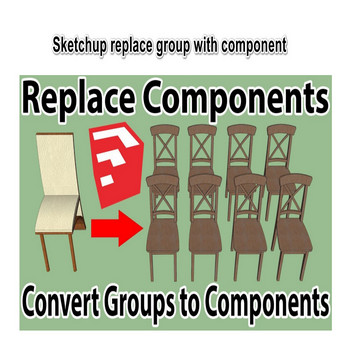
If you’ve ever needed to replace a group or component in SketchUp — swapping one component definition for another while keeping every instance exactly where it was — you already know how tedious doing it by hand is. You select each copy, delete it, place the replacement, match the position, rotation and scale, and repeat dozens or hundreds of times. This tutorial covers every practical method for replacing groups and components in SketchUp: the built-in Group-to-Component conversion, SketchUp’s native Reload and Replace Selected commands, scripted approaches for bulk swaps, and the specific gotchas that trip up even experienced modelers. Whether your goal is to convert isolated groups into a shared component definition so all copies stay in sync, or to swap an entire component family (say, a placeholder chair) with a high-detail version without repositioning a single instance, the techniques below give you full control over the replacement workflow and the tools to execute it efficiently.
Understanding why you need to replace rather than delete-and-reinsert is the key insight. A SketchUp component instance is just a pointer to a component definition stored in the model’s component library. Every instance carries its own transformation matrix — position, rotation, scale — but shares geometry and nested structure with all other instances of the same definition. When you replace a definition, all those transformation matrices are preserved automatically. The instances don’t move; they just start rendering the new geometry. That single fact makes definition-level replacement far safer and faster than any workflow based on relocating individual copies.
Key Features of Group and Component Replacement in SketchUp
- Group-to-Component conversion preserves instance count and positioning. When you select a group and choose Make Component (right-click or the dedicated tool), SketchUp wraps the group’s geometry into a new component definition and replaces the original group with an instance of that definition. If you had already copy-pasted the group several times, each copy becomes a fully independent group — they are not automatically merged into one definition. You must select all copies before converting to unify them, or use the built-in Select Instances workflow. The component’s insertion origin inherits the group’s local axes, so set those axes intentionally before you convert — they become the rotation pivot and the snap point for every future placement.
- Reload replaces a component definition globally in one step. Right-click any instance and choose Reload… to replace the entire definition with geometry from an external .skp file. Every instance in the model updates simultaneously — positions, rotations and scales are untouched. This is the fastest way to upgrade a low-poly placeholder to a final asset: model the replacement in a separate file, reload it into the existing definition, and the whole scene updates instantly. The replacement file’s geometry is placed relative to its own origin, so align the replacement model’s origin to match the original before saving it, otherwise every instance will appear offset.
- Replace Selected swaps chosen instances without affecting the others. Reload is an all-or-nothing operation. If you need to swap only some instances — for example replacing three chairs with a different model while leaving the rest unchanged — use the Replace Selected workflow: right-click one target instance, open the In-Model component browser, right-click the replacement definition and choose Replace Selected. The selected instances switch to the new definition; unselected instances keep the old one. The transformation matrix of each selected instance is preserved, so the swap is positionally exact.
- Make Unique lets you diverge one instance without touching the others. Right-click any instance and choose Make Unique to detach it from its shared definition and give it a private copy. This is the inverse of the unification step: where converting groups unifies geometry into one shared definition, Make Unique splits one instance off into its own. A practical use case is replacing a single instance mid-project — Make Unique first, then edit just that one. Multiple selected instances made unique together share a new private definition among themselves while the rest of the model keeps the original.
- Component axes determine the replacement alignment. Every method that replaces a definition — Reload, Replace Selected, or scripted swaps — maps the new geometry onto each instance’s transformation matrix using the component origin as the anchor. If the replacement component has its origin in a different corner, every instance will appear shifted by that offset. Before replacing, open the replacement .skp file, right-click the component inside it, choose Change Axes, and snap the origin to the same reference point as the original (typically a bottom corner or the center base). This single step eliminates the positional drift that makes bulk replacement look broken.
- Shared definitions cut file size for repeated geometry. Repeated components store their geometry once in the definition and reference it from every instance. A model with 200 instances of one chair definition stores chair geometry once; the same scene built from 200 copied groups stores it 200 times. For large furniture layouts or urban models with repeated trees, switching from groups to components via Make Component and then purging unused definitions can reduce file size by 60–80%. The Purge Unused command (Model Info → Statistics → Purge Unused) removes definitions with zero instances — safe to run any time without affecting placed components.
Replace Group with Component in SketchUp — Tutorial Video
How to Install and Use
The core replacement tools are built into SketchUp — no plugin is required for the basic workflows. The steps below cover three scenarios: converting groups to a unified component, reloading a definition from file, and replacing selected instances only.
- Convert groups to a shared component definition. Select all copies of the group you want to unify — use Edit → Select All if they are the only groups in the model, or box-select a region. Right-click and choose Make Component. In the Create Component dialog, give the component a descriptive name (names appear in the component browser and matter if you reload later). Click Create. All selected groups are now instances of one shared definition. To verify: double-click one instance to enter edit mode, delete a face, and confirm the deletion appears in every other instance simultaneously.
- Prepare the replacement .skp file for a Reload workflow. Open a new SketchUp file and model — or import — the replacement geometry. Before saving, right-click the top-level group or component that contains the geometry, choose Change Axes, and click to place the origin at the same reference point you used in the original (e.g., bottom-left corner or center base). Save the file. This origin alignment step is the most common place the workflow breaks: if you skip it, every instance will appear shifted after the reload.
- Reload the definition. Back in the main model, right-click any instance of the component you want to replace. Choose Reload… from the context menu. Navigate to the replacement .skp file saved in step 2 and click Open. SketchUp immediately replaces the definition: every instance in the model now shows the new geometry, positioned exactly where the old instances were. If the geometry looks offset, undo, re-open the replacement file, correct the axes, save again, and reload.
- Replace selected instances only. If you need a mixed scene — some instances keep the original, others get the replacement — start by having both definitions loaded in the model (insert an instance of the replacement component, or drag it from the component browser). Select only the instances you want to swap. Right-click one selected instance, open the component browser panel (Window → Components → In Model tab), right-click the replacement definition icon, and choose Replace Selected. The selected instances switch definitions; everything else is unchanged.
- Make Unique before editing a single instance. When you want to change only one instance after a bulk replacement, right-click it and choose Make Unique before opening it for editing. Without this step, any geometry change propagates to all instances of the definition. After Make Unique, the instance has its own private definition (named with a numeric suffix by default — rename it via the Entity Info panel for clarity).
- Purge unused definitions after replacements. After a bulk reload or Replace Selected workflow, old definitions with zero instances remain in the component library and inflate file size. Go to Window → Model Info → Statistics and click Purge Unused. This removes all unreferenced component definitions, materials, and layers in one step. For large models it can cut file size significantly without affecting anything visible.
Pro Tips
- Set up component axes before you ever copy a component, not after. Changing a component’s axes after instances are spread through a model does not retroactively reposition them — it only affects new placements. If you need to correct axes mid-project, the cleanest approach is: make one instance unique, edit its axes, use Replace Selected to propagate that corrected instance to all others, then purge the old definition. Doing this for dozens of components is tedious, which is why getting axes right at creation time is worth the 10 seconds it takes.
- Use Reload to version-control detail levels across a project. Keep a low-poly placeholder file and a high-poly final file at the same file path (or swap the filename). During massing and layout work, every instance loads the fast placeholder. When you’re ready to render, reload with the high-poly version. The positions are identical because both files share the same origin convention. This pattern is especially practical for large landscape models with many repeated trees or furniture items where working in high-poly throughout would be prohibitively slow.
- The component name in the browser is the key to bulk operations via Ruby. SketchUp’s component browser and the Ruby API both identify definitions by name. If you need to script a bulk replacement — swapping all instances named “Chair_01” with a new definition — the Ruby one-liner is:
Sketchup.active_model.definitions.select{|d| d.name=="Chair_01"}.each{|d| d.instances.each{|i| i.definition = new_def}}. This works in the Ruby Console (Window → Ruby Console) for one-off replacements without installing any plugin. - Nested components require replacement at the right level. If the component you want to replace is nested inside another component, the Reload command works on the innermost definition you right-click. You don’t need to explode the outer container. Enter the outer component (double-click), right-click the inner component instance, and reload from there. The inner definition is replaced globally across all instances of the outer container — which is usually exactly what you want when updating a repeated sub-element like a door inside a wall component.
- Groups converted to components mid-project keep their paint assignments. Materials applied to group faces before conversion are retained per-instance as face-level paints, not as the component’s default material. If you later want uniform material control across all instances (so painting one instance paints all), you need to re-apply the material to faces inside the component definition rather than on the outer shell. The distinction matters when building furniture libraries: define the component with materials inside the definition if you want global repainting, or leave them on the instance shell if you want per-copy color variation.
System Requirements
- SketchUp version: SketchUp 2022 or later (all features described — Make Component, Reload, Replace Selected, Make Unique — are available in all modern versions; the desktop workflow is identical in SketchUp 2022 through 2026)
- Platform: Windows 10/11 or macOS 12 Monterey and later
- Plugin required: None — all replacement workflows described use built-in SketchUp commands
- File format: Replacement geometry must be saved as .skp (native SketchUp file) for the Reload workflow