

 Tiếng Việt
SketchUp
Select Edge Loop in SketchUp by State
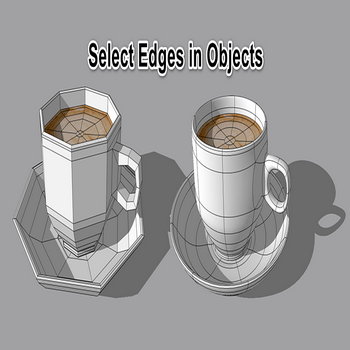
Selecting edge loops of nested geometry inside groups or components in SketchUp is slow and fiddly, because the native Select tool has no command to grab edges by their state. This Select Edges (in Objects) tool speeds that up by letting you target edges by what they already are — hidden, softened, or smoothed — and run edge-related commands on the result.
A key reason a tool like this exists: SketchUp treats “soft” and “smooth” as two separate flags on the same edge, not one setting. Softening hides the edge and merges its faces into a single curved surface; smoothing only changes the shading so faces blend, while the edge line itself stays visible. The Eraser handles them with different modifiers — hold Ctrl to soften+smooth, hold Shift to hide, and hold Alt to un-soften — but it gives you no way to first select only the soft edges (or only the smooth ones) before acting on them. That gap is exactly what the buttons below fill: each one isolates a single edge state so you can flip it in bulk.
How to Select Edge Loop in SketchUp by State – Tutorial Video
Steps by steps :
- Select the current edge
- Select the edge that is hiding (hidden)
- Select softened edge
- Select unsoftened edge (unsoft)
- Select smooth edges
- Select unsmooth edge (unsmooth)

Select edges tool in Sketchup

A couple of things worth knowing when you run these edge loop selections in SketchUp. “Hidden” and “softened” are not the same set of edges, even though both end up invisible — an edge can be hidden by View > Hidden Geometry without being part of any surface, while a softened edge belongs to a surface and reappears the moment you smooth without softening. So “Select hidden” and “Select soft” can return different edges on the same model, which is why both buttons exist. Also remember that selection only reaches the level you are currently inside: you must double-click into the group or component first, since edges in unopened nested objects stay locked out of the selection no matter which filter you use.
