

 Tiếng Việt
SketchUp
Managing Objects in SketchUp with Tags, Names & Materials
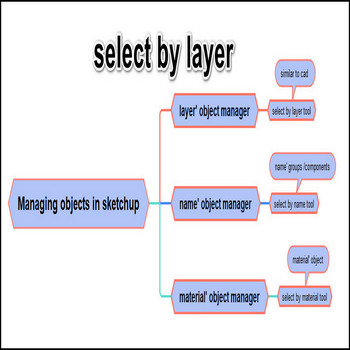
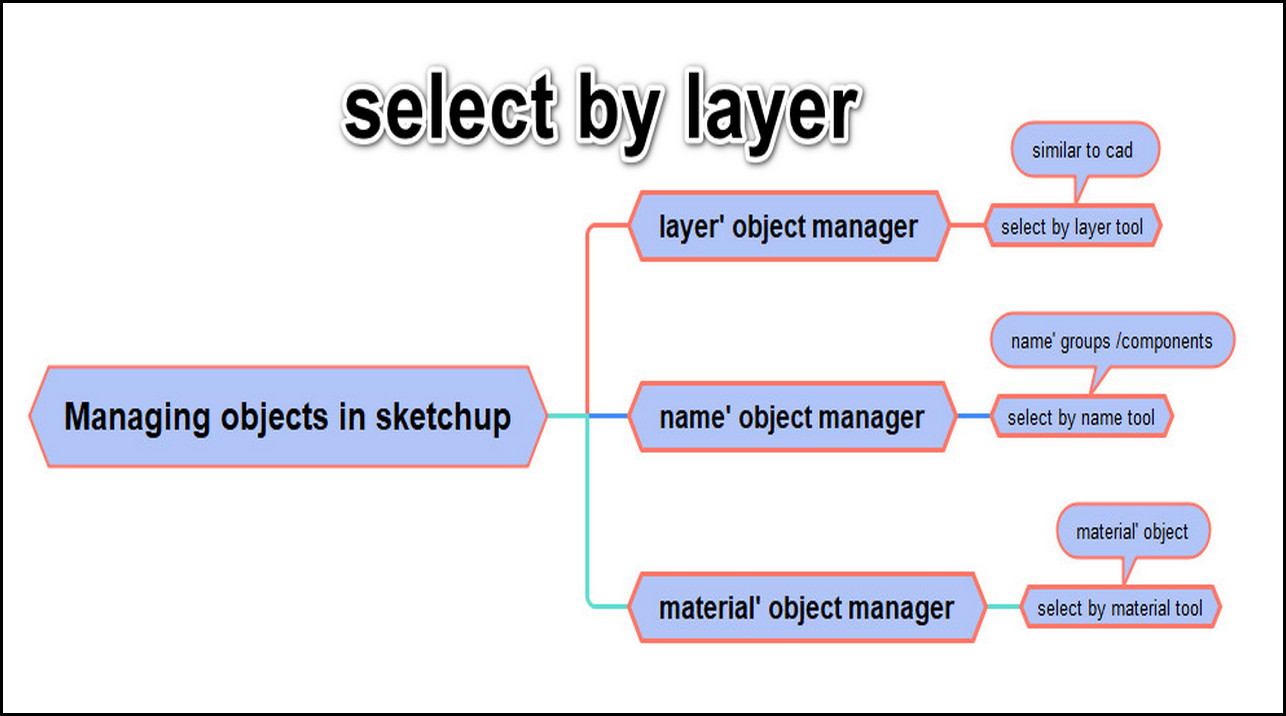
There are 3 ways to manage objects in SketchUp: by Tags (layers), by name, and by material — each solves a different selection and visibility problem.
Note: since SketchUp 2020 “Layers” were renamed to “Tags” — same panel, same job, just a clearer name. If you are on a current release (SketchUp 2026), look for the Tags panel; everything below still applies.
How to Manage Objects in SketchUp — Tutorial Video
Steps by steps :
- Layer’ object manager is similiar to layiso command in autocad, select by layer click
- A layer is used many object, you select all
- Chairs have ‘chair layer’ which is selected
- For picture layer
- Layer’ object manager will help you manage files much faster
What experienced modelers wish they knew sooner :
- SketchUp Tags only control visibility — they do NOT lock or protect geometry. Unlike AutoCAD layers, hiding a tag does not stop that geometry from being selected by a marquee, moved, or auto-folded into a face. Use Hide or the Outliner’s lock if you need to protect it.
- Always assign tags to groups/components, never to loose edges and faces. Tagging raw geometry is the #1 cause of “lines that won’t disappear” and faces that bleed through other objects. Keep all raw geometry on Untagged (Layer0) and only ever tag the wrapper group/component — this is the single rule that keeps large scenes clean.
- Tags and the Outliner solve different problems and are not interchangeable. Use Tags to switch whole categories on/off (chairs, plants, dimensions) and to drive Scenes; use the Outliner for structural hierarchy — nesting groups inside groups. Putting interconnected, nested geometry on separate tags instead of nesting it is a common mistake that makes a model harder to manage, not easier.
- Tag Folders (added in SketchUp 2021) let you group related tags and toggle a whole folder at once — handy when an object set spans many tags.
- Hiding heavy tags genuinely speeds SketchUp up — a free performance win for large architectural models. Geometry on a hidden tag is not sent to the graphics card, so turning off high-poly categories (foliage, furniture, imported CAD) restores smooth orbiting on big files — a free performance win most users overlook.
More SketchUp tools by 3dshouse
