

 Tiếng Việt
SketchUp
Select Multiple Objects in SketchUp by Name or Tag
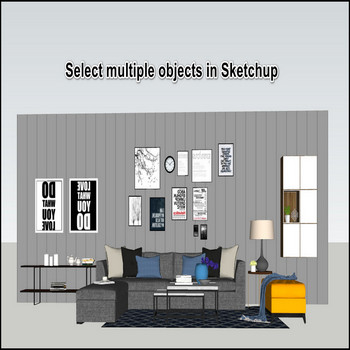
Selecting multiple objects in SketchUp across nested groups is tedious — the native tools only get you part of the way, and a name-based selection tool fills the gaps.
How to Select Multiple Objects in SketchUp — Tutorial Videos
What SketchUp can already do (and where it stops):
- Right-click a component and choose Select > All with Same Component, or context-click the definition in the Components panel and pick Select Instances — this grabs every copy of that one definition.
- Right-click an object and choose Select > All with Same Tag to gather everything on a tag (you can also right-click the tag in the Tags panel and pick “Select All Tagged”).
- The big gotcha: these native commands do not cross group or component boundaries. “Select Instances” and “Select All with Same Tag” only act on objects in the context you’re currently inside. If your books are nested inside rooms, scenes, or other groups, the native command silently skips the nested copies — you end up selecting some and missing the rest, which is exactly why one-click cleanup feels impossible.
- A few entity types simply have no Select submenu — dimensions, for example, never show the “All with Same Tag” option on right-click, so you cannot batch them this way at all.
- The Outliner has a filter box at the top: type a term and it hides everything that doesn’t match — useful for finding named objects, but it only filters the tree, it does not select the matches in the model for you.
Steps by steps:
- Selecting books to hide or delete , you must click on component or group, select books in a group, a component to hide or delete
- You can’t do it once for all in Sketchup
- Select by name tool will solve it — input a component or group name to select all matching objects at once
- Because the tool matches by the name attribute, it reaches across every group and component level at once — no need to double-click your way into each nesting level the way native Select Instances forces you to.
- All components with that name attribute are selected instantly — you can delete, hide, move, or apply materials to the whole batch.
- Example with name’s picture

More SketchUp tools by 3dshouse
