Tiếng Việt
SketchUp
Delete Unused Materials in SketchUp — Purge & Clean Tool
Sep
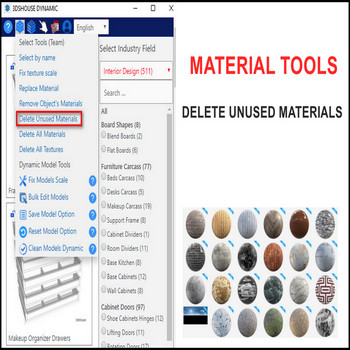
When your SketchUp file has a lot of unused materials slowing it down, use the delete materials tool
Delete Unused Materials in SketchUp – Video Tutorial
Steps by steps:
- To optimize your files, use delete unused materials tool by click on tool.
- Unused materials have been deleted, only default materials and textures is still saved
- For default materials and textures have not been deleted, use other tool (other tutorial videos)

Delete unused materials tool

Why unused materials refuse to delete in SketchUp
The built-in equivalent is Window > Model Info > Statistics > Purge Unused, but it has a trap most users hit: a material counts as “in use” the moment it is painted onto a single edge, a tiny stray face, or a hidden nested component — so it survives the purge even though nothing visible is colored with it. Purging the model and finding the same swatch still there almost always means it is stuck to an edge or a sliver of geometry you cannot see. A one-click tool that strips materials off edges first is the only reliable way to clear those.
Purge order matters
SketchUp’s native Purge Unused only frees a material after the component that referenced it is gone, so a single pass often leaves materials behind — you have to purge components first, then run purge again to catch the materials they were holding onto. A dedicated material tool does both in one step. Note that purging also resets every affected face back to the default (no-material) state, which is exactly what you want for cleanup but is not undoable selectively.
2026 note
This delete unused materials workflow is unchanged in the current SketchUp 2026 line (now subscription / named-user only — no perpetual license since 2020). In SketchUp 2025 and newer, SketchUp can prompt you to purge unused entities automatically every time you save; you can toggle this in Preferences > General, which keeps material bloat from creeping back into your file between manual cleanups.