

 Tiếng Việt
SketchUp
How to Mirror Objects in SketchUp — Flip Tool & Extensions
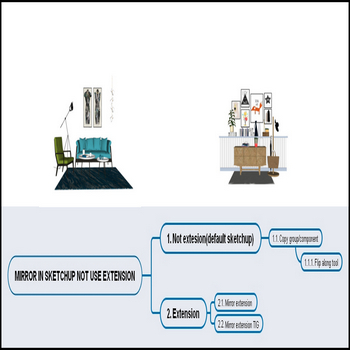
There are several ways to mirror objects in SketchUp — a task every modeler needs daily: the built-in Flip tool (a dedicated tool with live preview, added in SketchUp 2023 under Tools > Flip), the older Flip Along right-click command (still present in every version, including the free web app), and third-party extensions. If you mirror things constantly — furniture symmetry, facade panels, structural bays — the native tools get slow fast. Flip Along requires: select, copy, right-click, navigate a submenu, choose axis. That is five actions every single time. For a complex interior scene where you place 40 symmetric pieces, that overhead is real. Third-party extensions can eliminate that friction by mapping the three mirror axes to keyboard shortcuts, turning a mirror operation into one keystroke with no menu navigation and no copy-first step. Such an extension can work on any selection — loose geometry, groups, components, or a mixed bag of all three — and mirrors in place around the selection’s own bounding box. The result lands exactly where you expect it. This post explains what the plugin actually does versus the native commands, where the native tools silently surprise you, and how to build a keyboard-driven mirror workflow around Too Fast To Mirror so your modeling speed stops being bottlenecked by the mirror step.
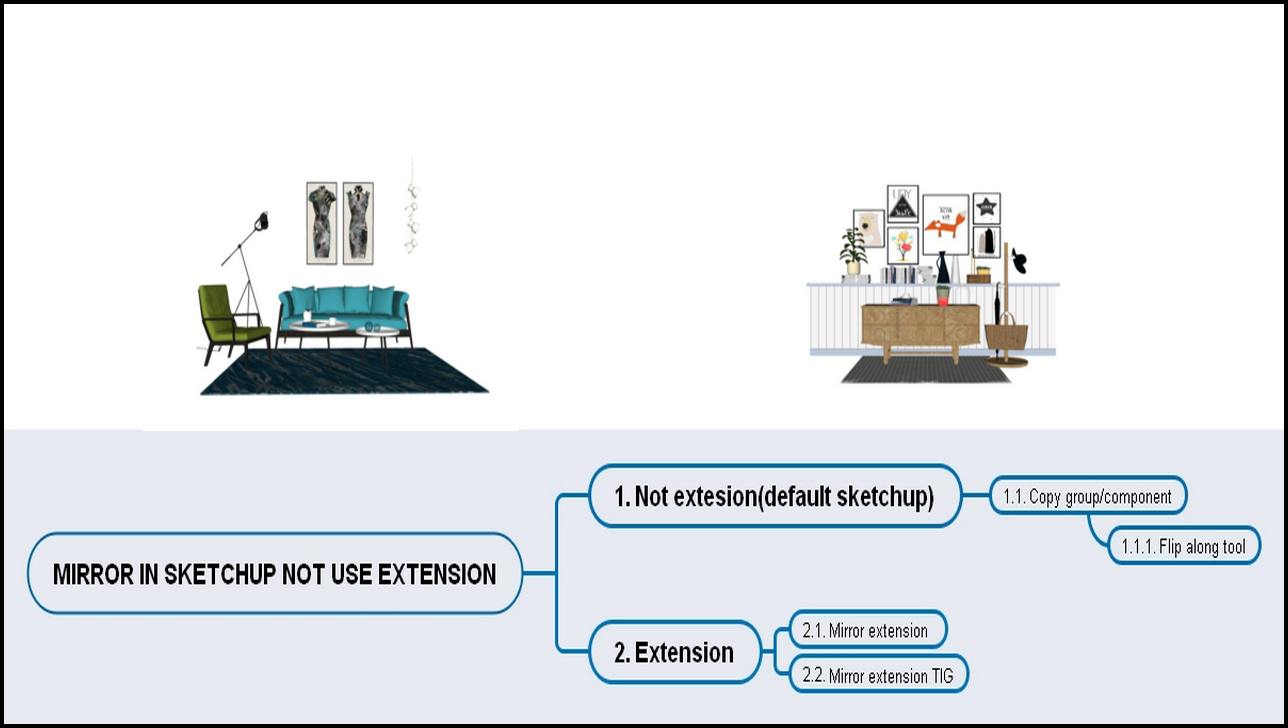
How to Mirror Objects in SketchUp — Video Tutorial
Key Features
- One-keystroke mirror on any axis. Too Fast To Mirror assigns the three world axes (red, green, blue) to configurable shortcuts. Once set, you select geometry and press the key — no right-click submenu, no copy-first workflow. On a 40-piece symmetric layout this alone saves several minutes per session compared to the Flip Along route.
- Works on mixed selections — loose geometry, groups, and components together. The native Flip Along command behaves differently depending on what is selected: it flips loose geometry in place but expects you to have made a copy first if you want a mirror twin. Too Fast To Mirror handles the copy internally, so you can select any combination of entity types and get a mirrored duplicate without pre-copying.
- Mirrors about the selection bounding box, not arbitrary object axes. The native Flip Along mirrors about the object’s own internal axes. If a group was rotated before being placed, its internal “red axis” is tilted relative to the world, so Flip Along Red gives you a tilted mirror. Too Fast To Mirror calculates the bounding box of the entire selection and mirrors about that — which is the center point you actually see on screen, not a hidden internal origin.
- Instant result with no dialog. There is no modal window to dismiss, no axis picker to confirm. The mirror executes and SketchUp returns control immediately. For rapid layout work where you are mirroring dozens of times in sequence this eliminates the click-to-dismiss overhead that adds up.
- Compatible with both components and loose geometry simultaneously. When a component is mirrored, Too Fast To Mirror creates a new instance of the same definition — the same behavior as native flip — so you keep the benefit of component-definition reuse. If you need the mirrored copy to be independently editable, right-click and use Make Unique afterward, exactly as you would after any native flip.
- Works across all three axes without reconfiguring. The three shortcuts (one per axis) are always active. Switching from a red-axis mirror to a green-axis mirror is one keypress, not another round trip through the right-click menu. This makes it fast to try a mirror in multiple orientations when you are not sure which looks right until you see it.
Native Flip Along vs Too Fast To Mirror — What the Video Covers
The tutorial video walks through four scenarios that show where each approach fits:
- Scenario 1 — Native Flip tool (SketchUp 2023+). Tools > Flip gives you a live red/green/blue axis preview before you commit. It is the most visual option and the right choice when you need to see exactly which plane you are mirroring across before it happens. The downside: it requires entering the tool, hovering to set the axis, and clicking — three actions even in the best case.
- Scenario 2 — Flip Along right-click. Present in every SketchUp version including the free web app. The shortcut is: select the object, hold Ctrl/Option and move (or copy then flip), right-click, Flip Along, pick axis. Fast enough for occasional use; slow for repetitive work.
- Scenario 3 — Mirror extension (Too Fast To Mirror). Single shortcut key after setup. The plugin mirrors about the selection bounding box so the result lands predictably regardless of the object’s internal axis orientation.
- Scenario 4 — JHS Powerbar mirror tool. Long the go-to free SketchUp mirror extension for its 3-point arbitrary-plane mirror. As of 2025/2026 it has not been updated for recent SketchUp versions — verify compatibility before relying on it and keep the native Flip tool as fallback. For the standard three-axis mirror case, Too Fast To Mirror is the maintained alternative.
How to Install and Use
- Download the .rbz file. Get Too Fast To Mirror from the Extension Warehouse (search “Too Fast To Mirror”) or from the developer’s direct link. Save the .rbz file somewhere you can find it — your Downloads folder is fine.
- Install via Extension Manager. In SketchUp, open Window > Extension Manager. Click the red Install Extension button at the bottom left. Navigate to the .rbz file and click Open. SketchUp will install and enable the extension automatically. You do not need to restart SketchUp.
- Verify the extension is active. In Extension Manager, confirm Too Fast To Mirror shows a green checkmark (enabled). If it shows red or disabled, click the toggle to enable it.
- Assign keyboard shortcuts. This is the critical step. Open Window > Preferences > Shortcuts (on Mac: SketchUp > Preferences > Shortcuts). In the Filter box, type “mirror” or “too fast”. You will see three commands appear — Mirror Red Axis, Mirror Green Axis, Mirror Blue Axis. Click each one and assign a key combination. Suggested defaults that do not conflict with native SketchUp shortcuts: Shift+X (red), Shift+C (green), Shift+Z (blue). These are on the left side of the keyboard, reachable without moving your hand off the navigation keys.
- Select the geometry you want to mirror. Use a left-to-right selection box to grab a group or component, or triple-click to select all connected loose geometry. Too Fast To Mirror works on whatever is currently selected when you press the shortcut.
- Press the shortcut for the axis you want. The mirrored copy appears immediately. If the result is not what you expected (object axis vs world axis confusion — see the gotcha below), press Ctrl+Z and try a different axis. Because the operation is instant, trying all three axes takes about two seconds total.
- Use Make Unique if needed. If you mirrored a component and need to edit the copy independently from the original, right-click the mirrored instance and choose Make Unique before opening it to edit.
Pro Tips
- Reset internal axes before mirroring rotated groups. This is the most common source of unexpected mirror results in any SketchUp mirror workflow. If a group was originally modeled at an angle — say a diagonal wall segment — its internal red axis is tilted. Mirroring about that tilted axis flips the copy in a direction that makes no sense in context. Fix: open the group (double-click), go to Edit > Reset Group Axes (or right-click inside the group > Reset Group Axes). This realigns the group’s internal axes to the world, so any mirror thereafter is world-aligned. You only need to do this once per group.
- Use Too Fast To Mirror for the copy step, then Move for placement. The plugin mirrors in place about the selection bounding box center. For symmetric objects that need to sit flush against each other (like two halves of a table), mirror first to confirm the geometry is correct, then use the Move tool to snap the copy into its final position. This is faster than the traditional: position first, copy to exact location, flip — because you do not need to think about target position during the mirror step.
- Mix with the native Flip tool for arbitrary planes. Too Fast To Mirror is optimized for the three standard axis mirrors. When you need to mirror across a plane that is not parallel to any axis — for example, a diagonal reflection — use the native Flip tool (SketchUp 2023+) with its click-to-set-plane mode, or JHS Powerbar’s 3-point mirror (if your SketchUp version is compatible). Think of Too Fast To Mirror as the 90% tool and the native Flip tool as the escape hatch for special cases.
- Mirror then explode for permanent loose-geometry mirrors. If you mirror a group and then want the mirrored result to be raw geometry that merges with surrounding faces (for example, a mirrored terrain mesh), select the mirrored group and Explode it. The geometry will integrate with any touching faces. This is the same as the Flip Along workflow but faster because you did not need to copy-paste first.
- Mirrored components share definition — use this intentionally. When you mirror a component instance, both the original and the mirror use the same component definition. Edit one and the other updates to match. This is exactly what you want for symmetric furniture legs, window pairs, or facade panels: model one, mirror it, edit the definition once to fix a detail, and both sides update. The behavior is not a bug or a plugin limitation — it is the correct SketchUp component behavior. Use Make Unique only when the two sides genuinely need to diverge.
System Requirements
- SketchUp version: SketchUp 2018 or later (Pro, Go, or Studio). The extension uses standard Ruby API calls available from 2018 onward. The native Flip tool requires SketchUp 2023+ for the live-preview version; Too Fast To Mirror works on all versions from 2018.
- Operating system: Windows 10/11 and macOS 10.15 (Catalina) or later. No platform-specific limitations.
- SketchUp Free (web app): Not supported. Extensions require a desktop SketchUp installation. For the web app, use the native Flip Along right-click command instead.
- No additional dependencies: The extension is self-contained. No separate gem installs or external services required.
