Tiếng Việt
Revit
Top 10 Revit Excel Plugins: Import, Export & Edit Data
Revit schedules let you view data in a table, but bulk-editing it is slow — and plenty of properties (Type Name, Family Name, Sheet Number) can’t be scheduled at all. That is why the Revit Excel plugin market exists. The ten tools below all move Revit data into a grid, but they split into two camps that behave very differently: some hand you an Excel file to round-trip (export to Excel, edit, import back into Revit), others give you an editable grid inside Revit with no file to lose. Start with Metasheet, a free Revit Excel plugin (Revit 2022–2027), then read on for what actually separates each Revit Excel add-in — behaviour you only notice once you use it, not just price.
Revit Excel plugin comparison: all 10 at a glance
| Tool | Free / paid | Excel file round-trip or in-Revit grid | Best for |
|---|---|---|---|
| Metasheet | Free (account required) | Both — in-Revit grid + XLSX export and import | Bulk parameter edits and Type/Sheet renames |
| DiRoots SheetLink | €100 user/year | Excel / Google Sheets round-trip | Teams that live in Google Sheets |
| Ideate BIMLink | $795/year single user | Excel round-trip | Enterprise, reusable link definitions |
| Kobi BIM Query | Paid (price on request) | Both — built-in editor + Excel | Firms already on Kobi Toolkit |
| AutoExcel (BIMIZE) | €29.99 | Excel round-trip, one schedule at a time | Cheapest paid schedule round-trip |
| Export/Import Excel (MLabs) | Free | Excel round-trip | Family parameters and bulk sheet creation |
| Schedule Plus | Free | One-way export only | Formatted reports out of Revit |
| Autodesk Dynamo | Free (ships in Revit) | Scripted, either direction | Custom, repeatable automation |
| Revit schedule export | Free (built in) | One-way export only | A quick delimited-text dump |
| Ideate Sticky | Paid (price on request) | Excel into Revit sheets, live-linked | Showing a spreadsheet on a sheet |
Prices as read on each vendor’s page in September 2026 — verify before you buy.
1. Metasheet — free, edits inside Revit, and it does round-trip XLSX
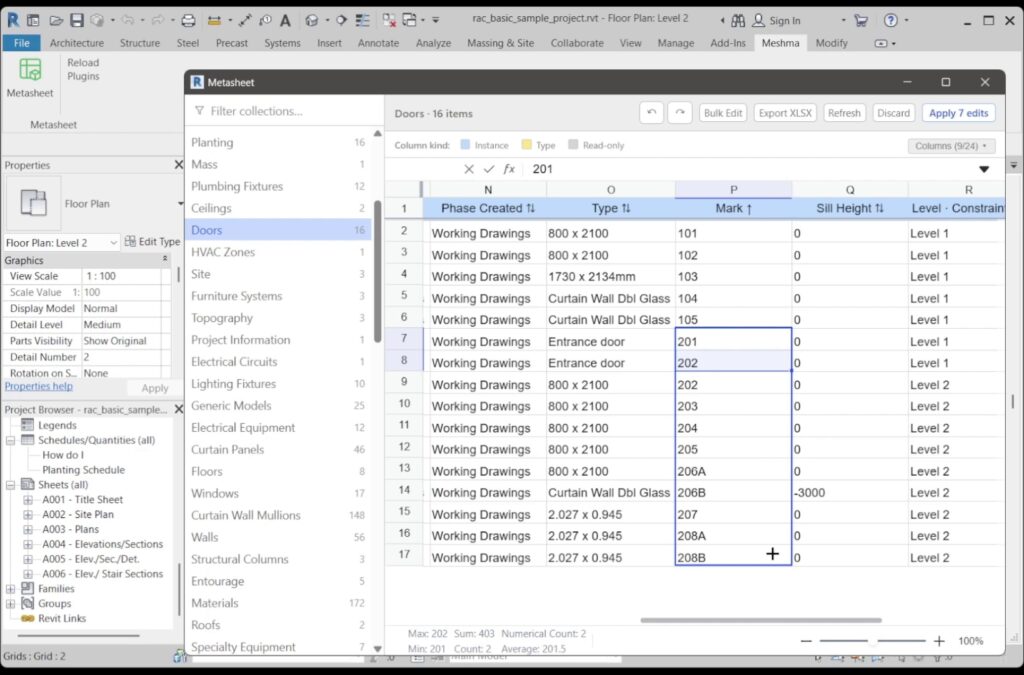
Metasheet puts a spreadsheet grid on the Add-Ins ribbon (Add-Ins → Metasheet) and fills it from the open model. The sidebar is not a fixed menu: it is built from the document at load time, listing every model category that has instances and accepts bound parameters, plus static entries for Sheets, Views, View Templates, Rooms, Levels, Grids, Scope Boxes, Revisions, Materials, Project Info, text/dimension/filled-region styles, line patterns and one row per View Schedule. Open a project with categories nobody anticipated and they appear anyway.
Three behaviours matter more than the feature list:
- Type Name, Family Name and Sheet Number are editable — these are element properties, not Parameters, so Revit’s Parameter API can’t reach them and several competitors leave them read-only. Metasheet writes them through
element.Name. - A two-pass rename resolves collisions. Swap two Sheet Numbers or shift A-101…A-110 up by one and a naive tool dies on Revit’s duplicate-value rejection. Metasheet renames the colliding items to a temporary placeholder first, then writes the final values.
- Every batch commits in one Revit Transaction named “Metasheet bulk edit”, so a single Ctrl+Z in Revit reverts the whole change set. Individual cells that Revit rejects come back as a per-cell failure list instead of silently vanishing.
It also has the Excel round-trip the older version of this article said it lacked. Export XLSX dumps the current collection with frozen headers and auto-sized columns; Import XLSX reads a file back and — this is the useful part — matches rows by element ID, not by row order, so sorting, filtering or deleting rows in Excel cannot scramble the write-back. Read-only columns in the file are ignored, unmatched columns are skipped, and the imported values land in the grid as staged edits: you see them highlighted and click Apply yourself. On top of that there is a row filter box, column hide/show, Bulk Find & Replace (with an optional regex mode) and a Bulk Prefix/Suffix on any single column.
Real limits: it mirrors the model, so it cannot create or delete elements or bind a new shared parameter — one row is one existing element, one column is one existing parameter binding. Annotation categories, sub-categories and MEP systems are out of scope. Phases are deliberately excluded (Revit refuses Element.Name assignment on a Phase). Formulas evaluate inside the grid but only against the same sheet. And it needs a free 3dshouse account: the UI stays locked until you sign in. Revit 2022–2027, Windows 10/11 x64 — Revit 2021 is not supported.
Download Metasheet free for Revit 2022–2027 and check it against your own model before paying for anything on this list.
2. DiRoots SheetLink — Excel and Google Sheets round-trip
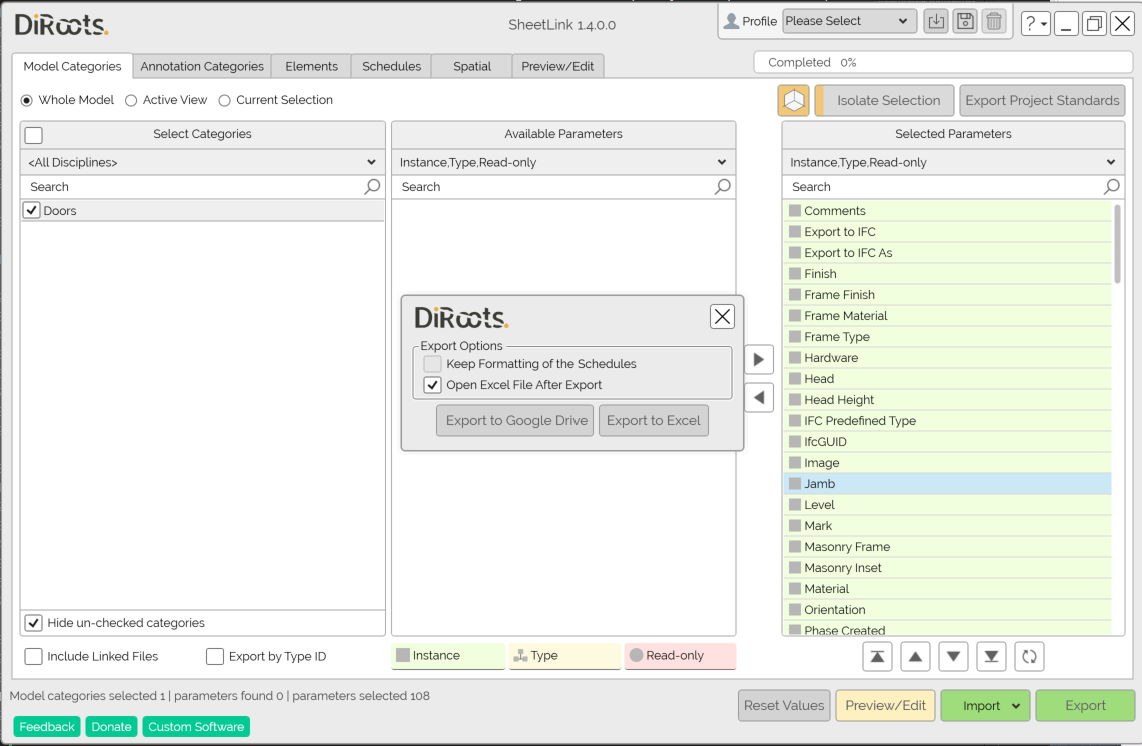
SheetLink is the best-known Revit-to-Excel add-in: export a schedule or a category to Excel or Google Sheets, edit it, import it back. The Sheets path is the genuine differentiator — a quantity surveyor with no Revit licence can work in the browser while you keep the link.
The sheet is colour-coded: green = instance parameter, yellow = type, red = read-only, grey = the parameter does not apply to that element. The trap the docs spell out: type-parameter edits resolve by Type ID, so a value you type on one row applies to every element of that type — give one type conflicting values across rows and the last write wins.
Pricing changed the calculus here. SheetLink is not in the free DiRootsOne tier at all; it needs DiRootsOne Premium at €100 user/year (listed as $120 user/year in the USA through ATG USA) as of September 2026. DiRootsOne itself covers Revit 2018 through 2027, the widest range on this list.
3. Ideate BIMLink — the enterprise link, priced like one
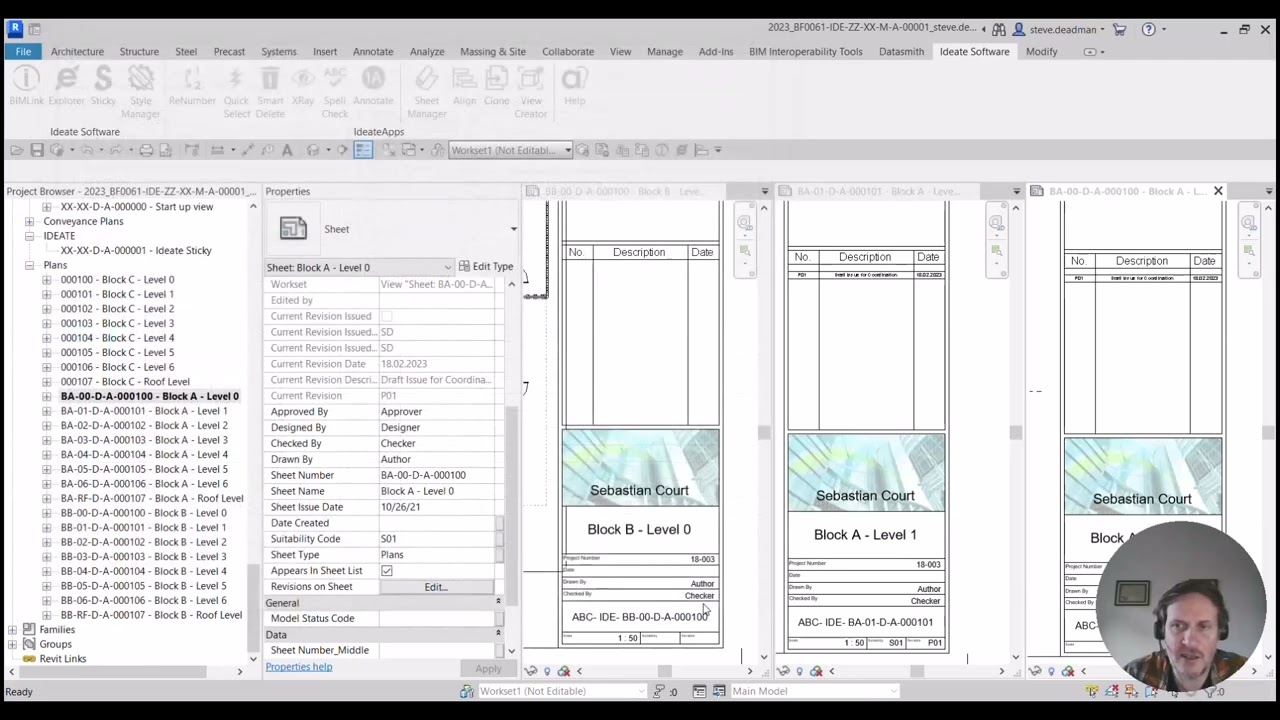
BIMLink exports system, project and family parameters to Excel — including parameters you cannot put in a standard Revit schedule — and pushes edits back. Its payback is the saved link definition: you configure which categories and parameters travel once, then re-run it every week.
Two documented behaviours decide whether it fits your workflow. Instance and type properties live in separate links: inside an instance link a wall’s Type Name or Fire Rating is read-only, and you have to convert the link to a type link to edit them. And project parameters always come across read-only, because the Revit API cannot rename them — global parameters are not restricted the same way. Price as of September 2026: $795.00/year for a single-user standalone licence, $1,995.00/year for one multi-user cloud-network licence, $5,500.00/year for five.
4. Kobi BIM Query — a built-in editor plus an Excel path
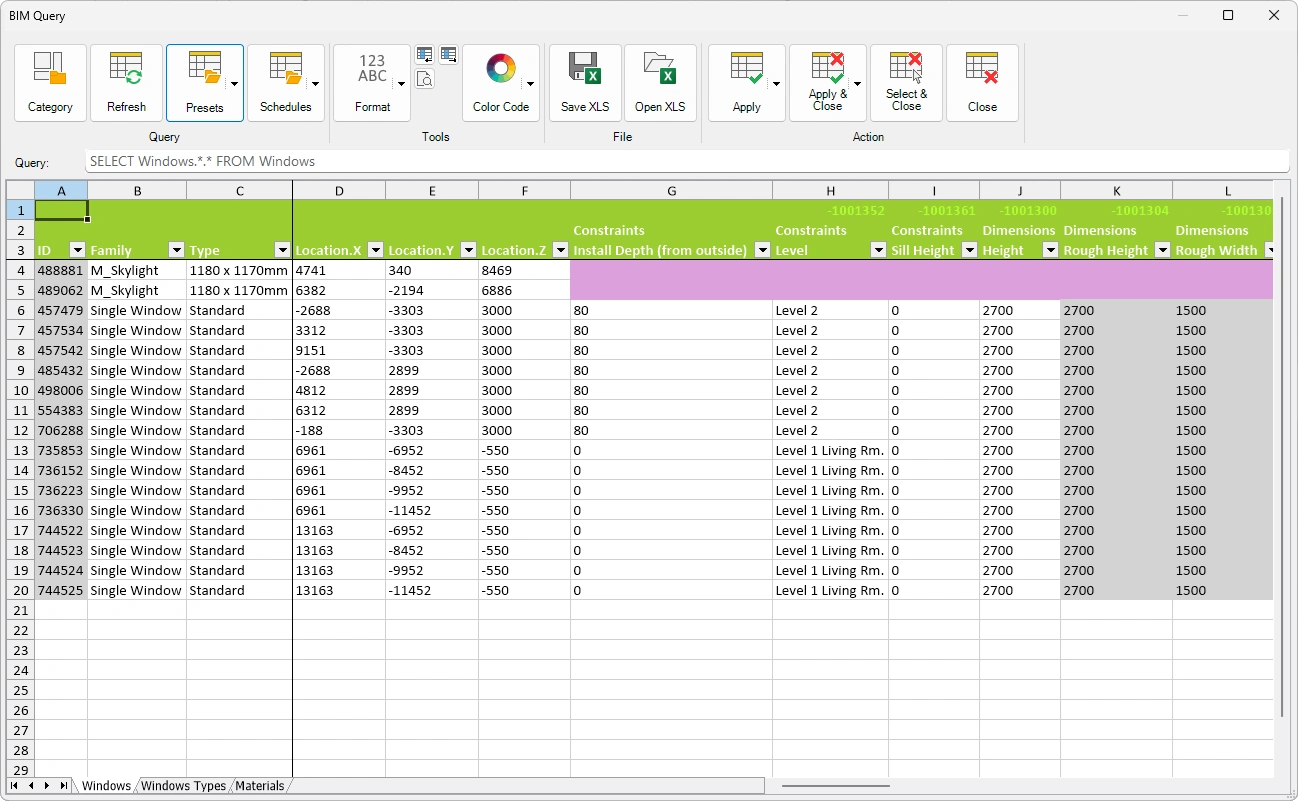
BIM Query sits inside Kobi Toolkit (nine tool sets, 40+ tools). You pick the categories first, then edit type and instance properties in a built-in spreadsheet editor with sorting, filtering and copying — or save to Excel, edit there, and load the file back to apply the changes. Compatible with Revit 2021–2027.
Two practical notes: no price is published anywhere on the site (free trial and “Buy Now” buttons only, enterprise deals via sales), and it ships through Kobi’s own installer rather than the standard Autodesk App Store installer — worth knowing if your IT team only whitelists App Store deployments.
5. AutoExcel by BIMIZE — the cheap paid round-trip
AutoExcel does one job: export the open schedule to Excel, batch-edit many parameters at once, re-import into the same schedule. At €29.99 (September 2026) with a trial, it is the lowest-cost paid option here, and the App Store listings cover Revit 2022→2024 and 2025→2027.
Check the requirement before you buy: it drives Excel through Office interop, so it needs 64-bit Microsoft Excel, version 2013 (v15.0) or newer — it will not run on 32-bit Office. It is built for “lots of parameters at once”, not for single-cell tweaks.
6. Export/Import Excel by MLabs — free, and it goes further than schedules
Export/Import Excel is a free Autodesk App Store add-in that exports schedules to Excel (separate files or combined sheets, images included) and syncs the edited file back. Two things set it apart from the usual schedule exporter: it can batch-edit family parameters together with their formulas, and it can create new sheets in bulk from an Excel template with sequential renumbering.
The catch on the family side: that part is designed to run inside a family document (.rfa), not a project — open the family first or the batch will not see anything. The listing does not state a supported Revit version range, so check the download page against your version.
7. Schedule Plus — free, but export only
Schedule Plus by Pangolin tools batch-exports Revit schedules to Excel worksheets in one click and lets you define your own XLSX template so the output arrives already formatted. It also copies schedule data to the clipboard for pasting into email or a text editor.
Be clear about what it is not: there is no import path. Data goes Revit → Excel and stops. If you need the edits to come back, it is the wrong tool. Free, Revit 2020–2026.
8. Autodesk Dynamo — free, scripted, either direction
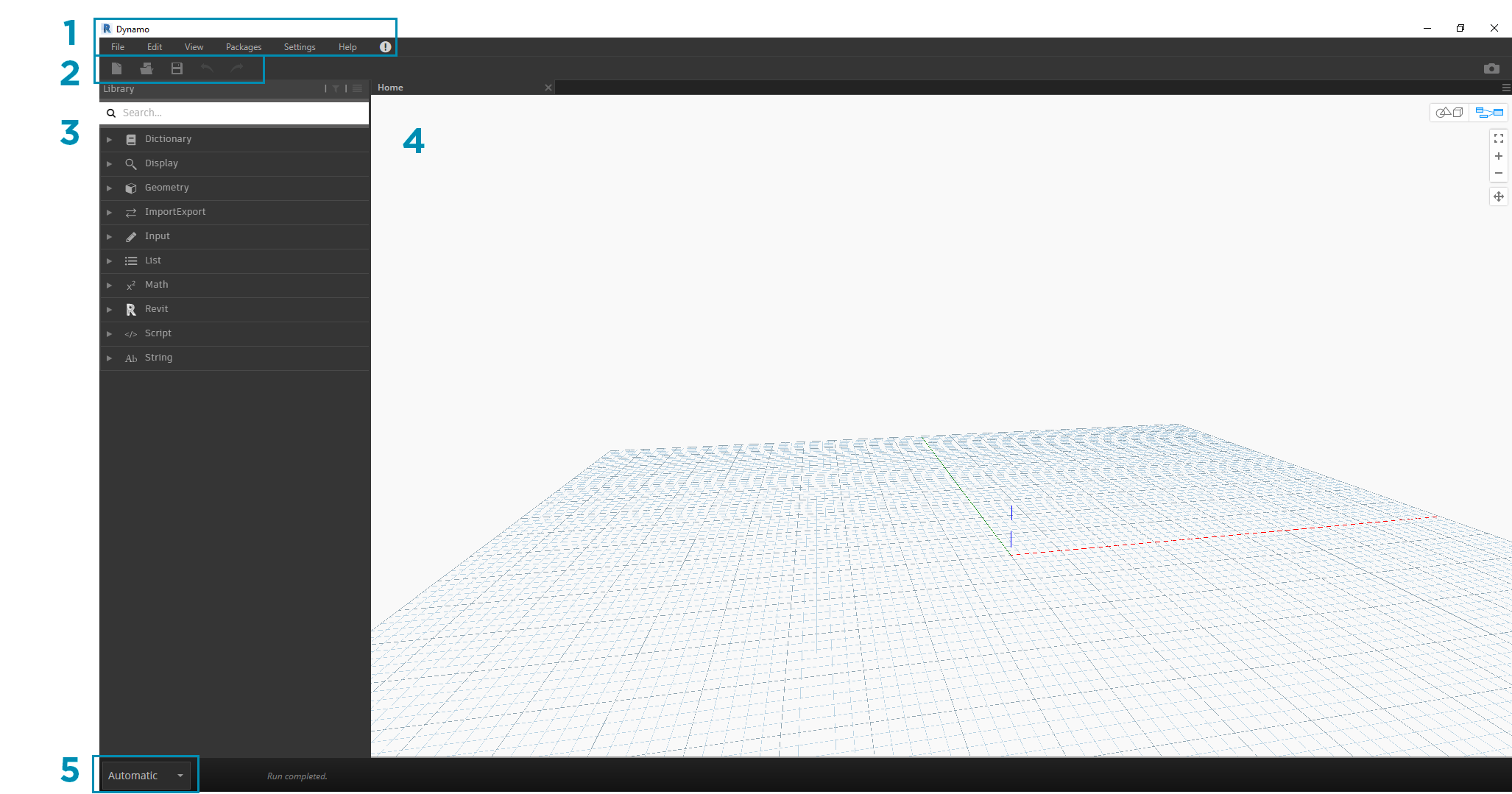
Dynamo is not a product you buy, it is the visual-scripting environment that ships inside Revit (Autodesk documents Dynamo 3.6 for Revit 2026). With Excel read/write nodes you can move parameters either way on your own terms, and a saved graph is repeatable across projects.
The gotcha that fills the Dynamo forum: the Excel nodes talk to Microsoft Office through interop, so Data.ImportExcel fails with “operation failed. Excel is not installed” on machines without a matching (usually 64-bit) Excel — including plenty of Office 365 installs. The second one is structural rather than a bug: Dynamo gives you no built-in row-to-element matching, so you carry an id column through the spreadsheet yourself and take the blame if a sort in Excel breaks it. Maximum control, and you own the maintenance.
9. Revit’s built-in schedule export — free and already installed
Before buying anything, know what Revit does alone. Open a schedule view, then File tab → Export → Reports → Schedule. Revit writes delimited text that Excel opens directly. Under output options you choose the field delimiter (tab, space, comma or semi-colon), the text qualifier (single quote, double quote or none), whether to export one header row or all header rows as formatted, and whether group headers, footers and blank lines come along.
It is one-way: nothing comes back into the model. For a quantity take-off you send to a consultant, that is often all you need — and it answers the “how to export schedule from Revit to Excel” question without a plugin at all.
10. Ideate Sticky — the opposite direction
Ideate Sticky solves the other half of “excel to revit”: it places an external Excel, Word or PDF file onto a Revit sheet as a native Revit element and keeps it live-linked, so edits in the source file flow into the drawing. People use it for data Revit cannot schedule at all, such as unshared family parameters.
Two caveats: the linked source file has to stay reachable at the same path or the link stops updating, and it does not get data out of Revit — for that, Ideate pairs it with BIMLink. No standalone price is published on the vendor page.
Not an Excel tool, despite the name: Revit DB Link
Autodesk’s own Revit DB Link is still documented for Revit 2026, and people find it while searching for a Revit database round-trip. Read the supported targets first: Microsoft Access and SQL Server only — Excel is not a supported destination. On Office 365 machines the Access Runtime it needs is often missing and has to be installed separately. Useful for a real database workflow, irrelevant if you wanted a spreadsheet.
How to choose a Revit Excel plugin
Answer one question first: does the data have to leave Revit? If a colleague without Revit must touch it, you need a file round-trip. If you are the one editing, a file is pure overhead — an extra copy that goes stale the moment someone else changes the model.
- You edit the data yourself, and you want it free: edit Revit parameters in a spreadsheet with Metasheet — in-Revit grid, plus XLSX export and import when you do need the file.
- A non-Revit colleague edits in the browser: DiRoots SheetLink, for the Google Sheets path.
- Repeatable enterprise links and parameters schedules cannot reach: Ideate BIMLink.
- Cheapest paid schedule round-trip: AutoExcel — if you have 64-bit Excel 2013+.
- Free round-trip, including family parameters: Export/Import Excel by MLabs.
- You only need the data out, formatted: Schedule Plus, or Revit’s own Export → Reports → Schedule.
- Automation you will run every week: Dynamo, once you accept the Office-interop requirement.
- A spreadsheet that must appear on a drawing sheet: Ideate Sticky.
Two practical filters before you commit: check the version range against the Revit you actually run (2018–2027 for DiRootsOne, 2022–2027 for Metasheet and AutoExcel, 2021–2027 for Kobi, 2020–2026 for Schedule Plus), and test on a copy of a real model — a tool that handles 200 rows can crawl at 20,000. If nothing on this list fits the workflow, a custom Revit add-in is usually cheaper than a year of licences for a tool that half-fits.
FAQ
Is there a free Excel to Revit plugin?
Yes, more than one. Metasheet is free (a free 3dshouse account is required) and imports an XLSX back into the model, matching rows by element ID. Export/Import Excel by MLabs is a free App Store add-in with a schedule round-trip. Dynamo is free and ships inside Revit but you build the graph. SheetLink is not free — it needs DiRootsOne Premium at €100 user/year.
How do I export a Revit schedule to Excel?
Without any plugin: open the schedule view, then File tab → Export → Reports → Schedule, and pick a delimiter. Revit writes delimited text that Excel opens. For batch exports into a formatted template, Schedule Plus does it in one click; for an export you intend to edit and send back, use a round-trip tool instead.
Can I import Excel data back into a Revit schedule?
Revit’s own export is one-way, so you need an add-in. Metasheet, SheetLink, BIMLink, Kobi BIM Query, AutoExcel and MLabs’ Export/Import Excel all write edits back; Schedule Plus and the native export do not. Check how the tool matches rows to elements — matching by element ID survives sorting and filtering in Excel, matching by row order does not.
What is Ideate BIMLink used for with Revit and Excel?
Exporting Revit parameters to Excel — including ones a standard schedule cannot show — editing them there and importing them back, using reusable link definitions. It costs $795.00/year for a single user as of September 2026. Note that type-level properties are read-only inside an instance link, and project parameters always come across read-only.