Tiếng Việt
SketchUp
FixIt 101 SketchUp Plugin: Free Download, and the Limits Nobody Mentions
FixIt 101 is one Ruby script by Anton Synytsia that tries to turn a broken group into a valid SketchUp solid: it fills planar holes, erases faces trapped inside a mesh, merges coplanar faces, drops orphan edges, and stitches split edges and split curves back together. The shipped version is 1.5.0, release date 31 August 2014. The SketchUcation listing shows it last updated 1 September 2014 with 73,747 downloads and nothing released since. It is free, it is 13 KB of pure Ruby, and it needs no account, no internet connection and no companion library.
Read the warning the author put in his own file header before the feature list, because it explains most of the bad experiences people have with this plugin: “Don’t use this technique for cleaning models. Use TT CleanUp instead. This plugin was specifically designed to intersect holes and remove internal faces.” FixIt 101 is a hole-closer and internal-face remover built to get a group past the solid test. It is not a general model-hygiene pass, and it is not a polygon reducer.
Everything below comes from reading the shipped script — ams_FixIt.rb, the only file inside FixIt_101.rbz — rather than from the published feature list, so the limits are the real ones.
What FixIt 101 actually does, in order
One menu click runs seven passes in a fixed sequence over your selection, then recurses into every nested group and every component definition it finds. The order is deliberate: exact duplicates go first so the later passes do not trip over them.
- Removes duplicate faces — but only exact duplicates. For each edge it compares the faces meeting there and erases one only when the normals are parallel and both outer loops use the identical set of vertices. A face that overlaps another partially survives untouched. This pass compares every face pair on every edge, which is why it is the slow part on dense geometry.
- Fills holes with SketchUp’s own face finder. “Add faces at desired locations” is not a click tool: the script calls
find_faceson every edge that has exactly one face, and that API “is used to create all of the Faces that can be created with this edge”. So it closes planar loops only — a missing lid on a box, yes; a curved or non-planar opening, no. It will just as happily face over an opening you meant to leave open when that opening’s boundary is a closed planar loop. - Erases internal faces by a rule worth memorising: a face is deleted when every one of its edges borders three or more faces. That is precisely the junk trapped inside a boolean result or a sloppy import. It is also what makes the plugin destructive on deliberate interiors — a shelf inside a closed cabinet, or any partition inside a solid, has all of its edges touching three faces, so FixIt 101 erases it. The widely repeated claim that it deletes window glass is wrong: a lone pane’s edges border one or two faces, so this test never fires on it.
- Merges coplanar faces only when the materials match. The shared edge is erased when the normals are parallel, every vertex of both faces genuinely lies on one fitted plane, and front material and back material are equal on both faces. Differently painted coplanar faces stay separate. The pass runs twice, because each merge changes what is coplanar next door.
- Removes edges that border no face — the orphan lines left behind by erasing, exploding or intersecting.
- Repairs split edges and split curves. Two collinear segments meeting at a lone vertex are welded into one; fragmented arcs are rejoined so Follow Me and other path-based tools see a single curve, and a “curve” left with one edge is exploded. Side effect: while rejoining a curve the script sets
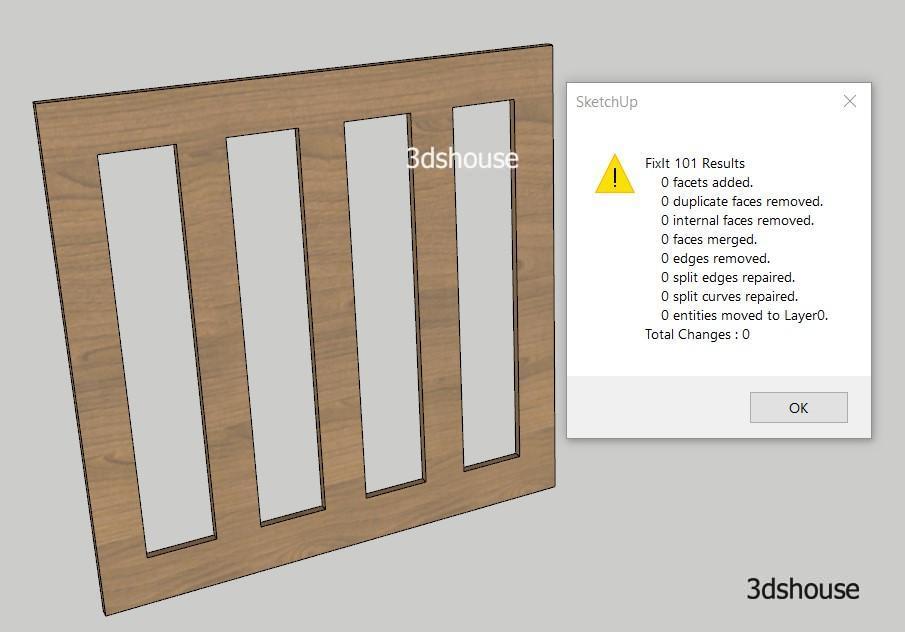
softandsmoothon the other edges at that vertex, so a few hard corners come back softened. - Reports what it changed. Every run ends in a message box counting facets added, duplicate faces removed, internal faces removed, faces merged, edges removed, split edges repaired, split curves repaired, and entities moved to Layer0. Read it — it is the only feedback the plugin gives, and the last line is the one nobody expects.
The undocumented side effect: your tags are gone
It is in the code but in no feature list: every edge, face, guide line and guide point FixIt 101 walks over has its layer set to Layer0 — what SketchUp now shows as Untagged. Groups and components keep their own tag; the loose geometry inside them does not. If your model follows SketchUp’s own advice to “refrain from assigning tags to entities like edges or faces”, you lose nothing. On an imported DWG, where every line arrived carrying its CAD layer, one run flattens that structure across the whole selection. Save a copy first, or work on a duplicate group. CleanUp³ does the same thing — as a checkbox you can switch off.
The whole run is wrapped in a single SketchUp operation, so one Ctrl+Z reverts it. In whole-model mode the optional purge sits inside that same operation.
How to download and install FixIt 101
- Get the .rbz. Use the download link at the end of this post, or the FixIt_101 entry in the SketchUcation PluginStore, which is free but needs a sign-in. Either way it is the same 1.5.0 archive holding a single Ruby file.
- Install it. Open the Extension Manager from the Extensions menu or its toolbar icon, click Install Extension, select
FixIt_101.rbzand click Open. SketchUp warns that you should only install extensions from trusted sources; click Yes. - Check the menu bar, not the Extension Manager list. The archive contains one loose script with no
SketchupExtensionregistration, so it hands SketchUp no name, version or description to display. Confirm the install by finding Extensions > FixIt 101 in the menu. - Nothing appeared? It is the loading policy. A 2014 script carries no signature, and SketchUp refuses to load unsigned extensions under the Identified Extensions Only policy. Open the Extension Manager’s settings gear and switch to Approve Unidentified Extensions or Unrestricted, then restart SketchUp. Step-by-step: how to fix a blocked SketchUp extension.
- Select before you run. Click the group or component you want repaired, Ctrl+click for several. The script fixes everything inside the selection, nested groups and component definitions included. With nothing selected it processes the entire model and then offers to purge unused definitions, materials, layers and styles too — useful, but a very large change to accept blind.
- Run it. Extensions > FixIt 101 — or right-click the selection. The script also registers itself in the context menu whenever something is selected, which is the faster route and is documented nowhere.
- Verify with Entity Info. SketchUp calls a group or component a solid when it “has a finite closed volume” and has “no leaks (missing faces or faces that do not meet at an edge)”, and Entity Info’s upper-left corner is where it tells you. If the group is still not solid, Solid Inspector² (thomthom, MIT-licensed, SketchUp 2014 or newer) inspects and repairs solid groups and components and shows you what is left.
Version support is the honest gap in this plugin. The vendor listing declares Pre-8, v2013 and v2014, and no statement about SketchUp 2017 or later has been published by the author in eleven years — so treat any “works with 2025” claim, including older versions of this page, as untested. What the source does show is that the script calls nothing newer than the SketchUp 8 era API, branches on Sketchup.version only to pick the right undo call, and registers its command on the menu name “Plugins”, which lands in today’s Extensions menu. There is no version gate to fail; if it does not load, check the loading policy first.
Which tool fixes which cause of a broken or heavy model
“My model is broken” and “my model is heavy” are different problems with different tools. Reaching for the wrong one is why people conclude a plugin did nothing.
- A group refuses to become a solid — holes, faces trapped inside. FixIt 101. This is the one job it was built for.
- Stray edges, duplicate faces, hidden junk, coplanar clutter across a whole file. CleanUp³ (thomthom, version 3.4.6, updated February 2024, over 252,000 downloads). Its own list covers erase duplicate faces, erase lonely edges, repair split edges, merge connected co-planar faces, merge identical materials, erase hidden geometry and purge unused — each one an option you pick. It is still maintained; FixIt 101 has not moved since 2014.
- You need to see exactly which edges are wrong. Solid Inspector², which inspects and repairs solid groups and components instead of guessing at them.
- The file is huge but the visible geometry is small. That is unused components, materials and styles, not geometry: purge the unused entities. FixIt 101 offers the same purge, but only in whole-model mode.
- The mesh itself is the weight — a scanned chair, a 3D Warehouse sofa, a CAD import with a million triangles. No repair tool helps here. Merging coplanar faces removes redundant edges; it does not remove triangles from a genuinely curved, dense surface. That needs a decimator, and Decimify for SketchUp is the free one: pick the group or component, drag a slider to watch the triangle count fall in real time, and commit the result back over the same component definition so every instance in the model updates at once. Free covers every feature and every reduction level with a free 3dshouse account, metered at 3 exports or commits per UTC day.
- The heavy mesh is still a GLB or STL file. Lighten it before it lands in SketchUp: reduce the polygon count in your browser, then import the smaller version. The mesh is parsed and simplified locally in WebAssembly — no geometry is uploaded.
FAQ
Where can I download the FixIt 101 SketchUp plugin for free?
From the link at the bottom of this page, or from the FixIt_101 entry in the SketchUcation PluginStore, which is free with a sign-in. Both are version 1.5.0 — the last one the author released, in 2014.
Is it FixIt 101 or “Fixlt 101”?
FixIt 101, with a capital I. “Fixlt 101”, “fix it 101” and “fix 101” are common mistypes of the same plugin: the archive is FixIt_101.rbz and the script’s own constant reads NAME = 'FixIt 101'.
Which plugin deletes coplanar edges in SketchUp?
Both of these do, differently. FixIt 101 merges coplanar faces as an unavoidable part of its single pass, and only where front and back materials match on both faces. CleanUp³ lists “merge connected co-planar faces” as its own option, which is what you want when merging is the only thing you came for.
Download FixIt 101