⬇ Download Texturic for SketchUp (.rbz)
Texturic is a SketchUp extension that makes seamless textures and PBR maps from a laying pattern and a photo. Pick one of more than 300 patterns (herringbone, chevron, brick bonds, hexagon, fish scale, planks, stone, metal sheets and more), pick a material, and Texturic renders one rectangular repeat as albedo, normal, roughness, metalness and ambient-occlusion maps. In SketchUp it is applied to the faces you selected as a material; the web editor saves the maps as files. Three results a day are free, counted across SketchUp (Apply as material) and the web editor (the maps .zip or the colour .jpg). The editor opens with no account; a 3dshouse sign-in is asked for at the first use. Browsing and previewing are never counted.
What Texturic does in SketchUp
- Seamless by construction. The image is one rectangular repeat of the pattern, so it tiles without a visible edge. Rows and Columns decide how many repeats the image holds; the size in millimetres is written on the dotted frame in the preview.
- More than 300 laying patterns. The Pattern field opens a picker with a search box and the All layouts and All shapes filters (the web editor also has a gallery page with the same search and filters): herringbone and its variants, chevron, running, stack, English, Flemish and other brick bonds, basketweave, hexagon, fish scale, random-length planks, ashlar, cobblestone, riven slate, corrugated sheet, standing seam, tongue and groove, fluted and reeded panels. Tile size, rotation and joints are fields. The pattern None uses your photo as it is, with no tiles and no joints.
- 1,469 built-in textures in 30 categories, or your own. Wood, stone, rock, marble, concrete, plaster, terrazzo, metal, rust, fabric, leather, carpet, soil, gravel, sand, grass, bark and more, every one of them CC0, so commercial use and redistribution are allowed. Or load your own .jpg or .png, or pick a solid colour. You set the photo’s real width in millimetres, and brightness, contrast, saturation and hue are sliders.
- Joints and edges. The Joints section holds a Joint material (a solid colour or an image), a Horizontal joint width between the rows and a Vertical joint width between the tiles of a row, Joint depth, Concave joints and Recess joints. The Edges section has an Irregular option that gives the tiles a wavering edge, with Variation, Spacing and Jaggedness.
- Five maps, one select. Texture (the colour), Normal, Metalness, Roughness and Ambient occlusion, all from the same layout, so the colour and the relief line up. The select over the canvas, Map on the canvas, shows the one you choose. The PBR maps section has a tab each for Normal, Roughness and Metalness with its own settings; Ambient occlusion has none.
- Apply as material. The seamless texture is applied to the faces you selected, lined up with the pattern. In SketchUp 2025 and newer the material also carries the normal, roughness, metalness and ambient-occlusion maps; on an older version the colour is applied and the dialog says so.
- Download the maps (web editor). Pick the image size, tick the maps you want and download them as one .zip, or download the colour texture alone as a .jpg. The SketchUp dialog has no download button: it applies the result as a material.
- Two materials in one texture. Add a second material and choose which tiles take it: a random share, a checkerboard, stripes, chosen tiles of the pattern, or your own rule written as an expression over the tile, row and column numbers.
- The same editor in a browser. Everything above also runs at 3dshouse.com/textures/, without SketchUp.
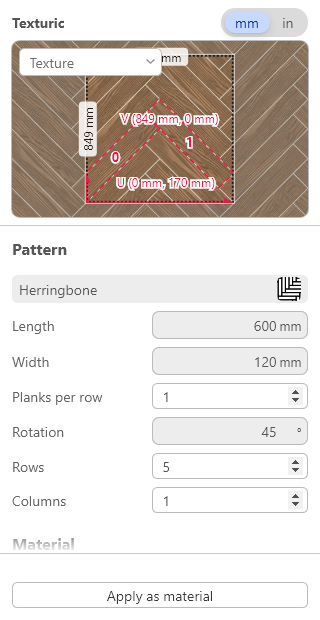
How the dialog is laid out
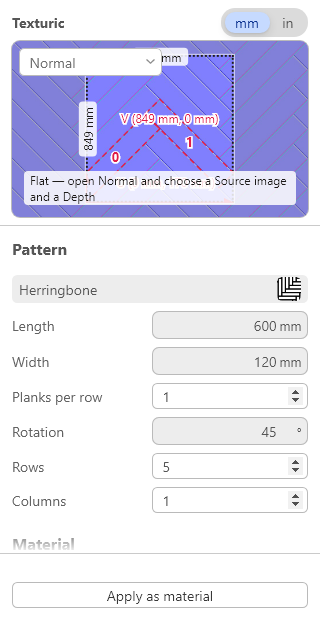
The dialog is one editor page, with no gallery screen in front of it. At the top is a header with the name Texturic and a mm / in switch for the lengths. Under it is the canvas: one seamless repeat inside a dotted frame that has its size in millimetres written on it, and a select over the canvas, Map on the canvas, that picks Texture, Normal, Metalness, Roughness or Ambient occlusion. Below the canvas is one scrolling column of sections: Pattern (the pattern button, which opens the picker, then the pattern’s own fields, Rotation, Rows and Columns), Material, Joints, Edges and PBR maps. PBR maps has three tabs, Normal, Roughness and Metalness; Joint roughness is the last row of the Roughness tab. The bar at the bottom holds Apply as material and stays in view while the column scrolls. If you make the dialog wide, the canvas moves to the right of the column and gains a Fit button that resets the view. In SketchUp older than 2025 the map select and the PBR maps section are not shown, because those versions take only the colour.
How to texture a face in SketchUp with Texturic
- Select one or more faces with the Select tool.
- Open Extensions → Texturic, or click the toolbar button. The dialog opens straight on the editor.
- In Pattern press the pattern button and choose a pattern in the picker; in Material press the material button and choose a material. Then set the tile size, the Rotation, and the Rows and Columns the image holds.
- In Joints set the joint widths and the Joint material, and in Edges anything else you want; the canvas follows as you type.
- Press Apply as material. The texture is applied to the faces you selected. That is one use.
How to save the texture maps as files (web editor)
- Open a pattern or a material at 3dshouse.com/textures/ and set it up as above; the panel is on the left and the canvas, with its map select at the top right, fills the rest. Press Download textures, the button in the bar at the foot of the panel; a window of the same name opens.
- In that window pick the Size (1K, 2K, 3K or 4K) and tick the maps you want under Maps to save: Texture, Normal, Metalness, Roughness, Ambient occlusion.
- Press Download maps (.zip) for a .zip of PNG files, or Download texture map (.jpg) for the colour texture alone.
The files are named after the pattern, for example texturic-herringbone-maps.zip and texturic-herringbone-normal.png, so a folder of exports stays readable.
Free uses
Opening the dialog or the web editor, browsing patterns and materials, changing settings and looking at the preview are never counted. Three delivered results per UTC day are free: Apply as material in SketchUp, or the maps .zip or colour .jpg in the web editor, from one shared daily count (one account, one count); further uses need Texturic Pro, a lifetime licence, with no key to enter. The dialog and the editor open with no account; a 3dshouse sign-in is asked for at the first use. The count is kept on the server; after your first use of the day the dialog shows how many are left, and it resets at midnight UTC, not 24 hours after your first use.
The same editor in your browser
The Texturic web editor is the same texture and PBR map tool without SketchUp: the same patterns, the same materials, the same five maps. Every pattern and every material opens at its own address, for example herringbone or oak grain, ready to edit and download. Looking and editing are never counted and need no account; a download is one use of the shared count of three free a day, and a 3dshouse sign-in is asked for at the first one (using your own image also needs a sign-in). Wondering how it compares with Architextures and the other tools? Read SketchUp material plugins compared. Each pattern page also links to Hatchy. The step-by-step guide to the browser version is Texturic online.
Texturic and TileUp
Texturic makes textures and materials: a flat, seamless image and its PBR maps, applied to a face or saved as files. If you want real 3D tiles instead — each tile modelled with thickness, a grout gap and an edge profile, clipped to the face, with a takeoff of the full and cut tiles — that is TileUp, a separate SketchUp extension built on the same pattern library. The Texturic web editor links to TileUp, and the two are metered separately.
Install
- Download Texturic .rbz.
- In SketchUp, open the Extension Manager, click Install Extension and choose the downloaded file.
- Restart SketchUp. Texturic appears in the Extensions menu and as a toolbar button.
Requirements
- SketchUp 2022 or newer (PBR maps on an applied material: SketchUp 2025 or newer).
- No account is needed to open Texturic; a 3dshouse account is asked for at the first use. Three uses a day (Apply as material or a web download) need no licence.
- An internet connection: the dialog loads from 3dshouse servers.
FAQ
Is Texturic free?
Partly. Opening the editor or the SketchUp dialog needs no account, and browsing patterns, editing and previewing are never counted. Three delivered results per UTC day are free, from one count shared by SketchUp (Apply as material) and the web editor (the maps .zip or the colour .jpg); further uses need Texturic Pro, a lifetime licence, with no key to enter. A 3dshouse account is asked for at the first use, and the count resets at midnight UTC.
What counts as one use?
One use is one delivered result: in SketchUp, one “Apply as material” on the selected faces; in the web editor, one download of the maps .zip or one download of the colour .jpg. SketchUp and the web editor share one count. Opening the dialog or the editor, switching maps, changing settings and looking at the preview cost nothing.
When does the free limit reset?
At midnight UTC, not 24 hours after your first use. The count, the limit and the hours left are read from the server, and the dialog shows them once you have used Texturic today.
Which maps do I get?
Five maps: texture (colour), normal, roughness, metalness and ambient occlusion. There is no separate height map; the relief is carried by the normal map. In the web editor you tick the ones you want under “Maps to save” and they come out as PNG files in one .zip; the colour texture can also be saved on its own as a .jpg. In SketchUp the applied material carries them as far as your version allows (next question).
Do the PBR maps work in my SketchUp?
The colour texture is applied in every supported version. The normal, roughness, metalness and ambient-occlusion maps on an applied material need SketchUp 2025 or newer; on an older version the dialog applies the colour and says that PBR maps need SketchUp 2025 or later.
Are the textures really seamless?
Yes. Texturic renders one rectangular repeat of the pattern, so the image tiles without a visible edge. Rows and Columns set how many repeats the image holds.
Can I use my own photo?
Yes, a .jpg or .png of your own, or a solid colour. You set the photo’s real width in millimetres, so the pattern is drawn at the right scale, and brightness, contrast, saturation and hue are sliders. With the pattern “None” the photo is used as it is, with no tiles and no joints.
Can one texture mix two materials?
Yes. Add a second material and choose which tiles take it: a random share, a checkerboard, stripes, chosen tiles of the pattern, or your own rule written as an expression over the tile, row and column numbers.
Do I need SketchUp to use Texturic?
No. The same editor runs in a browser at 3dshouse.com/textures/, with the same patterns, materials and maps. Downloads from it count against the same three free uses a day as SketchUp.
Does Texturic model 3D tiles?
No. Texturic makes textures and materials. Real 3D tiles with thickness, a grout gap and an edge profile are made by TileUp, a separate SketchUp extension; the Texturic web editor has a link to it.
Which SketchUp versions are supported?
SketchUp 2022 and newer. The dialog loads from 3dshouse servers, so it needs an internet connection. PBR maps on an applied material need SketchUp 2025 or newer.
Free: limited to 3 uses a day
Pro: unlimited, guaranteed to work, priority support