Tiếng Việt
SketchUp
Copy & Duplicate Materials Between SketchUp Files (Auto Tool)
18
Jan
Jan
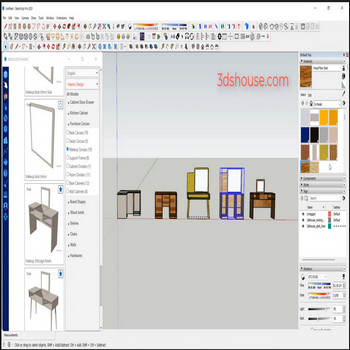
When you want to copy multiple material layers of multiple models, use the auto material duplicate tool to copy materials between SketchUp files. This matters more than it sounds: on Windows the Materials browser is bound to the active SKP file, so a material you sample with the eyedropper in one open model cannot be carried into another model — only macOS lets the paint-bucket dropper sample a texture across files in the same session. This tool closes that gap by pulling every In-Model material from a source model into your current one in a single click.
Auto Duplicate & Copy Materials Between SketchUp Files — Video Tutorial
Steps by steps:
- Click tool auto material duplicate – click on the material you want to copy
- All materials have been copied and are in in models

Auto duplicate material

Notes:
- Copied materials land in the In Model collection of the target SketchUp file, so they survive after the source model is closed — they are real model assets, not a temporary clipboard reference.
- If a copied material name already exists in the target model, SketchUp keeps both by appending a numbered suffix (e.g. “Wood_1”) rather than overwriting, so painting can silently use the wrong duplicate. After copying, sample a face to confirm which version you are applying.
- Materials with image textures bring their pixel data along when you copy materials between SketchUp files, which can inflate file size. Once you finish, run Purge Unused (Materials panel ▸ Details ▸ Purge Unused) to drop any copies you did not paint — but note purge has no undo, so do it as a final step.
- Verified against SketchUp 2026, which is subscription-only (named-user); the perpetual Classic license was discontinued in 2020. This workflow behaves the same across recent 2026 releases.