

 Tiếng Việt
SketchUp
SketchUp Select by Color — Select All Same Material Fast
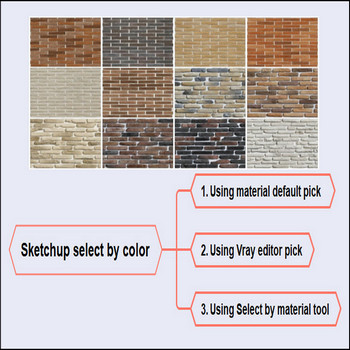
To change the material on many objects at once in SketchUp, use the Select by Color or Select by Material workflow instead of repainting each face one by one.
How to Select by Color or Material in SketchUp — Tutorial Video
Steps by steps:
- The slow way is to pick the material on each object individually; another option is to use a render engine like V-Ray to gather similar materials.
- The fastest native way to select by material in SketchUp: triple-click (or pre-select) a surface, then right-click and choose Select > All with Same Material — SketchUp highlights every entity in the current context using that exact material, so you can swap it in one paint action.
- You can also open the Materials panel, find the swatch under “In Model”, right-click it and choose Select — same idea, driven from the material list.
- For replacing rather than just selecting: with the SketchUp Paint Bucket active, hold Shift for “All Matching” mode — clicking one face then repaints every face in the model that shares that material in a single click, no manual selection needed.
The gotcha that trips most people up: “All with Same Material” only works inside the context you are currently in. If you applied the color inside a group or component, SketchUp will not pick those faces while you are outside the group, and faces that simply inherit a color painted onto the group/component wrapper count as the default material, not the material you see — so they get skipped too. To catch everything, enter the group/component first, or paint the material on the geometry directly rather than on the wrapper.

More SketchUp tools by 3dshouse
