

 Tiếng Việt
SketchUp
RoundCorner vs FredoCorner vs BevelUp: The Fastest Way to Round a SketchUp Edge
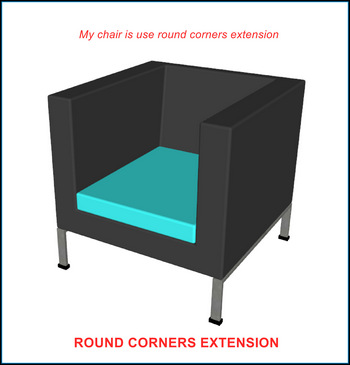
RoundCorner is Fredo6’s SketchUp plugin for rounding, beveling, and chamfering edges — a paid extension ($15 one-time for 3 seats, via Sketchucation) that Fredo6 has since replaced with a newer plugin called FredoCorner. This guide covers both, the native Follow Me method that needs no plugin at all, and BevelUp, the free alternative that does the same job. Whether you are rounding table legs or chamfering a cabinet door frame, the right tool depends on your SketchUp version, budget, and how many edges you’re rounding.
Get BevelUp on Extension Warehouse (free) →
SketchUp itself has no fillet or chamfer command for 3D geometry — SketchUp 2026 added native Fillet and Chamfer tools (Shift+F, Shift+C), but those live in LayOut and only reshape flat 2D linework, not 3D model edges. For 3D geometry you still need a plugin or the manual Follow Me technique.
RoundCorner vs FredoCorner vs BevelUp
Fredo6 no longer actively develops RoundCorner; FredoCorner is his current, maintained extension (last updated March 2024) and uses a different, more capable algorithm. Neither is free — BevelUp is the only plugin of the three with no cost and no license to renew.
| Plugin | Price | Modes | Works on groups/components without entering them | SketchUp versions |
|---|---|---|---|---|
| RoundCorner (Fredo6) | $15 one-time, 3 seats (30-day trial) | Round, Bevel, Sharp — 3 separate buttons | No | 2017–2026 |
| FredoCorner (Fredo6) | $30 one-time, 3 seats; $8 for a 21-day rush license (15-day trial) | Round with editable, asymmetric offsets | Yes | 2017–2026 |
| BevelUp (3dshouse, free) | Free to use, with a daily number of rounds | One control: segments = 1 gives a chamfer, segments ≥ 2 gives a round fillet | No | 2022+ |
Both Fredo6 plugins also require his free companion library, LibFredo6, installed separately — BevelUp has no such dependency. A detail worth knowing before you buy: the trial ends silently — a SketchUp forum thread shows a user whose RoundCorner “stopped working saying you need to update it” after their trial period ended; as one responder put it, “many of Fredo’s extensions require a license after a short ‘free’ trial period.” That is expected behavior, not a bug — but it catches people off guard.
Three Ways to Round Corners in SketchUp
- Native Follow Me (no plugin). Draw an arc profile on a face perpendicular to the edge, then sweep it along the edge loop with Follow Me. Clean, predictable geometry with no triangulation and no install — but tedious past a handful of edges, and corners where two beveled edges meet need manual cleanup.
- RoundCorner or FredoCorner (paid, full control). Best when you need Fredo6’s more advanced handling of non-orthogonal edges and multi-edge corners, or FredoCorner’s ability to round a group/component without opening it first.
- BevelUp (free, one click). Select the edges, set an offset and a segment count, and the whole selection is rounded or chamfered at once — the fastest path for furniture and product models where a handful of edges need the same treatment.
RoundCorner Features
- Three edge treatment modes in one toolbar. Round produces a cylindrical fillet (quarter-circle cross-section) along the selected edges. Bevel creates a single flat cut — a true chamfer — which suits furniture that needs a machined look rather than a smooth curve. Sharp reconstructs the corner without rounding, useful for cleaning up near-zero edges without changing the silhouette. All three share the same offset and segment inputs.
- Per-edge offset control via the red/orange highlight step. Before RoundCorner commits, it highlights every selected edge in the preview; clicking a highlighted edge toggles it between active (orange) and excluded (red). You can round 90 percent of a model’s edges in one pass and leave specific corners — like the unseen back of a cabinet — sharp.
- Offset is the fillet radius, capped by geometry. Type 50 mm and the curved face gets a 50 mm radius. The hard limit is half the shortest face the fillet has to cross; exceed it and RoundCorner silently skips the edge or flags an error. On a 10 mm door frame, keep the offset under 4–5 mm.
- Segment count controls polygon density. The default of 4 or 6 segments looks smooth enough in most views; 12–24 gives a smoother arc but multiplies the face count. 8–12 segments is a practical ceiling for a photorealistic render; 4 is enough when edges are hidden in the display style.
- Concave inside corners always come out round. Where two faces meet at an inside angle, RoundCorner applies a Round fillet even in Bevel mode — a flat bevel there would need overlapping geometry SketchUp can’t represent. Expect this on models with both inside and outside corners.
- Silent failure without LibFredo6. The toolbar appears and the tool launches even if LibFredo6 is missing — it just does nothing when clicked. Install both, then fully restart SketchUp (not just refresh the extension manager) before they load.
How to Install and Use RoundCorner
- Buy and download from Sketchucation. sketchucation.com/plugin/1173-roundcorner for the paid .rbz, then search “LibFredo6” (free) and download it separately.
- Install LibFredo6 first, then RoundCorner via Extensions > Extension Manager > Install Extension. RoundCorner’s loader checks for LibFredo6 at startup, so installing them in the wrong order leaves them out of sync until the next restart.
- Fully quit and relaunch SketchUp so the toolbar loads. If it doesn’t appear, enable it from View > Toolbars > RoundCorner.
- Select the edges (or the whole model with Ctrl/Cmd+A) and click the Round Corner button. The preview highlights every selected edge in orange; type a number in the measurement box for the offset, Tab to the segments field.
- Click highlighted edges you want to exclude — they turn red. Skipping this step is the most common reason models come out over-rounded.
- Click empty space to commit. The result is a dense triangulated mesh — select everything and run Window > Soften Edges at a 20–30° threshold to hide the triangulation lines. This step is not optional for a clean render or export; see our full guide to softening and smoothing edges in SketchUp.
Using BevelUp Instead (Free)
BevelUp is a free SketchUp plugin that does the same core job — round or chamfer edges — without a license, a trial, or LibFredo6.
- One parameter switches between fillet and chamfer. BevelUp takes an offset (radius) and a segment count. Set segments to 1 and you get a flat chamfer instead of a curve — the same distinction RoundCorner needs three separate toolbar buttons for, done with one number.
- To exclude an edge, adjust your SketchUp selection, not a preview. Unlike RoundCorner’s click-to-toggle preview, BevelUp rounds exactly the edges you had selected when you ran it — deselect the ones you want left sharp beforehand, or run it once on the edges you do want and again separately for a different offset elsewhere.
- Materials and UV mapping carry through the fillet. BevelUp samples the material and texture coordinates of each face before rebuilding it, so a textured panel keeps its texture after rounding instead of coming out plain white.
- The free plan gives a daily number of rounds, metered per 3dshouse account — not per seat, so it covers every computer you’re signed in on.
- No trial to expire. Because entitlement is checked against your 3dshouse account on the server rather than embedded in a license file, there’s no license file to lose and no “please update” message like RoundCorner’s after a trial period ends — BevelUp still ships as an ordinary versioned .rbz through the Extension Warehouse like any other SketchUp plugin.
Requires SketchUp 2022 or later and a free 3dshouse account. Install BevelUp, or read the full BevelUp vs RoundCorner vs Bevel comparison for a side-by-side on UV handling, performance, and pricing.
Pro Tips
- Run any rounding plugin last, on finalized geometry. Near-zero-length edges, coplanar faces, and reversed normals — common mid-project, easy to ignore — make RoundCorner crash or silently skip edges, and can make BevelUp skip a face too. Run Window > Model Info > Statistics > Fix Problems and delete guides first.
- Use Bevel (RoundCorner) or segments = 1 (BevelUp) for furniture chamfers instead of a round. A curved fillet can look soft and plastic on a table edge or cabinet door; a flat chamfer reads as machined or hand-routed, and costs one face per edge instead of N.
- Keep offset under 3 mm for a realistic “eased edge.” That’s the level of detail a router leaves on real wood. Pick one value per project — 2 mm for panel edges, 5 mm for leg tops — and apply it consistently rather than eyeballing each part.
- Don’t round already-rounded geometry. Running a second pass over a beveled edge creates micro-edges at the boundary of the previous fillet — invisible at normal zoom but the kind of degenerate geometry that breaks on export to FBX or OBJ. Undo back to the flat original before changing the radius.
System Requirements
| SketchUp versions | Dependency | Cost | |
|---|---|---|---|
| RoundCorner | 2017–2026, Windows/macOS | LibFredo6 (free) | $15, 3 seats, one-time |
| FredoCorner | 2017–2026, Windows/macOS | None | $30, 3 seats, one-time (or $8 for 21 days) |
| BevelUp | 2022+, Windows/macOS | Free 3dshouse account | Free (daily limit) |
| Follow Me (native) | SketchUp 6+ | None | Free |
FAQ
Is there a free plugin to round corners in SketchUp?
Until recently, no — a SketchUp forum thread asking exactly this got the same answer from two separate modelers: use the native Follow Me tool and accept the extra time, or buy an extension. BevelUp, whose free plan includes a daily number of rounds, is the option that thread predates.
Why does RoundCorner say I need to update it or ask for a license?
RoundCorner ships with a short free trial; after it ends, the extension keeps loading but refuses to run until you buy and activate a license key. A user on the SketchUp forum mistook this for a bug before realizing the trial had simply run out.
What is FredoCorner, and how is it different from RoundCorner?
FredoCorner is Fredo6’s newer, actively maintained rounding plugin (version 2.7a, March 2024) built on a different algorithm than RoundCorner. It can round a group or component without entering it first, supports asymmetric offsets, and shows a live, editable preview — capabilities RoundCorner does not have. It costs more ($30 vs $15 for 3 seats) and is a separate purchase, not an upgrade.
Related
- BevelUp — Free Round Corner Plugin for SketchUp: UV-preserving fillet, free for a daily number of rounds with a 3dshouse account.
- BevelUp vs RoundCorner vs Bevel: Full Comparison: side-by-side breakdown of all three across UV handling, performance, version support, and use cases.
- How to Smooth Edges in SketchUp: the Soften Edges step every rounding method needs afterward, explained in full.
