

 Tiếng Việt
SketchUp
SketchUp Snap Points & Inference Engine: Complete Guide
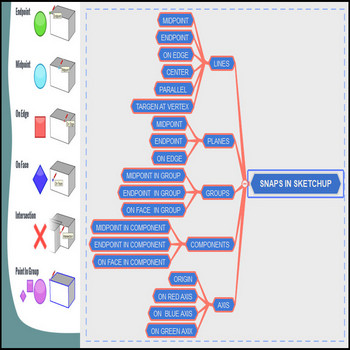
There are multiple snap points in SketchUp — endpoint, midpoint, on edge, on face, and axis snaps
SketchUp Snap Points & Inference Engine — Video Tutorial:
Steps by steps:
- There are snaps including endpoint , midpoint , on edge , on face
- Snaps for objects as line, plane, groups, components, axis
- For line: midpoint, endpoint, on edge you can see the snaps display on the screen
- For planes: center snap, on face
- For groups : midpoint in group, endpoint in group, onface group,
- For components : midpoint, endpoint, on face, on edge components,
- For axis: orgin, red axis, green axis, blue axis

Snaps in Sketchup

Faster SketchUp Snapping: Inference Engine Tricks Most People Miss
The colored dots are only half the system. The real speed comes from controlling which inference SketchUp commits to:
- Hover, don’t rush — “encouraging” an inference is what unlocks the hidden ones. Center of a face, midpoint of an edge, and on-face points often won’t appear until you let the cursor rest on a nearby endpoint or edge for a moment first. SketchUp uses that pause to decide the point is meaningful, then derives the center/midpoint from it. Snatching the mouse straight to the target usually grabs the wrong point.
- Press Shift to LOCK the inference you already found, then keep moving the mouse. Once endpoint/midpoint/on-edge/on-axis is showing, hold Shift and the cursor stays constrained to that direction or point even as you drag elsewhere in the model — so you can reference a second point for length without losing the first. This is the single biggest time-saver and is far more reliable than trying to re-hit the inference by hand.
- The arrow keys lock an axis instantly, without ever finding it on screen. While drawing or moving: Right arrow = red/X, Left arrow = green/Y, Up arrow = blue/Z, and Down arrow locks parallel to a nearby reference edge. Tapping the same arrow again releases it. This beats hunting for the colored axis line, especially in cluttered scenes.
- Inference is “sticky” to whatever you hovered last — point at the reference first, then aim. To snap onto something hidden behind other geometry, briefly hover the reference point so SketchUp registers it, then move along it; the lock survives even when the point itself is off-screen or occluded.
- You don’t have to click the exact distance: after locking a direction, just type a number and press Enter to draw that precise length along the locked inference.
- Snapping inside a group or component does NOT require opening it. SketchUp reads endpoints, midpoints and faces of closed groups/components from the outside, so you can align new geometry to them without entering edit mode — but watch out: a point that reads as an endpoint on a component is in that component’s coordinate space, so moving or scaling the component later shifts anything you snapped to it.
These snap and inference behaviors are unchanged in the current SketchUp 2026 release (now a named-user subscription rather than a perpetual license), so the workflow above applies whether you’re on SketchUp Free, Go, or Pro.
More SketchUp tools by 3dshouse
