

 Tiếng Việt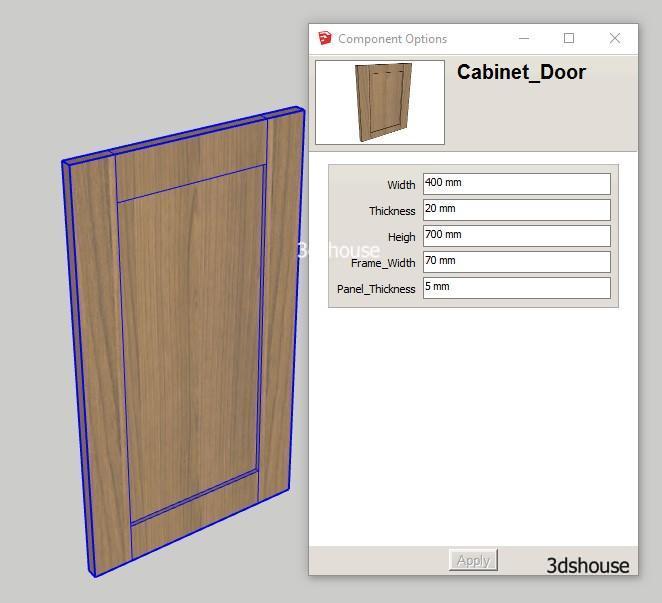
Resizable and Rotatable cabinet doors are two of the most impressive and most-used features of SketchUp Dynamic Components. This lesson will help you make a framed, rotating cabinet door. These techniques still work in SketchUp 2026, but a couple of details have changed since this tutorial first went up — Dynamic Components is no longer bundled by default; on SketchUp Pro/Studio 2024 and later you install (or re-install) it as a free extension from the Extension Warehouse, and it does not run at all in SketchUp Free/Web, which uses Live Components instead.
Dynamic Cabinet Doors in SketchUp – Video Tutorial
Download Example Models:
Dynamic-Rotatable-Resizable-Cabinet-Door.skp
Lesson objectives
- Master the size constraint between objects — the foundation of any resizable Dynamic Component in SketchUp.
- Set the Attribute Onclick with the Animate Function with the RotZ parameter. So you can understand Onclick Attribute can be done with many different functions, and that the Animate function can control motion with many different parameters.
- With this lesson set up Onclick: Animate (“RotZ”, 45,90,135,0)
Tips:
- With this object at the outermost of the parent object, Flip Along should be the outermost coordinate axis; at that point it takes less effort to set Position. The less you have to set up, the cleaner the trick keeps the Component Attribute table, with fewer parameters.
- The SketchUp Animate function can be swapped for Animateslow to move slower (one second per step) or Animatefast for faster (a quarter second per step).
- In Animate (“RotZ”, 45,90,135,0) the values “45,90,135” are rotation angles and “0” returns the door to its starting position; each click steps to the next value in the list, then cycles back. RotZ does accept negative angles once the attribute name is quoted (SketchUp’s own example: ANIMATE(“RotZ”,0,-130,10,100)). But if you leave the attribute name unquoted, a negative value is specifically what breaks repeat-clicking on many SketchUp versions (a long-documented SketchUp Community quirk) — so always quote the attribute name, and quote it especially before a negative number.
- The real cause of a “stuck” or jumping door is editing the axes (or using Flip Along) directly on the same component that holds the RotZ animation — SketchUp ends up writing an unexpected value like -180 and the rotation breaks. The reliable fix is to nest one extra level: apply the axis change to BOTH the inner and outer components, then put the Animate (“RotZ”, …) attribute only on the innermost component so the two axis systems stay separated.
- If you only need a configurable, cross-platform object rather than a click-to-animate one, note that SketchUp’s newer Live Components are the modern parametric alternative and, unlike Dynamic Components, also work in SketchUp for Web and iPad — but Live Components have no Onclick/Animate behavior, so for a door that actually opens on click, classic Dynamic Components in desktop SketchUp Pro/Studio remain the tool for this lesson.
More SketchUp tools by 3dshouse
