

 Tiếng Việt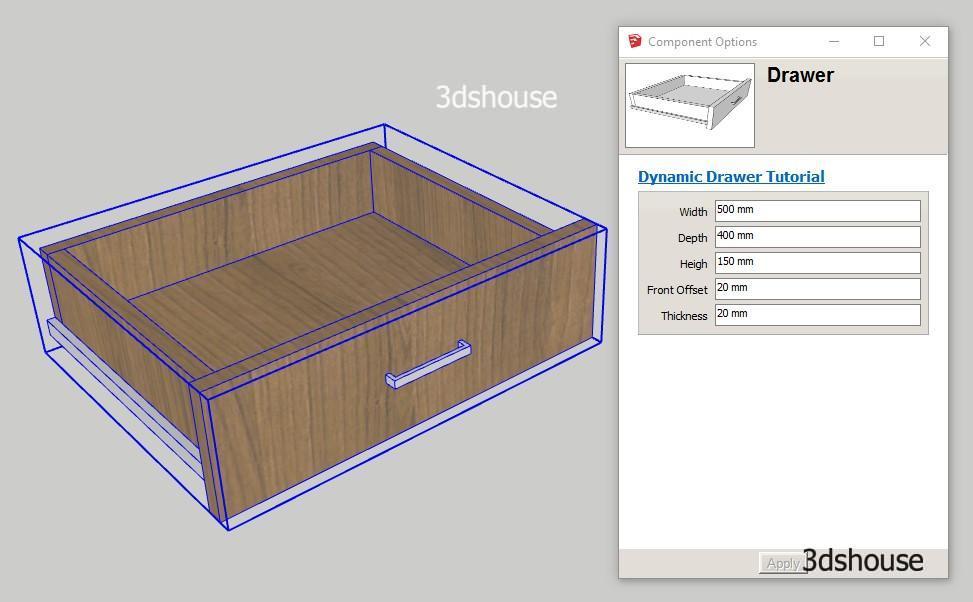
Openable, resizable Dynamic Component drawers are a useful and complete exercise, helping you see how Dynamic Sketchup works, the difficulty of the lesson is average. Through this lesson, you will have a better understanding of the size constraints and the Onclick Animate attribute and hone the skills of coordination of commands in Dynamic SketchUp — a must-know for animated furniture components.
In SketchUp 2026, Dynamic Components still work the same way they always have, but note that Dynamic Components is now a separate extension (bundled but managed through the Extension Warehouse), not a hardcoded core feature — if the Component Attributes / Component Options dialogs are missing, re-enable or update the Dynamic Components extension rather than reinstalling SketchUp.
Dynamic Drawers in SketchUp: Animated & Resizable — Video Lesson
Download Dynamic Drawer Example Models:
Dyamic-Resizable-Movement-Drawer.skp
Lesson objectives:
- Draw drawers that can stretch still keep proportion.
- Drawers can be opened.
- Proficiency in size binding skills and Onclick Animate attributes
- Learned the Replace command instead of Component, this command is very dangerous.
Steps to follow:
- Step 1: Draw a size-adjustable drawer that retains the proportions.
- Step 2: Draw a fixed steel bar, the drawer will slide on this steel bar.
- Step 3: Create the parent Components from the 2 components above, set the drawer open.
- Step 4: Put the handle in the parent Components.
- Step 5: How to replace the handle.
Good tip:
- Animate function (Y, -30,0) will not work because it contains negative parameters, so simply put the attribute into the “” sign. Converted into animate (“Y”, – 30,0) will work.
- The real culprit behind “Invalid entity to animate” is usually smart quotes — make sure they are straight quotes (“), not the curly “” that an editor or browser auto-inserts when you copy-paste a formula. A negative value such as -30 is perfectly legal inside ANIMATE/SET; SketchUp’s parser just silently rejects the typographic quote characters around the attribute name.
- The handle is inserted at the end because the handle is not standard size and can always be replaced, the latter will not affect the size of the parent component.
- To Replace Command both component must be same Axe — the swap reuses the original component’s insertion point and axes, so if the replacement handle’s axes (origin and red/green/blue orientation) don’t match, it snaps in rotated or offset. Set the axes of every interchangeable handle identically before saving them to the library, and the Replace dropdown will swap them cleanly. This is why the command is “dangerous”: it edits the component definition in place, so it affects every instance, not just the one you selected.
- On SketchUp 2026 specifically there is a known bug (Trimble ref SKOR-20946) where scale handles restricted to a single plane can disappear on 2D/flat dynamic components — if your drawer’s stretch handles vanish, it is this regression (fixed internally, rolling out in updates), not your formula. Group the geometry so it reads as a 3D component, or test the stretch on a fully solid box, to confirm the constraints are still correct.
