

 Tiếng Việt
SketchUp
Export Revit to SketchUp: 3 Routes, and the Only One That Keeps Materials
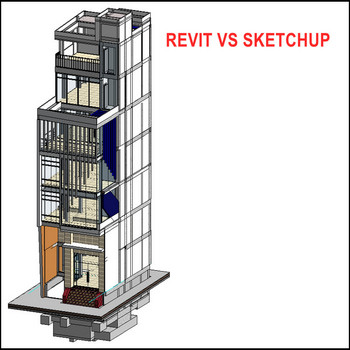
Revit holds the building data; SketchUp is where the design actually gets pushed and pulled. Moving a model across is easy — moving it across in a state you can still edit is where the afternoon goes. Trimble documents exactly three ways to export Revit to SketchUp, and they carry very different things: one brings materials and textures, one brings editable solids, one brings BIM classification plus a file-size trap.
How to export Revit to SketchUp: three routes that work
Pick the route by what you need on the SketchUp side, not by what is quickest in Revit.
- Revit Importer — SketchUp opens the .rvt itself. Per Trimble, the import “transfers geometry, materials, textures, building levels, tags, and critical BIM data”. It is the only route that brings texture images across. Needs a SketchUp Pro Scan, Pro Advanced Workflows or Studio subscription, SketchUp 2023 or newer, and Windows — there is no macOS version, because Revit itself is Windows-only.
- DWG export with ACIS Solids — works with any SketchUp plan that can import CAD (Go, Pro or Studio). Revit families land as SketchUp components tagged with the CAD layer name, editable by double-clicking. Materials arrive as flat colours at best.
- IFC export — keeps the IFC classification you set in Revit and needs only Pro or Studio. Its catch is component bloat, explained below.
Two things people look for and never find: Revit has no .skp export, and FBX is not a bridge either — SketchUp’s own file-format table lists .fbx as an export-only format, so a Revit FBX has nothing on the SketchUp side to open it.

Route 1: the Revit Importer reads .rvt directly
The importer is an Extension Warehouse extension, and the Windows SketchUp installer offers to install it alongside SketchUp. A Revit licence or installation is not required on that machine — useful when the BIM team sends you a file and nothing else.
- Click File > Import and choose Revit Files (*rvt).
- In Select 3D View, pick which saved 3D view to bring in; a search box filters the list. The importer works view by view, so the view someone saved in Revit is the model you get in SketchUp.
- Tick Import Revit metadata to store Revit element parameters as SketchUp component attributes. Element naming then follows Revit Element ID conventions and preserves family names at instance level.
- In Customize View, filter with the Phases and Entities tabs. The Entities tab has an Amount column counting elements per category — the cheapest way to see what is about to inflate your file. At least one phase and one entity group must stay selected.
On materials it is genuinely good. The importer reads each Revit appearance asset (name, base colour, texture image reference) and builds a native SketchUp material from it, then reads the physical dimensions stored in that asset, sets the texture size to match and converts the units to your model’s — so brick and timber tile at the right scale without you opening Position Texture. It also creates a Tag per Revit category with auto-assigned colours, which is what makes the imported model filterable on arrival.
Three limits worth knowing before you promise a client anything:
- Textures that live outside the .rvt go missing. The importer only looks for external image files in the same folder as the .rvt. Copy them next to the file (Revit’s own library sits under
%APPDATA%\Autodesk\Revit\Autodesk Revit <version>\Materials), then import again. The Import Results dialog tells you how many were missing. - Decals are not supported — re-add them in SketchUp as images or textures.
- Old or unusual files can fail outright with “The version of the Revit file is not supported” or “No valid 3D view can be found in the Revit file”. Save a fresh 3D view in Revit, or re-save the file from a supported Revit version.
SketchUp 2026.2 ships Revit Importer 1.2026.1.6, which gives curved columns and other rounded elements smoother, less triangulated geometry, lets parent components hold assembly-level information while child components keep their own instance data, and finally brings in wall sweeps, fascia boards and gutters that earlier versions dropped.
Route 2: DWG export — ACIS Solids vs Polymesh
This is the route most people mean by “export Revit to SketchUp”, and the one that works without an importer-grade subscription.
In Revit
- Open or create the 3D view you want to hand over. Revit only exports what is visible in that 3D view — anything hidden, on a switched-off worklist or cut away by the section box is simply not in the DWG. Turning off MEP and structure here is what keeps the SketchUp file usable, and it is far faster than deleting geometry later.
- File > Export > CAD Formats > DWG, then Modify Export Setup…
- On the Solids tab choose ACIS solids. Autodesk’s own definitions are the whole argument: ACIS “represents a cube as a single object or shape with 6 sides”, while Polymesh exports geometry as “a 3D shape consisting of multiple polygons that are meshed (joined) together”. Solids survive as objects you can select and edit; a polymesh arrives as loose triangulated faces. One caveat straight from the help: elements that were already polymeshes in Revit — toposurfaces, import symbols containing meshes — stay polymeshes no matter which option you pick.
- On the Units & Coordinates tab, read One DWG unit is. The default is inches for imperial projects and millimetres for metric ones. Note which one, because SketchUp is about to ask. Set the basis to Shared if this model is linked to others and its position matters; Project internal otherwise.
- On the Colors tab, “Specified in view (True Color – RGB values)” is the setting that carries your Revit material colours — it takes the RGB from the material colours of the object surface patterns, so the DWG resembles the Revit view. Index color (255 colors) instead snaps every colour to the nearest of 255 indexed ones, which is where “why is my model brown” comes from.
In SketchUp
File > Import, set the file type to AutoCAD Files, then click Options before anything else:
- Scale — set it to the unit you just noted in Revit. A mismatch here is the whole reason imports land 25.4× or 1000× off; Trimble lists “the size or scale may not import as expected” as a known issue of CAD import.
- Merge Coplanar Faces — removes the triangulated lines across flat walls and floors. Without it you erase diagonals by hand.
- Orient Faces Consistently — saves hunting reversed blue faces before you can texture anything.
- Import Materials — leave it on if you set the Colors tab properly in Revit.
- Preserve Drawing Origin — off, unless you need Revit’s coordinates. Geometry far from the origin degrades SketchUp performance.
Two hard numbers from Trimble are worth respecting. CAD files over 15 MB may cause performance problems, and SketchUp discards entities with no 3D relevance while keeping their layers — so purge unused layers in CAD first, or you inherit a list of empty tags. Dimensions, text and XREFs are not imported at all, and non-solid hatches come in as bare edges.
Route 3: IFC, and the component-count trap
Export with File > Export > IFC in Revit, then File > Import in SketchUp with IFC Files (*.ifc, *.ifc.ZIP). SketchUp’s native IFC importer reads IFC2x3 and IFC4, creates a Tag for each IFC class (it recognises over 180) and keeps the classifications set in Revit — which is why IFC is the right route when the model has to stay auditable rather than merely look right. IFC needs Pro or Studio; a Go subscription does not include it.
The trap is documented by Trimble and catches everyone once: each Revit family instance becomes a unique SketchUp component rather than an instance of a shared definition, because Revit’s schedulable parameters differ per element. Five copies of the same door tagged A101–A105 arrive as five separate component definitions. On a real project that is thousands of definitions and a file that opens slowly for no geometric reason at all.
RFA files, and what “online” really gets you
Searches for “rfa to skp” are after something that does not exist: SketchUp cannot open a Revit family file. The Revit Importer’s filter is Revit Files (*rvt) only, and a DWG export starts from a project view. Load the family into a project first — Insert tab > Load from Library panel > Load Family, pick the .rfa, place an instance in a 3D view — then use any route above on that project.
For “convert Revit to SketchUp online”: neither Autodesk nor Trimble publishes a converter. Autodesk Viewer opens a .rvt in a browser for free, but it views and marks up; it does not hand you geometry. The nearest real browser workflow is Revit → DWG → SketchUp for Web, which imports 3DS, DAE, DEM, DWG, DXF, KMZ, STL, JPG and PNG, and turns an imported CAD file into a component. That still needs a Go, Pro or Studio subscription — the free web tier cannot import CAD at all. And uploading a client’s .rvt to an unknown conversion site is a data decision before it is a technical one.
Cleaning up on the SketchUp side
Every route leaves the same two messes. First the tag and component lists: run Window > Model Info > Statistics > Purge Unused, which drops unreferenced components, tags, styles and materials. In SketchUp 2025 and newer, SketchUp offers to purge each time you save manually — leave that on while you are working with imported BIM.
Second, polygon count. Merge Coplanar Faces only merges flat surfaces, so curved ACIS geometry, railings and furniture families still arrive heavily tessellated, and even the newer importer’s “smoother” curves are curves made of triangles. When one imported group is the thing making the model lag, Decimify reduces the face count of a selected group or component inside SketchUp and keeps that group structure intact, so you thin the imported furniture without touching the walls you still have to measure.
Frequently asked questions
Can Revit export to SketchUp?
Not to .skp directly — Revit’s export menu has no SketchUp format. You either let SketchUp read the .rvt with its Revit Importer (Pro Advanced Workflows, Pro Scan or Studio subscription, Windows only), or export DWG with ACIS solids, or export IFC and import that in SketchUp Pro.
How do I export Revit to SketchUp with materials?
Only the Revit Importer carries real materials and textures: it reads each Revit appearance asset (name, base colour and texture image) and rebuilds it as a native SketchUp material at real-world texture scale. Through DWG you can carry material colours by setting the Colors tab of the export setup to “Specified in view (True Color – RGB values)”, which uses the RGB of the object surface patterns, and by ticking Import Materials in SketchUp’s import options — but that is flat colour, not texture images.
How do I convert an RFA file to SKP?
You cannot open an .rfa in SketchUp: the Revit Importer’s file filter is Revit Files (*rvt) only. Load the family into a Revit project first (Insert tab > Load from Library panel > Load Family), place an instance in a 3D view, then use any of the three routes on that project.
Is there an online Revit to SketchUp converter?
Autodesk and Trimble do not publish one. Autodesk Viewer opens a .rvt in the browser for free but only views it. The closest browser workflow is exporting DWG from Revit and importing it in SketchUp for Web, which accepts DWG and DXF on a Go, Pro or Studio subscription.
