

 Tiếng Việt
SketchUp
SketchUp Material Tool — Delete Unused Materials & Textures
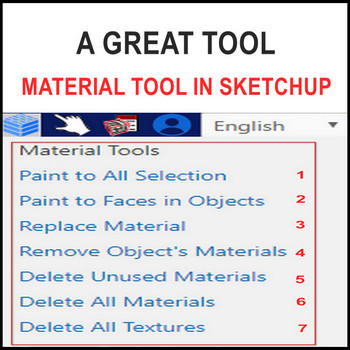
You must install the 3dshouse dynamic plugin (works with SketchUp 2026 and earlier; SketchUp today is a named-user subscription, so make sure you are signed in before loading the extension).
Material Tool SketchUp – Tutorial Video
Steps by steps :
- You must install the 3dshouse dynamic plugin
- Open the default tray – the In Model section holds the materials and textures of everything in the file
- When you delete models, the material and texture entries of those models are NOT removed – SketchUp keeps every material and image texture cached inside the .skp file even after the geometry that used it is gone, which is why file sizes balloon over time and never shrink on their own
- The way to clean the SketchUp file and remove unused materials and unused textures is to use the Parashape material tool
- Click delete unused materials
- Unused materials have been deleted
- A common reason the native SketchUp purge unused materials command (Window > Model Info > Statistics > Purge Unused) leaves materials behind is that they are still referenced by hidden geometry, objects on hidden tags/layers, or component definitions that exist in the In Model list but are not placed in the scene – unhide everything and show all tags first, or use this tool which clears them regardless
- Click delete all texture
- Unused textures have been deleted
- Beside this, the delete textures tool will help you edit new textures quickly. Note that purging/deleting unused materials in SketchUp cannot be undone with Ctrl+Z – SketchUp does not roll a purge back, so save a copy before a heavy cleanup if you might still need a swatch you painted by hand.
More SketchUp tools by 3dshouse
