

 English
SketchUp
Phá Khối SketchUp 1 Click — Explode Deep Hàng Loạt
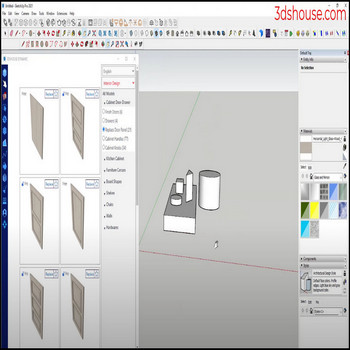
Khi model SketchUp có nhiều group và component lồng nhau qua nhiều lớp, muốn sửa bạn phải explode từng cấp một. Dùng tool Explode Deep Selected để explode toàn bộ group và component trong SketchUp chỉ bằng 1 click — tự động, đến tận geometry thô. Cách này hữu ích nhất khi bạn cần đưa mọi solid về cùng một cấp để chạy Solid Tools, hoặc khi component tải về có cấu trúc lồng quá sâu làm chậm thao tác chỉnh sửa.
Video: Explode Toàn Bộ Group SketchUp Chỉ 1 Click
“Explode All” Trong SketchUp Thực Sự Là Gì
Lệnh gốc Edit > Explode của SketchUp chỉ gỡ được một lớp bọc. Nếu bạn có một component chứa một group chứa geometry thô, bạn phải explode hai lần mới chạm tới face và edge. Lệnh gốc không cho phép explode group trong SketchUp theo kiểu đệ quy chỉ trong một lần bấm.
Explode Deep Selected giải quyết đúng vấn đề này. Tool duyệt toàn bộ hierarchy của mọi đối tượng đang chọn và explode mọi group, component lồng bên trong cho đến khi chỉ còn lại geometry thô — face, edge và geometry rời — tất cả nằm ở cấp cao nhất của model hoặc trong context đang mở.
Những tình huống thường gặp cần dùng đến tool này:
- Component nội thất tải từ 3D Warehouse có 4–6 cấp lồng nhau
- File CAD/DWG import vào bọc mọi thứ trong nhiều lớp group
- Chuẩn bị geometry để chạy Solid Tools — operand phải cùng nằm trong một context
- Làm phẳng model trước khi xuất sang phần mềm CNC hoặc cắt laser
Cách Explode Toàn Bộ Group Trong SketchUp — Từng Bước
- Chọn phần bạn muốn làm phẳng. Click vào một đối tượng, kéo một selection box, hoặc nhấn Ctrl+A để chọn toàn bộ trong context hiện tại. Bạn có thể chạy explode group trong SketchUp trên một phần model — chỉ đối tượng đang được chọn mới bị ảnh hưởng.
- Click vào tool Explode Deep Selected trên toolbar hoặc gọi từ menu Extensions. Không có dialog nào hiện ra — thao tác chạy ngay lập tức.
- Kiểm tra kết quả. Mở Entity Info (Window > Entity Info). Lúc này mọi thứ phải hiện là Edge hoặc Face thay vì Group hay Component Instance.
- Purge các definition không dùng. Vào Window > Model Info > Statistics > Purge Unused. Explode instance không xoá component definition của nó — definition vẫn nằm trong bộ nhớ cho tới khi được purge.
Toàn bộ thao tác mất chưa tới hai giây với model có hàng trăm đối tượng lồng nhau. Đây là cách thực tế để explode toàn bộ group SketchUp trong một lần, không cần lặp lại lệnh Explode gốc nhiều lần.
Tag Và Material Sau Khi Explode Toàn Bộ Group
Explode không phải một phép “unwrap” sạch sẽ. Nó thay đổi cả tag lẫn material, và kết quả không phải lúc nào cũng như bạn mong đợi.
Tag (Layer)
Geometry trong SketchUp nên nằm ở Untagged. Group và component mới là nơi mang tag. Khi bạn explode group trong SketchUp, face và edge thô sẽ thừa hưởng tag của container cha. Nếu explode deep, mọi face sẽ thừa hưởng tag của group ngoài cùng. Sau này tắt tag đó đi sẽ ẩn luôn toàn bộ geometry bạn vừa làm phẳng — đây là nguồn gây nhầm lẫn rất thường gặp.
Cách xử lý: Sau khi explode, chọn tất cả (Ctrl+A), mở Entity Info, rồi gán lại tag về Untagged.
Material
SketchUp tô màu face theo hai cách: material gán trực tiếp lên face, hoặc material gán cho group cha mà face “thừa hưởng” (hiển thị là Default bên trong group). Khi bạn explode toàn bộ group SketchUp:
- Face đang tô Default sẽ hấp thụ material của group — đổi màu hiển thị ngay
- Face đang tô bằng một material cụ thể vẫn giữ nguyên material của chính nó
Một group nhìn có vẻ một màu đồng nhất trên màn hình khi explode ra có thể vỡ thành một mảng ghép nhiều bề mặt — một số mang material cũ của group, một số giữ material gốc của chính face đó. Nếu độ chính xác màu quan trọng, hãy kiểm tra material trong Materials Browser trước khi explode.
Đối Tượng Bị Lock
Group và component đang bị lock sẽ bị bỏ qua hoàn toàn. Explode Deep Selected không xuyên qua được một lock. Nếu hierarchy dừng lại giữa chừng, right-click vào group còn sót lại, chọn Unlock, rồi chạy lại tool.
Explode Toàn Bộ Group SketchUp So Với Explode Group Gốc — Khi Nào Dùng Cái Nào
| Phương pháp | Số cấp gỡ được | Cần chọn trước | Phù hợp khi |
|---|---|---|---|
| Edit > Explode (lệnh gốc) | 1 | Có | Gỡ một lớp bọc, giữ nguyên cấu trúc bên trong |
| Explode Deep Selected | Tất cả (đệ quy) | Có | Làm phẳng mọi thứ về geometry thô trong một lần |
Dùng Explode gốc khi bạn cần kiểm soát chính xác từng phần — ví dụ giữ nguyên sub-component, chỉ gỡ group ngoài cùng. Dùng Explode Deep khi bạn muốn toàn bộ group SketchUp biến mất trong một thao tác và mục tiêu là geometry thô.
Use Case: Khi Nào Nên Explode Toàn Bộ SketchUp
- Solid Tools: Phép toán boolean (Union, Subtract, Intersect) đòi hỏi cả hai operand phải là solid nằm trong cùng một context. Component lồng nhau phá vỡ điều kiện này. Làm phẳng trước, rồi mới chạy Solid Tools.
- Intersect Faces: Intersect Faces with Model chỉ cắt geometry trong cùng context. Group lồng sâu sẽ không tương tác với nhau. Explode toàn bộ group trước.
- Xuất CNC / laser: Công cụ xuất DXF và phần mềm CAM cần geometry face/edge phẳng, không phải một cây component SketchUp.
- Dọn dẹp trước khi chia sẻ: Bỏ hierarchy giúp file dễ giao cho người khác vốn không cần cấu trúc gốc.
- Giảm dung lượng file: Component lồng sâu đôi khi mang theo dữ liệu definition trùng lặp. Explode rồi purge có thể giảm dung lượng file rõ rệt.
Vấn Đề Thường Gặp & FAQ
Khi geometry đã phẳng và cùng một cấp, các thao tác như Solid Tools, Intersect Faces, và xuất CAD/CNC đều chạy đúng. Explode Deep Selected là cách nhanh nhất để đưa model về trạng thái đó mà không phải click qua từng cấp lồng bằng tay.
