Tiếng Việt
Get Tracepen on the SketchUp Extension Warehouse (free) →
Tracepen is an image to SKP converter that works inside SketchUp: it traces a PNG, JPG, JPEG or WebP picture into native SketchUp faces, one group and one material per colour, straight into your open model – no .skp file to import and nothing to redraw. It is built for logos, icons, badges, signs and flat graphics you want as real geometry to push-pull or paint. The tracer is deterministic, not AI: the same picture always gives the same outlines, and what arrives in the model is flat faces on the ground plane, not a 3D model of the photo.
Free to use with every feature and full colour, with a few loads into your model a day on a free 3dshouse account. The same tracer also runs as a web app, a Blender add-on and a Figma plugin, and the daily allowance is shared across all four.
Video
How to convert an image to a SketchUp model, step by step
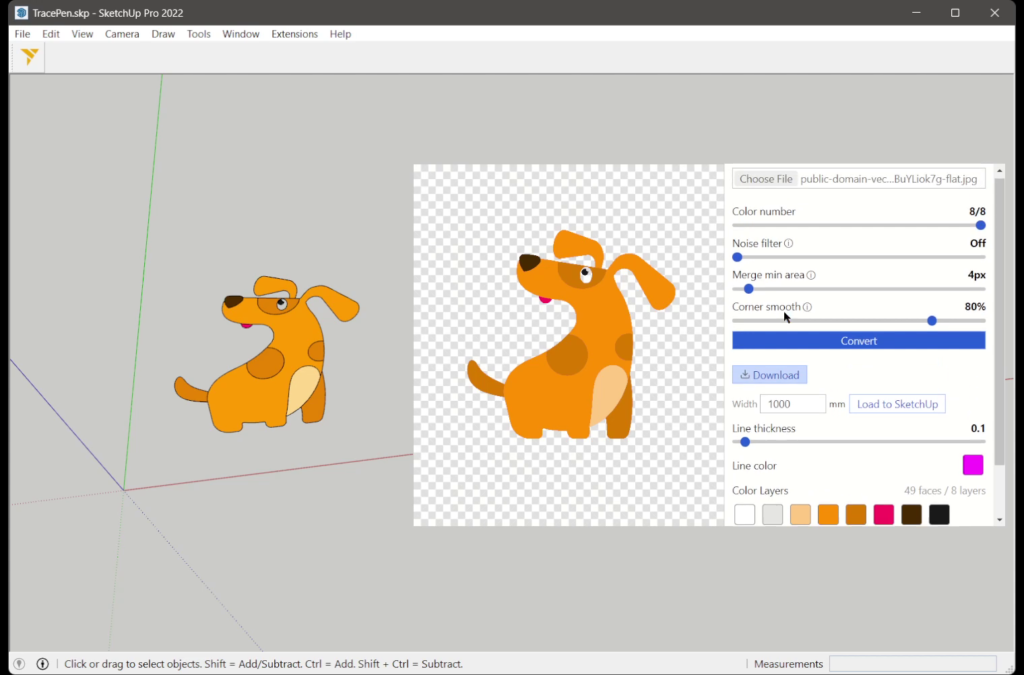
- Open Extensions → TracePen (or the TracePen toolbar button). Signed out, the dialog opens on a card titled Sign in to Tracepen: press Sign in with 3dshouse, finish in the browser tab that opens, then come back to SketchUp.
- Choose the picture with the file field, or drop it on the preview. Until your first finished trace a Try a sample strip offers ready-made images. Crop keeps only the part you need.
- Wait for Analyzing…: Tracepen counts the colours it finds and sets the Color number slider to that count. The slider can only go down from there (minimum 1).
- Adjust Color number, Noise filter (Off, 1-5), Merge min area (1-64 px) and Corner smooth (0-100%), then press Convert. The defaults are Off, 4 px and 80%.
- Under Color Layers every colour has a swatch you can recolour and a checkbox. Unticked colours are not loaded. The line above the swatches, N faces / M layers, tells you how heavy the model will be before you load it.
- Type the real width of the picture in the Width box (millimetres in a metric model, inches in an imperial one) and press Load to SketchUp. The button counts colours as they arrive, for example 2/5.
What lands in your model
- One component named TracePen, placed at the origin: the picture’s bottom-left corner sits on the origin, its top edge points toward +Y, everything at Z = 0.
- One group per colour, named Layer 00, Layer 01 and so on. The colour with the largest area comes first, the rest follow by similarity of colour.
- One material per colour, named TracePen_R_G_B with three-digit values (TracePen_255_128_000), painted on both sides of every face so the colour shows whichever way a face points.
- Holes stay holes: an outline and its inner outlines become one face (the counter of an O is open), and an island inside a hole gets its own face.
- Straight-edged polygons: a curved outline arrives as a short run of straight edges, and the edges are not softened – a rounder outline means more edges, which is also why a picture with hundreds of tiny blobs makes a heavy group.
- One Undo step by design: the insert is chained into a single SketchUp operation, and SketchUp’s API docs say a transparent operation is appended to the previous one instead of adding an undo step.
Every control in the dialog, and what it changes
- Image – the picker takes PNG, JPG/JPEG, WebP, GIF or BMP, up to 50 MB and 250 million pixels. Past either limit the panel says so in words instead of failing quietly, and a file that is not an image is named in the error. Dropping a file on the preview works the same way.
- Crop – cut the picture down to the part you want before converting. The Width you type later applies to the cropped area, so cropping is also how you get a logo to the right size without maths.
- Color number – starts at the number of colours Tracepen found in the picture and only goes down, so you can collapse a near-duplicate pair into one group. At 1 you get a single dark silhouette.
- Noise filter (Off, 1-5) – evens out a grainy photo or a JPEG that was saved too hard, so a flat area does not come out speckled. Leave it Off for clean artwork.
- Merge min area (1-64 px, default 4) – the smallest colour patch kept. Smaller specks are absorbed into the colour around them, and a colour never disappears completely, so a thin outline survives even at 64 px.
- Corner smooth (0-100%, default 80%) – 0% keeps every corner sharp, 100% rounds them. Lettering with mitred corners wants a low value; a hand-drawn shape wants a high one.
- Color Layers – one swatch per colour, each with a colour picker and a checkbox. Recolour a layer before loading and the SketchUp material takes the colour you picked, so you can fix a dull scan without touching the picture. Untick a layer and it is left out of the insert.
- N faces / M layers – the face count of the whole insert, before you commit to it. A number in the thousands is a sign to raise Merge min area or lower Color number first.
- Line thickness and Line color – preview styling only (they also become the stroke in the web app’s SVG and PDF). SketchUp faces are built from the filled areas alone.
- Width – the real width of the picture in the model’s own units. Everything else scales from it.
What you can do with the faces once they are in
- Push/Pull each colour to its own height. Because every colour is a separate group, raised lettering over a plate, an inlay, a stamped badge or a layered relief is one Push/Pull per group.
- Paint over a whole colour in one click – click the group, apply your own material, and the traced colour is gone; the TracePen_R_G_B materials are ordinary SketchUp materials you can edit or purge.
- Delete a colour you no longer want inside the component instead of tracing again – but note that re-tracing the same picture refills the component and would undo that edit.
- Move, rotate, scale or array the component like any other component. Re-tracing the same image refills it in place, so the instance keeps its position and scale.
- Trace at 1 colour for a cut-out or stencil – a single silhouette face is the fastest route to a plate with a shape knocked out of it.
- Need lines rather than faces? The web app exports the same trace as DXF Lines or DXF Hatch for a cutter, a laser or CAD.
Gotchas that come from the source
- A transparent PNG does not give an empty background. The see-through area arrives as a solid colour layer – white, or black when the picture already contains pure white. Untick it in Color Layers before loading.
- Tracing the same picture again replaces the component’s contents. Placement and scale of the instance survive, but anything you modified inside the component is erased. The picture’s identity is its file name plus its pixel size after cropping and resizing, so a cropped or renamed copy loads as a second component instead.
- The Width box starts at 1000. In an imperial model that is 1000 inches, so set it before every load. The unit is read once, when the dialog opens – if you change the model’s units afterwards, reopen the dialog.
- Pictures are traced at up to 1500 px on the longest side. Larger files are scaled down first, and Width is applied to the cropped, scaled result. A 4000 px logo therefore gains nothing over a 1500 px one.
- Very small widths lose detail. SketchUp’s own point tolerance is 0.0254 mm, and outlines finer than that merge or vanish. A 1500 px trace loaded 60 mm wide gives 0.04 mm per pixel, which is already close to that floor.
- A face SketchUp refuses is skipped without a message. The rest of the colour still loads, so compare the N faces count with what you see if a tiny detail is missing.
- One colour = the dark parts only. With Color number at 1 the dark areas of the picture come out as a single silhouette face, painted in their average colour; the light areas are the hole around it.
- A colour with very many separate regions can time out with SketchUp load failed: timeout waiting for layer-faces-ack. Lower Color number or raise Merge min area so each colour carries fewer regions, then load again.
- Every Load to SketchUp is one of the day’s free loads. Picking an image, converting, previewing and re-tuning are never counted, so you can tune for as long as you like and spend one load on the result.
When it works well, and where it stops
- It is meant for flat-colour artwork: logos, icons, illustrations, signage, stencils. With that kind of picture the colours you see are the colours you get.
- Tracepen picks the right route for flat artwork and for photographs automatically, so there is no switch for it in the dialog. A photo to SKP trace gives you flat colour patches, not a likeness – flat artwork is what it is built for.
- Output is colour only: no image texture is applied, and no depth is inferred from shading.
- The dialog loads its interface from tracepen.3dshouse.com every time it opens, so it needs an internet connection.
- The picture itself stays on your computer. Tracing runs locally inside the dialog; the only network calls in the code are the sign-in, plan and daily-usage checks, and none of them carries pixels.
Image to SketchUp: Tracepen vs importing, tracing by hand or DXF
- Import the picture. According to SketchUp’s help, Use As Image makes an image entity that is “similar to a face”, and Use As Texture paints a face and creates a material. In both cases the picture stays a picture: there are no outline edges to push-pull.
- Trace it by hand. The same guide has a Tracing Images section: pick a drawing tool and draw over the imported image. That suits a few simple shapes, and if your edges end up open you can create the faces from those edges in one click. Tracepen instead produces the outlines, holes and colour groups in one pass.
- DXF. SketchUp lists faces and 3D faces among the CAD entities it imports (a subscriber feature). The web app can export DXF Faces for that route; the plugin skips the file round trip, builds faces with real holes instead of triangles, and lets you type the width in the model’s units.
Need a vector file for another program instead? The image to vector tool comparison sets Tracepen next to Illustrator, CorelDRAW and Vector Magic, and the Figma plugin puts the same trace straight on a Figma canvas.
Install
Get it on Extension Warehouse →
- In SketchUp open Extensions → Extension Warehouse, search Trace Pen and click Install (SketchUp’s help: “adding most extensions is as easy as clicking Install on an extension’s details page”). The listing is the button above.
- Open it from Extensions → TracePen, sign in with a free 3dshouse account, then trace and load the result. It is free to use, with a daily limit on loads.
If TracePen is missing from the Extensions menu, open Extension Manager: each extension has an enable toggle on the Home tab, and Settings holds the loading policy, where Identified Extensions Only loads only extensions signed by a registered SketchUp Developer.
Requirements
- SketchUp 2022 or newer, desktop, Windows or macOS. Older versions get a message that points to the web app. Extension Warehouse describes its extensions as developed specifically for SketchUp’s desktop application, so this plugin is not for SketchUp in the browser.
- SketchUp 2026 itself lists Windows 11 and macOS 14 or newer.
- An internet connection and a free 3dshouse account.
FAQ
Is there a free image to SKP converter online?
Tracepen is a free plugin for desktop SketchUp, not a website that hands you a .skp file: the faces are built inside your open model. The Tracepen web app is the online half and exports SVG, PNG, PDF and three DXF flavours (Lines, Hatch, Faces), not .skp.
How do I convert a JPG to SKP for free?
Install the plugin, open Extensions → TracePen, pick the JPG (it traces by itself), type the real width and press Load to SketchUp. The faces land in the model you already have open, so the .skp file is simply the one you save afterwards. PNG, JPEG, WebP, GIF and BMP go the same way.
How do I trace an image in SketchUp?
By hand: import the picture as an image with File → Import and trace it with SketchUp’s drawing tools, as SketchUp’s own guide describes. Automatically: install Tracepen, open Extensions → TracePen, choose the image (it traces by itself), then set the Width and press Load to SketchUp.
Can I turn a PNG or JPG into a 3D SketchUp model?
Tracepen turns it into flat faces on the ground plane, one group per colour. Nothing in it estimates depth: you give the shapes height with Push/Pull (or any other SketchUp tool), one group at a time.