Tiếng Việt
SketchUp
Base Kitchen Cabinet Dynamic SketchUp — Parametric CNC Model
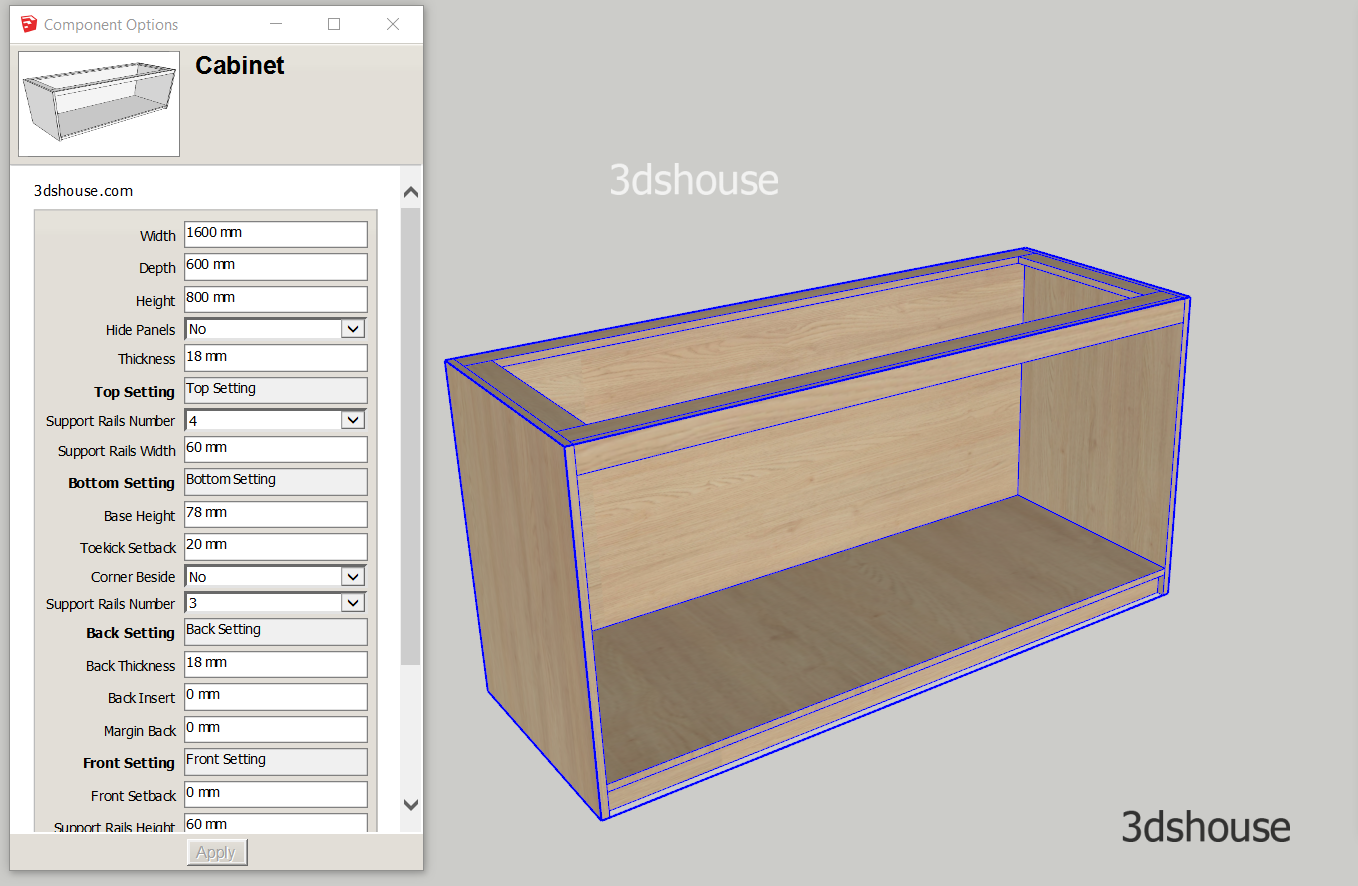
Dynamic Sketchup base kitchen cabinet models are fully parametric — customize width, depth, height and partition layout to match CNC production needs quickly, accurately, and with minimal waste. These models are available in the 3dshouse interior dynamic Sketchup plugin. This is a very special model, with a 1-year-old life, which is continuously edited through comments from many furniture manufacturers. Therefore the models have been optimized almost perfectly ^^.
3dshouse Dynamic SketchUp Pro

Base Kitchen Cabinet SketchUp Dynamic Component Options
- Width:
- Depth:
- Height:
- Hide Panels: Hide Left, Right or Both Panes
- Thickness:
- Top Setting:
- Support Rails Number: Set Support Rails For Countertop
- Support Rails Width:
- Bottom Setting:
- Base Height:
- Toekick Setback:
- Corner Beside: For L Shape Base Kitchen
- Support Rails Number: Support Rails Under Base.
- Back Setting: For Back Panels
- Back Thickness:
- Back Insert:
- Margin Back:
- Front Setting:
- Front Setback:
- Support Rails Height:
- Support Rails Hidden:
- Partitions: Divided Panels With Shape Cuttung follow Support Rails
- Hide Panels Divided:
- Hide Rails Divided:
- Hide Sink Divided:
TÍnh năng khác:
- Back Panels come to double if its area more than 1220 x 2440mm. That 1220 x 2440 mm threshold is not arbitrary — it is the standard full sheet (4 ft x 8 ft) size, so the model splits the back automatically the moment a single panel would no longer fit on one board, saving you a manual re-cut at the CNC stage.
- You can use for L kitchen cabinets, when hiding left or right panels the components automatically resize and interconnect.
- You can use Inch or Feet or any units by setting sketchup file. Set the file unit in Model Info → Units BEFORE entering dimensions: Dynamic Component values are stored in inches internally, so a back panel typed as 18 in a millimetre file is read as 18 inches, not 18 mm — a classic source of “wrong size” cabinets.
Editing dimensions correctly
- Always change the cabinet size through the Component Options panel, not the Scale tool. The sub-panels are constrained, so dragging the green Scale grips can stretch geometry instead of re-parameterising it.
- If a value looks stale after you edit it — for example a rail count that won’t update — right-click the cabinet and choose Dynamic Components → Redraw. SketchUp recomputes a component’s own LenX/LenY automatically, but formulas that read those lengths (= LenX + something) are only re-evaluated on a Redraw, which is why a panel occasionally lags one edit behind.
Work with ABF CNC nesting plugin in SketchUp:
- All cabinet objects use groups so they run normally with the ABF SketchUp CNC plugin
- The partitions are made up of multiple components so after using Abf, use the Remove Edges tool available in the plugin to automatically reconnect partitions. Then nesting again with Abf.
- Run Clean Dynamic before nesting: the dynamic attribute dictionary survives an explode, and ABF will happily nest the same hidden sub-component twice if those leftover attributes still mark it as a separate part — clearing them first prevents duplicate or ghost panels in the DXF.

This model runs in every current SketchUp release; since 2020 SketchUp is licensed as a named-user subscription (no perpetual license), and Dynamic Components are supported in SketchUp Pro 2026 the same way they have been for years.
More SketchUp tools by 3dshouse