
⬇ Download Motif for Revit (.zip)
Motif is a Revit add-in that makes a Revit material from a pattern. Pick one of more than 300 patterns (herringbone, running bond, stack bond, basketweave, chevron, fish scale and more), set its sizes, rotation and joints, choose the material, and press one button: Motif creates a material in your project with a seamless texture, a Surface pattern and a Cut pattern, all drawn from the same pattern. You get 3 free uses per UTC day; a free 3dshouse account is asked for at the first use; browsing and previewing are not counted.
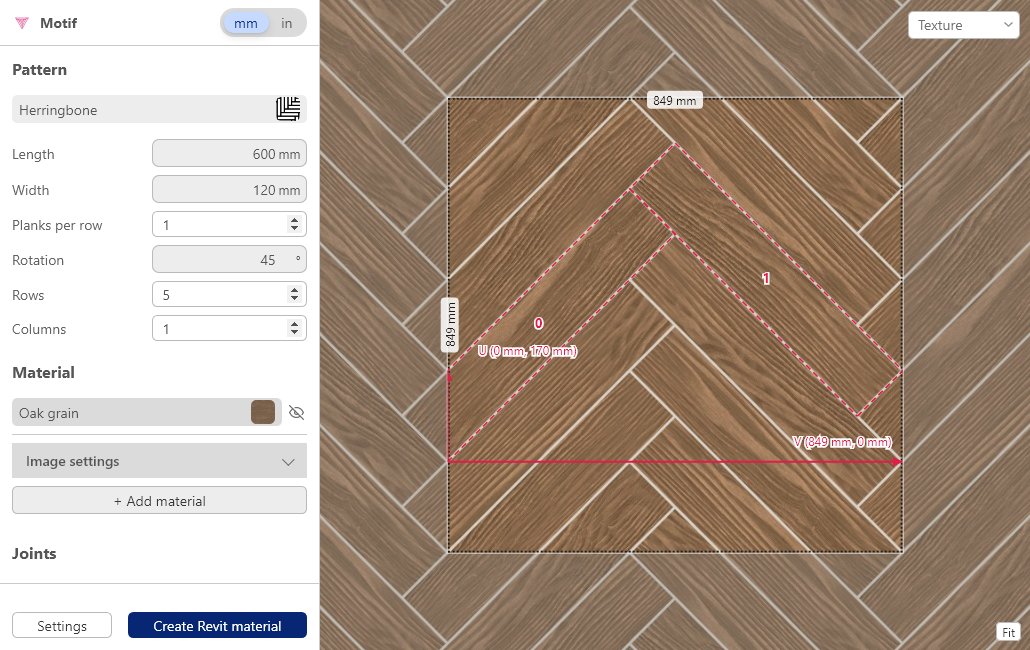
Motif in 3 steps
- Click Motif on the Motif tab of the Revit ribbon. The Motif window opens on top of Revit and stays open while you work.
- Pick a pattern and set it up: tile sizes, rotation, joints and the material. The preview follows as you change a field.
- Press Create Revit material. The material is created in the open project, or replaced if one with the same name already exists. That is one use.
What the Revit material holds
A Revit material keeps its render look and its drawing look in two different places, and Motif fills both from one pattern so they agree.
- The texture, for renders and realistic views. The seamless image of your pattern goes on the material’s Appearance tab, with the real-world size the image represents taken from the pattern’s repeat. Autodesk’s Texture Editor sets that size in Sample Size Width and Height.
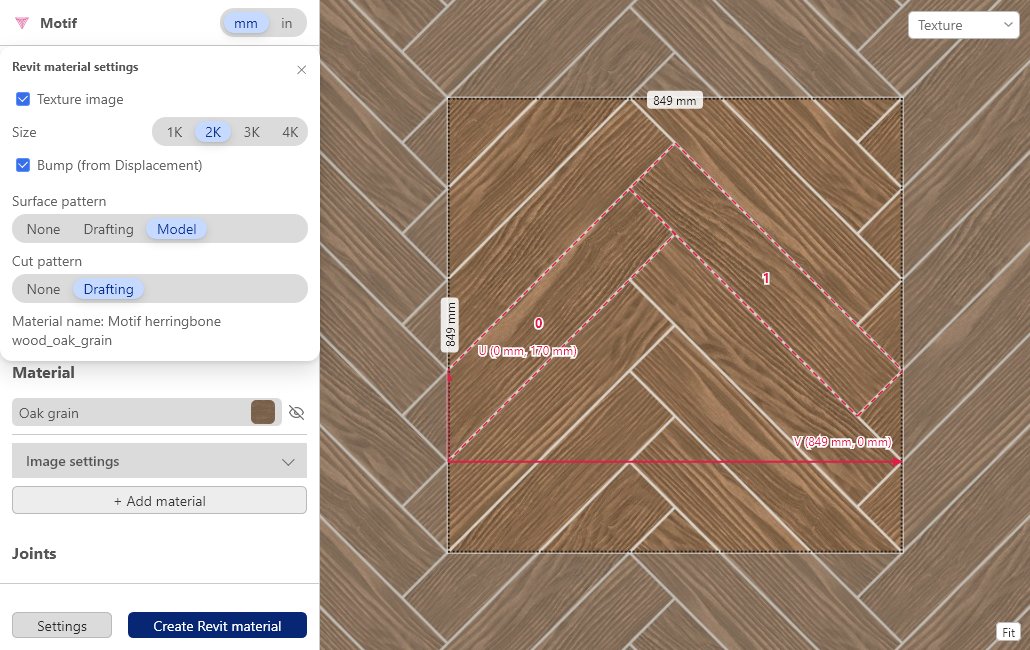
- The Surface pattern and the Cut pattern, for drawing views. Both are Revit fill patterns built from the pattern’s tile edges, on the material’s Graphics tab. Autodesk’s help: they define the graphic representation of the material where it is applied to elements in the model, and they do not affect the material’s appearance in rendered images. That is why a material needs both the texture and the fill patterns.
Revit has its own tool for lining the two up: Autodesk’s help says to use the Texture Alignment tool to align the texture of the render appearance to the surface pattern of the material.
Model and drafting fill patterns, in short
Revit has two kinds of fill pattern. Autodesk: for a drafting pattern the spacing values affect spacing on the sheet, for a model pattern they affect spacing on the model. Motif makes the Surface pattern a model pattern and the Cut pattern a drafting pattern. Tested by the Motif team in Revit 2023: a material’s Surface pattern accepts a model or a drafting fill pattern, its Cut pattern accepts a drafting fill pattern only, and Revit refused a model pattern there with the message “The FillPattern target must be a drafting pattern”. A model Surface pattern also meets Autodesk’s condition for the Texture Alignment tool, which needs a model fill pattern.
Free uses
Motif is free to try: 3 uses per UTC day with a free 3dshouse account (asked for at the first use), no licence key. One use is one Revit material created or replaced. Opening Motif, browsing patterns, changing settings and looking at the preview are not counted, and the count is kept on the server. It resets at midnight UTC, not 24 hours after your first use.
Install
- Download Motif-for-Revit.zip and unzip it.
- Run Install.cmd. It copies the Motif bundle to
%APPDATA%\Autodesk\ApplicationPlugins\, the per-user folder where Autodesk’s documentation puts.bundlefolders; no administrator rights are needed. - Start Revit. Because Motif is not digitally signed yet, Revit shows a “Security – Unsigned Add-In” dialog with the choices Always Load, Load Once and Don’t Load: choose Always Load.
- Open the Motif tab on the ribbon and click Motif.
- To remove it later, close Revit and run Uninstall.cmd.
Requirements
- Revit: Motif is built for Revit 2021 to 2026, tested on Revit 2023. No other version has been run in a real Revit.
- Windows with the Microsoft Edge WebView2 runtime. Microsoft says it is included in Windows 11 and that the vast majority of Windows 10 devices have it. If it is missing, Motif says so and offers the download page.
- An internet connection: the Motif window and the pattern library load from 3dshouse servers.
- 3 free uses per UTC day with a free 3dshouse account, asked for at the first use.
- An open Revit project to receive the material.
Motif, Texturic and Hatchy
The three share one pattern library but deliver different things. Motif puts a finished material inside your Revit project. Texturic makes the seamless texture as a SketchUp material or as files, and Hatchy saves a pattern as a hatch pattern file. Each is metered on its own. If you work on parameters rather than materials, see Metasheet, a separate Revit add-in that edits parameters in a spreadsheet grid.
FAQ
Is Motif free?
It is free to try: 3 uses per UTC day with a free 3dshouse account (asked for at the first use), no licence key. One use is one Revit material created or replaced. Opening Motif, browsing patterns, changing settings and looking at the preview are not counted, and the count resets at midnight UTC.
What does Motif put in the Revit material?
Three things: a texture (the seamless image of your pattern, on the material’s Appearance tab), a Surface pattern and a Cut pattern (fill patterns made from the same pattern’s tile edges, on the material’s Graphics tab).
What are the Surface pattern and the Cut pattern?
Revit materials have both on the Graphics tab. Autodesk’s help says you specify the surface pattern and the cut pattern there, and that they are the graphic representation of the material where it is applied to elements in the model. They do not change how the material looks in a rendered image: that is the job of the texture.
What is the difference between a model and a drafting fill pattern?
Autodesk’s help: for a drafting pattern the spacing values affect spacing on the sheet; for a model pattern they affect spacing on the model. Motif makes the Surface pattern a model pattern and the Cut pattern a drafting pattern. Tested by the Motif team in Revit 2023: a material’s Surface pattern accepts either kind, its Cut pattern accepts a drafting pattern only, and Revit refused a model pattern there with the message “The FillPattern target must be a drafting pattern”.
Which Revit versions does Motif run on?
Motif is built for Revit 2021 to 2026, tested on Revit 2023, on Windows. No other version has been run in a real Revit, so none is claimed.
How long does Motif take to create a material?
About 2 seconds. The first call in each Revit session takes about 19 seconds, because Revit loads its asset library first (measured by the Motif team in Revit 2023).
What do I need before I install it?
Windows, the Microsoft Edge WebView2 runtime, and an internet connection. Microsoft says the runtime is included in Windows 11 and that the vast majority of Windows 10 devices have it already; if it is missing, Motif tells you and offers the Microsoft download page.
Does Motif work offline?
No. The Motif window loads from 3dshouse servers and the pattern library comes from there, so it needs an internet connection.
Why does Revit ask whether to load Motif?
Motif is not digitally signed yet, so Revit shows a “Security – Unsigned Add-In” dialog with the choices Always Load, Load Once and Don’t Load. Autodesk’s documentation describes the same dialog for any add-in that is not signed. Choose Always Load to keep Motif on the ribbon.
How do I uninstall Motif?
Close Revit and run Uninstall.cmd from the folder you unzipped. It removes the Motif bundle that Install.cmd put in %APPDATA%\Autodesk\ApplicationPlugins\.
What if I press Create Revit material twice with the same name?
The material with that name is replaced, not duplicated.
Can I get the fill pattern as a file instead?
Yes, that is what Hatchy is for: it saves a pattern as a hatch pattern file you load yourself. Motif puts the result straight into the Revit project.
Free: limited to 3 uses a day
Pro: unlimited, guaranteed to work, priority support