

 Tiếng Việt
Download Tracepen for Blender (free .zip) →
Tracepen turns a PNG or JPG into Blender meshes or editable Bezier curves, one object and one material per colour, placed on the image preview in the 3D Viewport. The tracer is deterministic (no AI) and runs on your machine. Free with every feature at full colour: a few traces a day with a free 3dshouse account. Tracepen Pro removes the daily limit: $80 one-time, and the same purchase covers the web app and the SketchUp plugin.
Tracepen Blender: Video Demo
How to trace an image in Blender
- Install the add-on (steps below), open the TracePen tab in the 3D Viewport sidebar (N) and sign in.
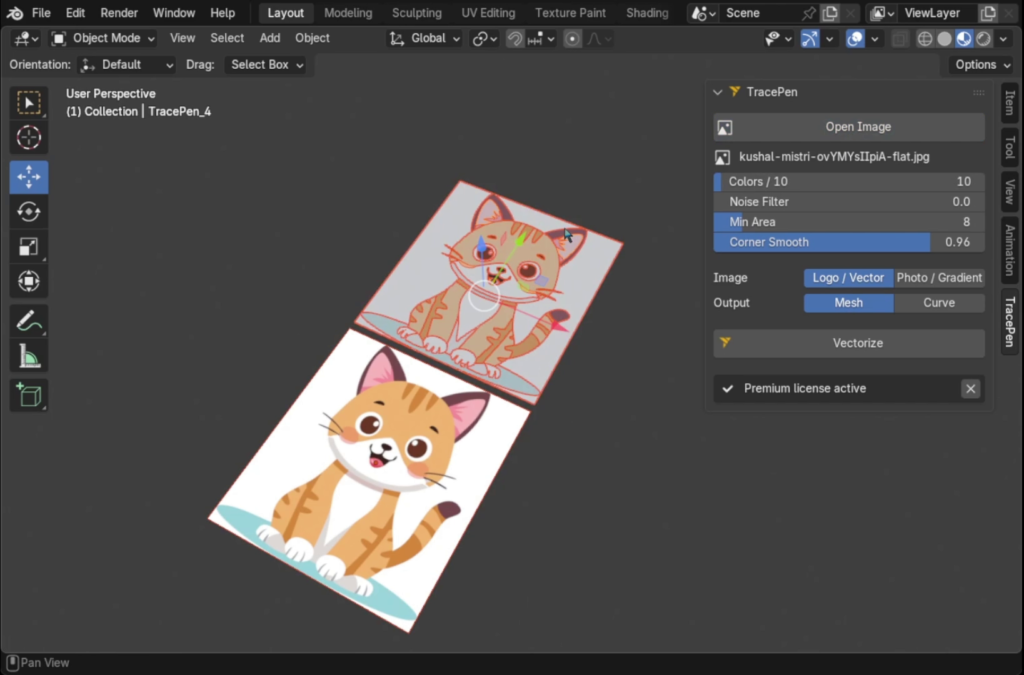
- Open Image. The picture is added to the scene as an image preview and analysed: Colors and Image are filled in from what the analysis found. It reads PNG, JPG, BMP, TGA, TIFF and WebP.
- Set the knobs – Colors, Noise Filter, Min Area, Corner Smooth, the Image type and the Output (Mesh or Curve) – and press Vectorize. It works on a background thread, so Blender stays usable while the step counter runs.
- Find the result in the TracePen collection. Scale or move the image preview before you trace: the result inherits its transform, and the longest side of the traced picture matches the preview’s display size (1 unit by default).
Features
- Mesh or Curve output: filled faces for modelling, or editable 2D Bezier splines.
- One object per colour: objects are named
TracePen_0,TracePen_1and so on, each with a material calledTracePen_R_G_B(a Principled BSDF with that base colour). - Colour count detected on open: adjust Colors (1–256), Noise Filter (0–5), Min Area (1–64 px) and Corner Smooth (0–1.2) for the whole image.
- Two image modes: Logo / Vector keeps the exact palette and sharp edges; Photo / Gradient merges similar tones first.
- Thin outlines survive cleanup: specks below Min Area merge into the neighbouring colour they share the longest border with, but a colour is never removed entirely, so a 1–2 px black outline stays.
- Local: the image is traced on your machine and never uploaded.
Native, not WebAssembly
The web app and the SketchUp dialog run the tracer as WebAssembly; the Blender add-on does not. The zip carries a native program, tracepen-core, built for Windows x64, macOS (Intel and Apple Silicon) and Linux x64, and the add-on starts it as a separate process and talks to it over stdin and stdout. The reason is licensing, not speed: Blender’s FAQ puts anything that uses Blender’s Python API under the GPL, so the add-on is GPL-3.0-or-later and the tracer stays a separate program outside it.
If Vectorize says the core is missing, an antivirus quarantined that file – allow it and reinstall the extension.
Tips
- The result is flat (Z = 0). For depth, add Solidify to a Mesh result, or raise Geometry → Extrude on a Curve result (non-destructive).
- Transparency becomes a colour. Transparent areas are flattened onto white before tracing (onto black if the image already has pure-white pixels), so a transparent background arrives as its own object. Delete it after tracing.
- Big images are scaled down. An image whose longer side passes 1500 px is resized first, so detail finer than that in a large scan is gone before tracing starts.
- Mesh output is n-gons. Each region becomes large n-gon faces: fine flat or extruded, but triangulate or retopologize before subdividing or sending to a game engine.
- Re-tracing replaces the previous result of the TracePen collection; your own objects are untouched. Move the result by selecting its objects (A) or parenting them to an Empty; dragging the collection in the Outliner does not move geometry.
- Best input: logos, icons and flat-colour illustrations, which the default Logo / Vector mode keeps colour for colour. Photo / Gradient exists for photographs; expect one object per remaining colour.
Tracepen vs. other ways to get an image into Blender
| Tracepen | Import Image as Mesh Plane (built in) | Trace Image to Grease Pencil (built in) | |
|---|---|---|---|
| Output | Mesh or Bezier curve | One textured plane | Grease Pencil strokes |
| Colour | One object per colour | Texture only | Black and white |
| Price | Free (daily limit) + Pro | Free | Free |
Import Image as Mesh Plane is under Add → Image → Mesh Plane since Blender 4.2 (it used to be the “Images as Planes” add-on). Trace Image to Grease Pencil traces a black and white image; a colour image is converted first (Blender manual).
Need the same traced artwork as native faces in SketchUp instead? The Tracepen SketchUp plugin does that – see the SketchUp page – and the same Pro purchase unlocks it.
Install
- Blender: Edit → Preferences → Get Extensions, open the drop-down menu at the top right and choose Install from Disk, pick
tracepen.zip(or drag the zip into the Blender window). - Open the TracePen tab in the 3D Viewport sidebar (N) and sign in with your free 3dshouse account. Vectorize stays disabled until you do.
Requirements
- Blender 4.2 or newer.
- Windows (x64), macOS (Intel and Apple Silicon) or Linux (x64).
- An internet connection for sign-in and the daily count. The add-on also sends one anonymous usage event to Google Analytics, skipped when Allow Online Access is off in Blender’s preferences.
